TREX Grow Product Tour

Tour the screens SMEs use to run sales, stock, purchasing and follow-up

Take a guided look through TREX Grow screens for daily operations, products, customers, quotations, invoices, purchase orders, inventory, warehouse controls, catalog/RFQ and appointments.

Stop 1

Daily operations dashboard

Stop 2

Products and inventory records

Stop 3

Customer workspace

TREX Grow product tour preview showing the operations dashboard

Tour stops

Start with the screens every team understands first

The first part of the tour shows the operational dashboard, products and customer records. These are the screens that make later documents easier to create and review.

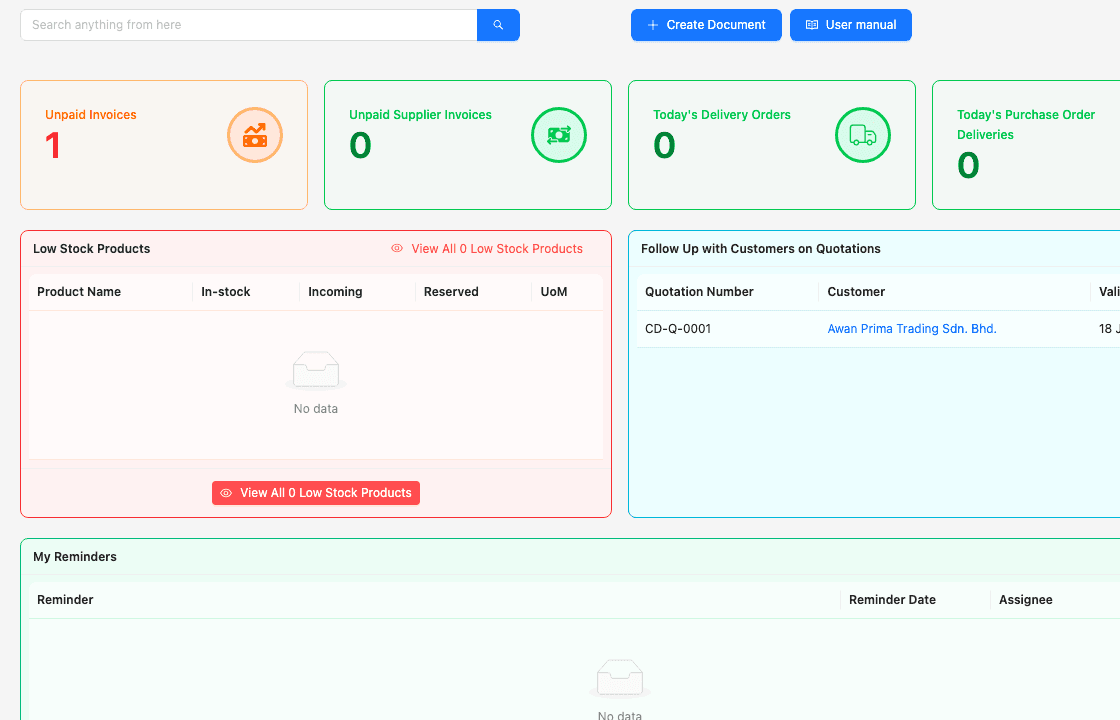
TREX Grow dashboard showing daily operations, invoice status, delivery work, quotation follow-up and reminders

Daily operations dashboard

Start with the work that needs attention: unpaid invoices, supplier invoices, delivery orders, purchase order deliveries, quotation follow-ups, low-stock products, and reminders.

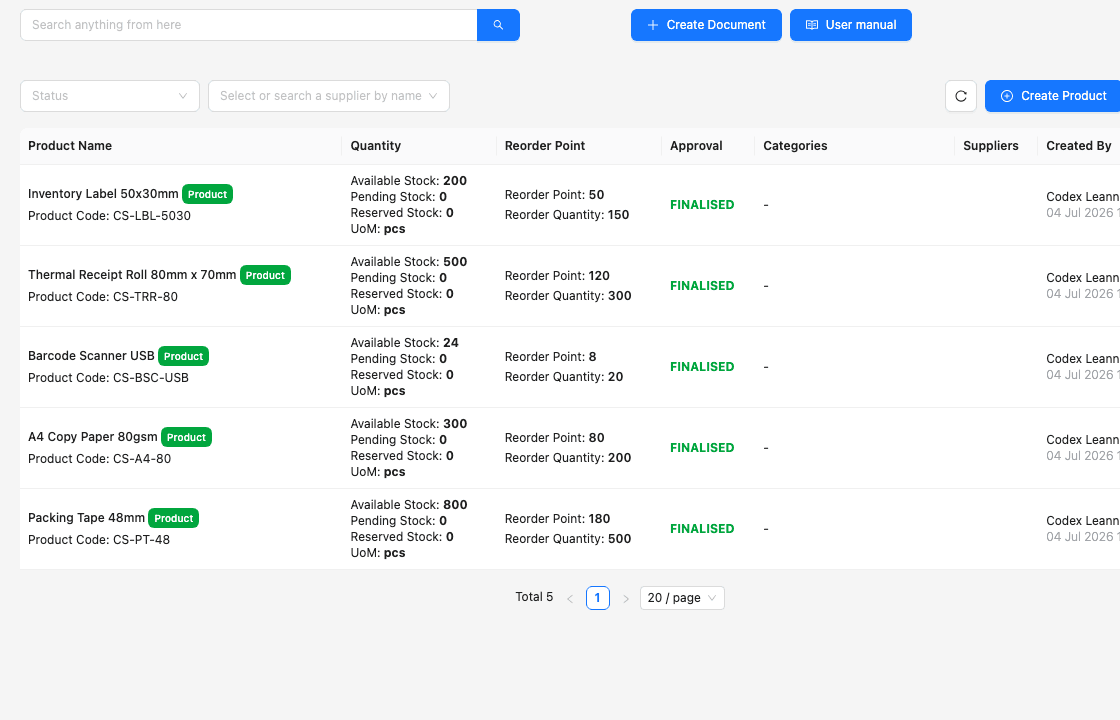
TREX Grow product records screen with quantity, reorder point, unit of measure and approval status

Products and inventory records

Manage product names, product codes, stock quantities, reorder points, units of measure, supplier links, and approval status from a structured list.

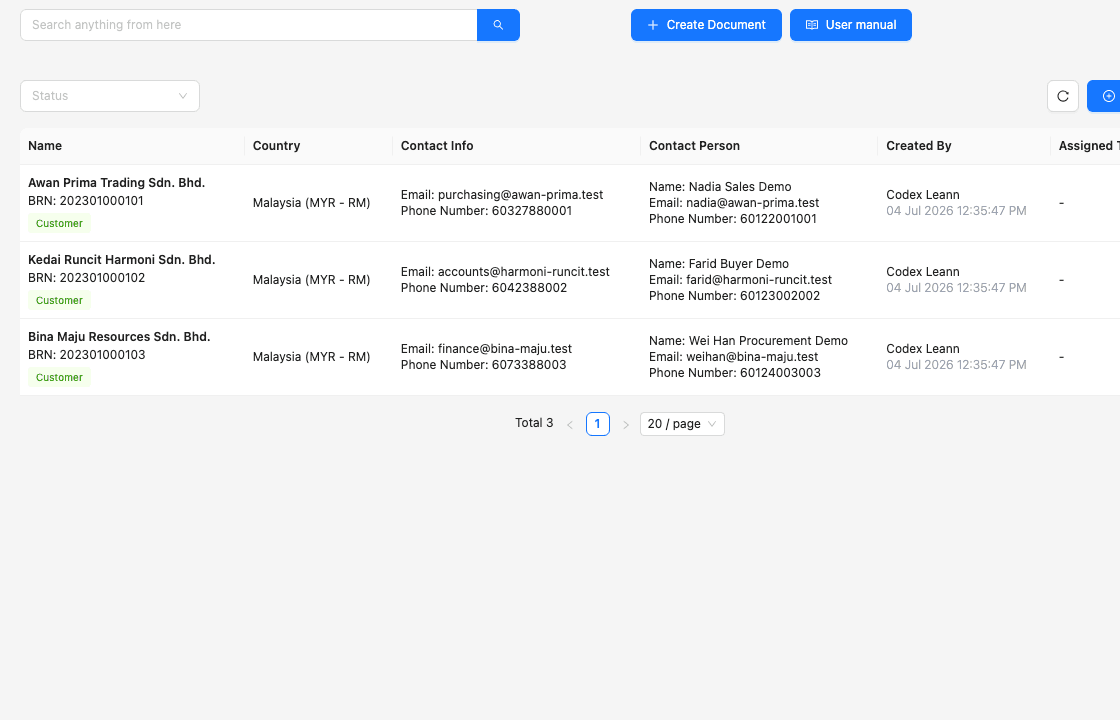
TREX Grow customer workspace with company and contact records

Customer workspace

Keep customer company details, contact people, phone numbers and email addresses ready before the team creates quotations, invoices or appointment workflows.

Guided walkthrough

Tour the main TREX Grow workflow areas

Each screen supports a specific part of SME operations. Use this tour to see how the system moves from records into documents, stock, purchasing and customer-facing workflows.

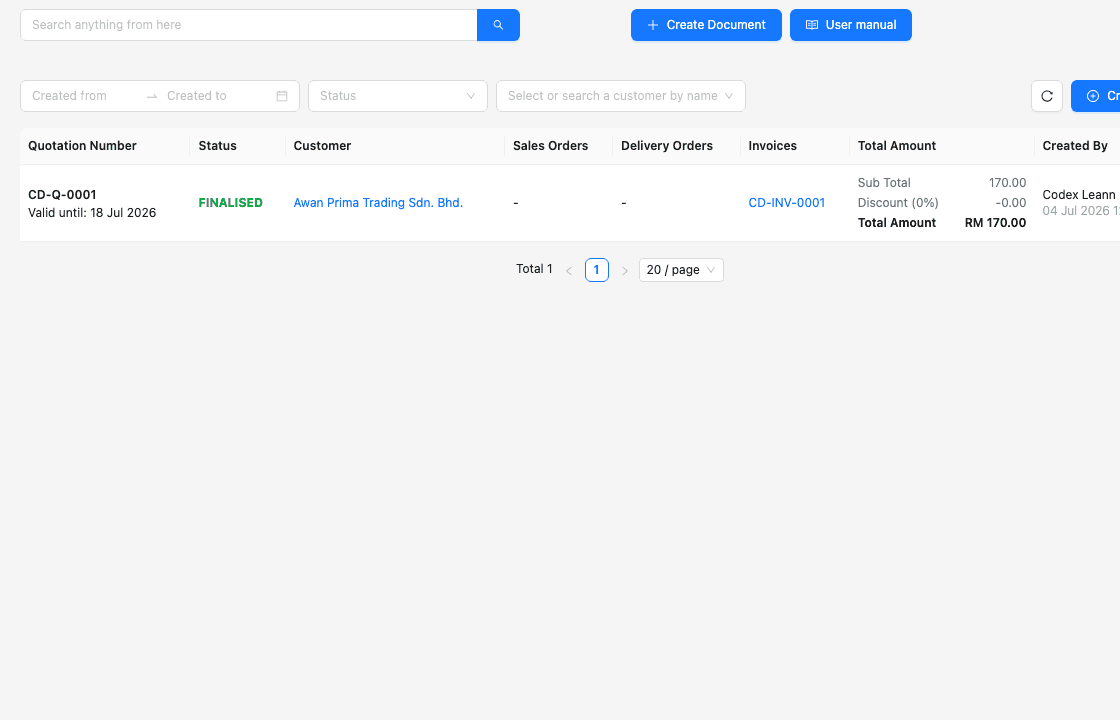
TREX Grow quotation workflow showing quotation records and customer details

Tour stop 4

Quotation workflow

Use structured customer and product data to prepare quotations, then keep follow-up visible before converting accepted work into downstream sales documents.

  • Create quotations from reusable customer and product data
  • Track quotation records in one place
  • Support the quotation-to-invoice workflow
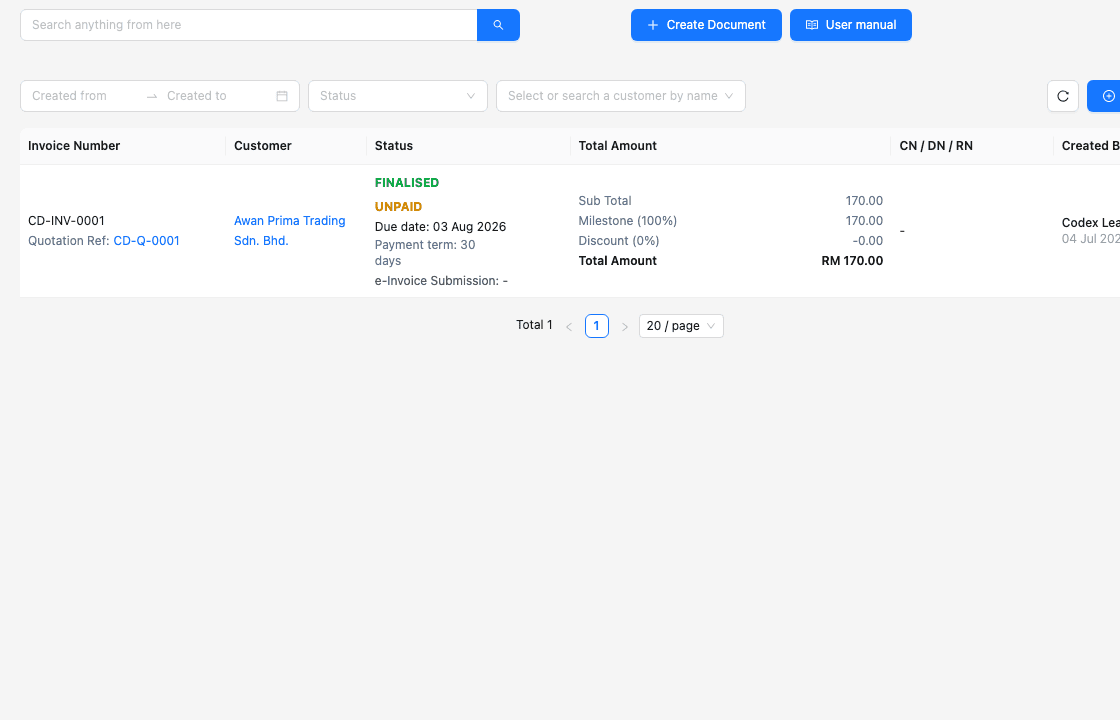
TREX Grow invoice workflow showing invoice records, payment status and customer details

Tour stop 5

Invoice and payment workflow

Manage invoice records, customer details, document totals, payment status and the handoff into Malaysia e-Invoice workflows from the same operating system.

  • Review invoice and payment status
  • Keep document totals and customers traceable
  • Support Malaysia e-Invoice workflow from invoice records
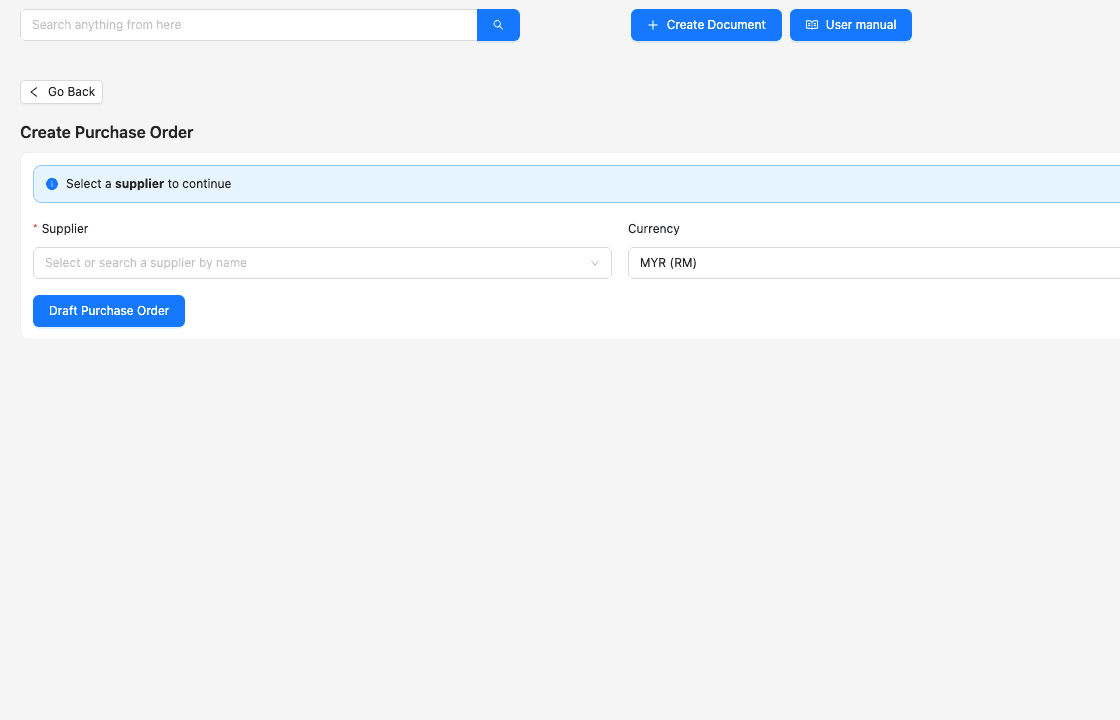
TREX Grow purchase order screen with supplier, currency, delivery and billing fields

Tour stop 6

Purchasing workflow

Create purchase orders with supplier, currency, delivery, billing and line-item details so purchasing activity can feed receiving, stock and supplier invoice work.

  • Prepare purchase orders with supplier context
  • Connect buying work to stock movement
  • Keep purchasing documents easier to trace
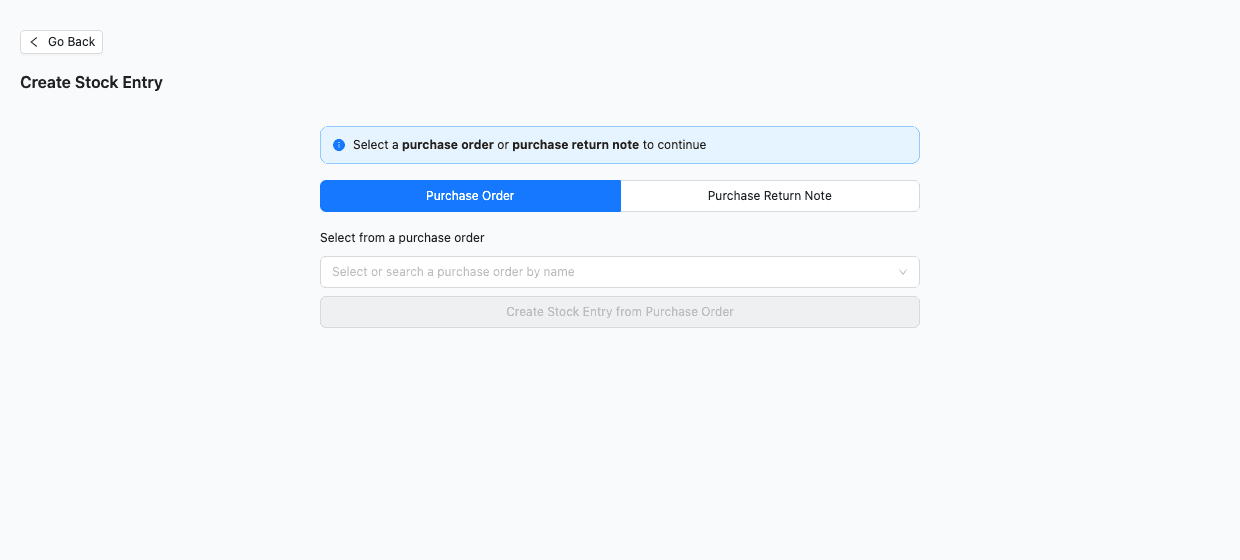
TREX Grow stock entry screen showing purchase order and purchase return note options

Tour stop 7

Stock movement

Use stock entry and inventory screens to move beyond manual stock spreadsheets when purchases, returns or adjustments need better operational traceability.

  • Start stock entries from purchasing records
  • Keep inventory adjustments structured
  • Review stock movement before warehouse controls are needed
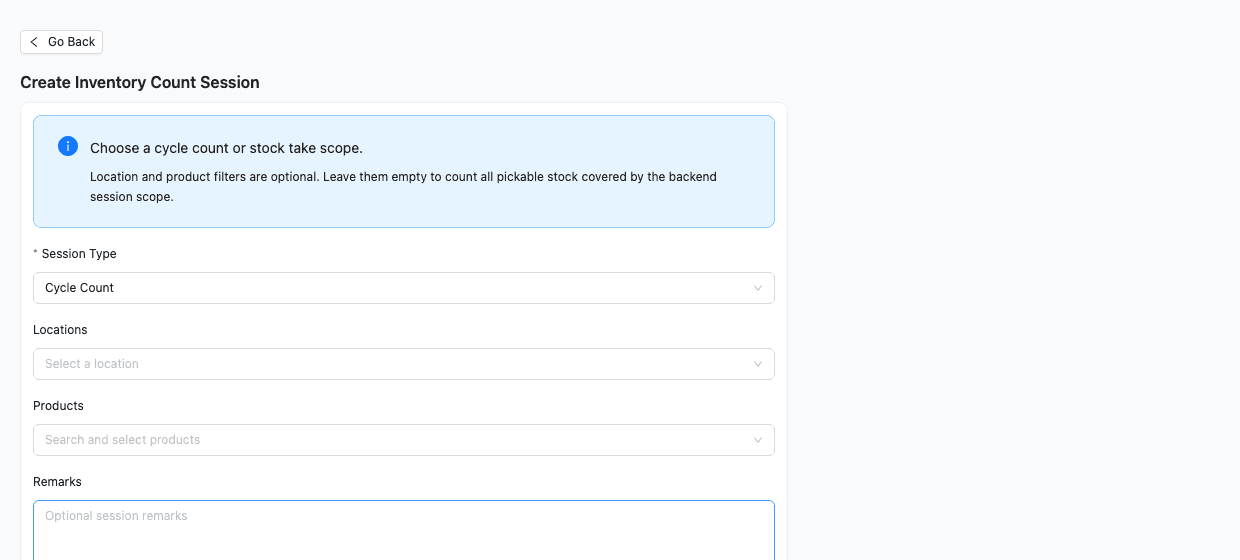
TREX Grow inventory count session screen with location and product filters

Tour stop 8

Warehouse and count controls

Premium workflows add warehouse-focused controls such as locations, product location ledgers, picking work, picking list PDFs and inventory count sessions.

  • Evaluate inventory counts by session
  • Support location-level stock visibility
  • Add warehouse depth when the team outgrows basic stock tracking
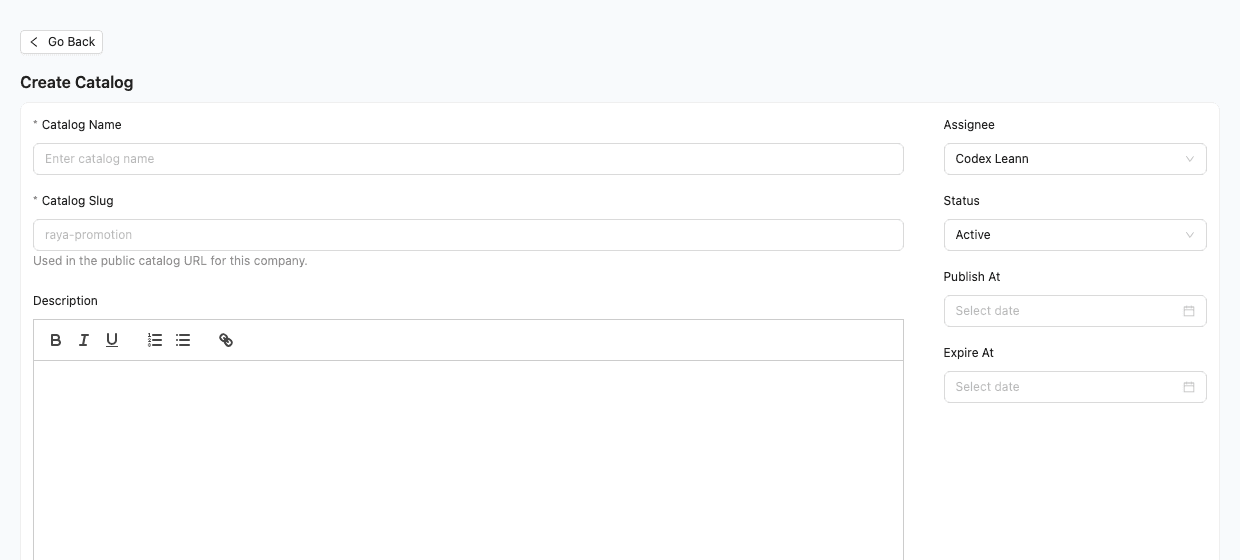
TREX Grow catalog setup screen for catalog name, slug, assignee and publish settings

Tour stop 9

Catalog and RFQ setup

Publish product catalogs and collect clearer request-for-quotation details so customer enquiries can become better prepared sales follow-ups.

  • Create customer-facing product catalogs
  • Receive clearer RFQ details
  • Turn customer interest into sales follow-up
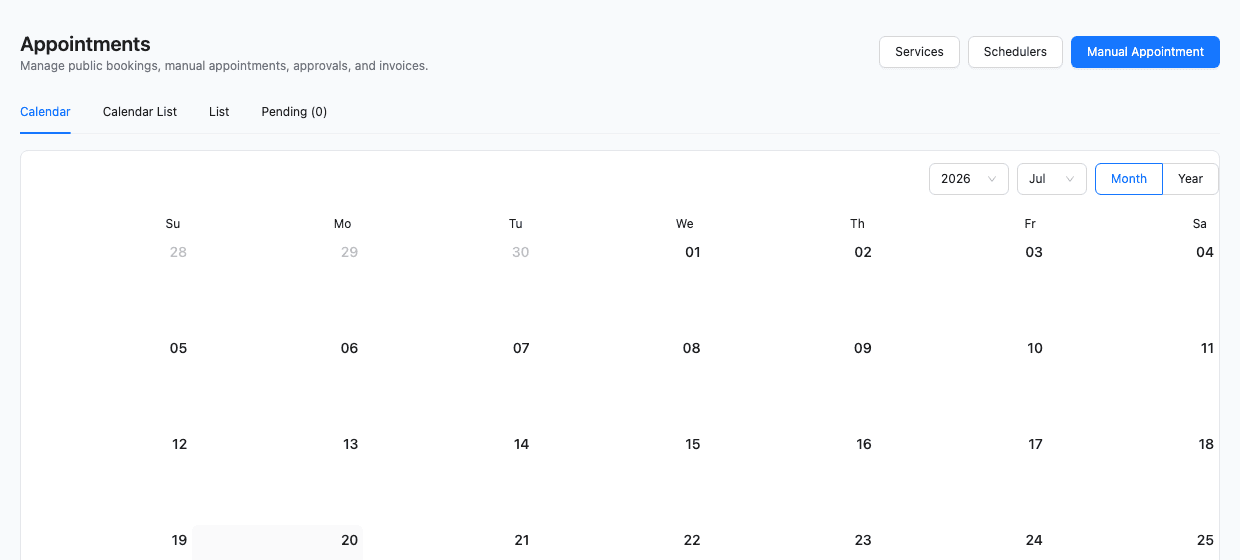
TREX Grow appointment calendar screen for bookings and appointment workflows

Tour stop 10

Appointment workflow

Use public booking links, appointment calendars and service workflows when the business needs customers to request time slots or services.

  • Let customers request appointments
  • Review pending bookings in a calendar
  • Connect service requests to customer activity

What the tour should help you decide

Use the tour to choose your starting path

The goal is not to show every button. It is to help you decide whether your team should start with Free, test the paid trial, or compare plans first.

Cleaner daily handoffs

Teams can move from customer, product, supplier and stock records into real documents with less duplicate work.

More visible document status

Quotation, invoice, purchase and inventory records are easier to review because they live in the same operating workspace.

A practical upgrade path

Start with Free, test paid workflows in the trial, then upgrade only when purchasing, inventory or warehouse depth is needed.

FAQ

Common Product Tour questions

Answers for visitors who want to understand how this page fits with the Product page, How It Works page and pricing pages.

Is the TREX Grow Product Tour different from the Product page?

Yes. The Product page lists the main modules. The Product Tour walks through real screens so visitors can see what those modules look like in day-to-day use.

Is the Product Tour different from How TREX Grow Works?

Yes. How TREX Grow Works explains the connected workflow. The Product Tour is more visual and screen-led, showing the actual areas users will interact with.

Can I try the screens shown in the tour?

Yes. Core records, customer documents, catalog, RFQ and appointments are good starting points on the Free plan. Paid workflows can be tested with the 30-day trial.

Which plan should I start with after the tour?

Start with Free if you need products, customers, quotations, invoices, catalog, RFQ, appointments and e-Invoice workflow. Use the 30-day trial for paid purchasing, inventory and warehouse workflows.

Tour the product, then start with the workflow you need most

Start free for core workflows, or use the trial when you want to test purchasing, inventory, warehouse and paid document controls.