The reference no longer matches the source
A product code with a leading zero, a reused customer name or an incomplete document reference can make the team match an entry to the wrong record.

A tidy workbook can still contain an altered code, a missed row or an amount beside the wrong customer. Check how information enters the sheet, how calculations use it and which copy the team relies on before acting on the result.
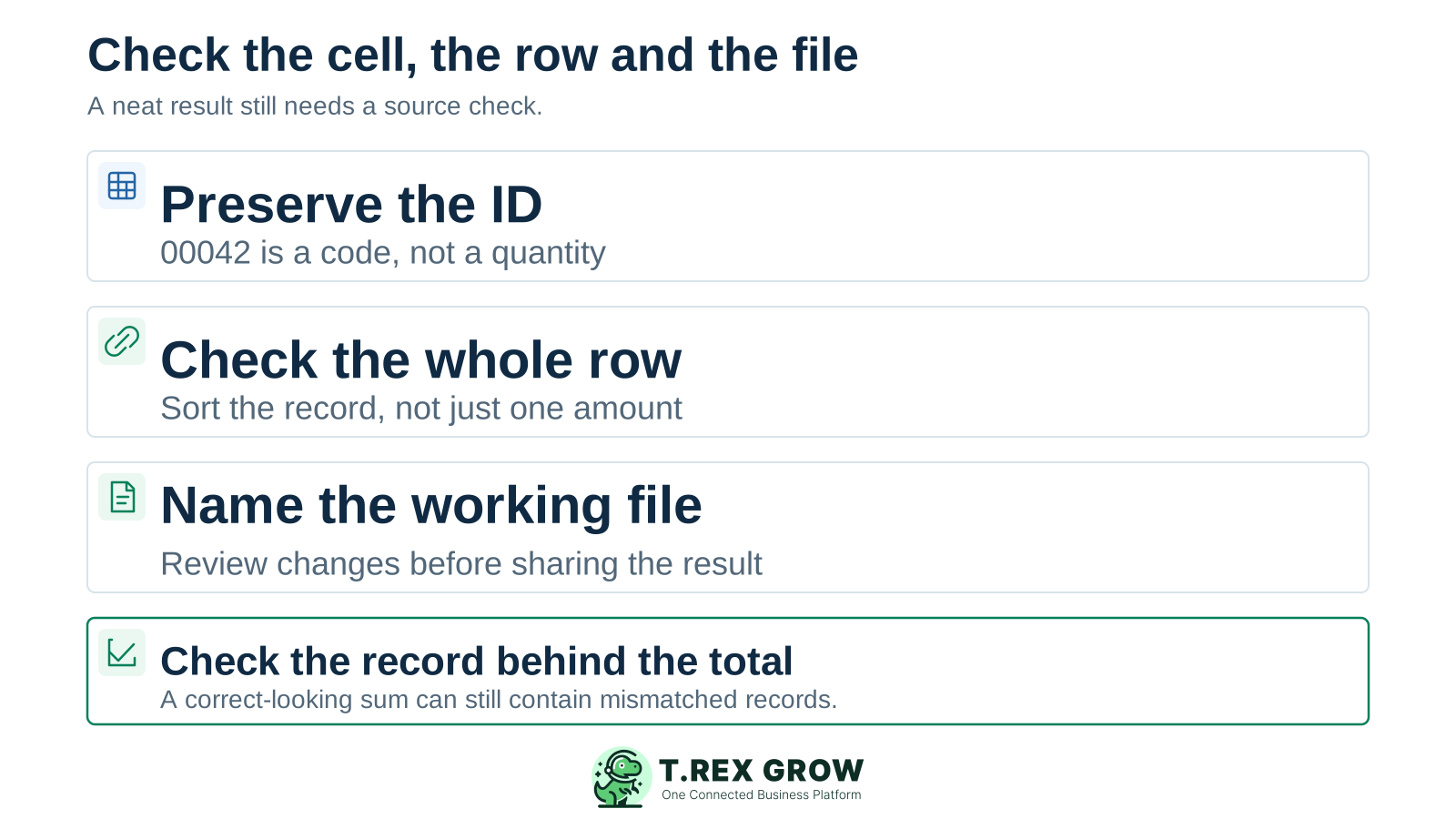
Small business spreadsheets often combine source details, calculations, status and a management summary in one place. An ordinary edit can change one of those layers without making the result look unusual.
Operational pressure
When records live in different places, the person responsible has to reconstruct what happened before they can make a confident decision or follow up.
A product code with a leading zero, a reused customer name or an incomplete document reference can make the team match an entry to the wrong record.
A formula may calculate the selected cells correctly even when a relevant row is outside its range or a typed figure has replaced part of the logic.
Someone fixes an exported or emailed copy while colleagues continue acting on a different version. The review was useful, but the operating record remains unchanged.
Excel offers useful controls, including validation, table sorting and change review in supported setups. A dependable workbook also needs explicit meanings for its fields, a maintained calculation structure and a person responsible for reviewing changes. The practical controls below are recommendations for how the team works around those features.
State whether a row is one customer, one quotation, one document line or one payment. Keep the identifier that distinguishes it and avoid mixing several record types into an ambiguous row.
Label the fields staff may edit and the fields they should review as calculations. Document where assumptions, rates and source references belong.
Agree who checks imports, formula changes and corrections before another team uses the sheet. Provide cover so the process does not depend on one person's memory.
Use this as a review of the workbook you already have. A single mistake can be repairable; it does not automatically mean the business needs different software.
| Mistake | What can go wrong | Safer working practice |
|---|---|---|
| Treating reference codes as quantities | An identifier such as 00042 becomes 42, making a source match unreliable. | Prepare reference fields as text before entry or import. Compare altered codes with the original source; do not guess missing digits. |
| Mixing dates, quantities and units | A due date has an unclear meaning, or a quantity mixes cartons and individual pieces. | Give each column one meaning. Show dates clearly, for example 17 Oct 2026, and keep quantity and unit in separate agreed fields. |
| Sorting one column of a record | Amounts move while customer names or document references stay behind. | Sort the complete related range or an appropriate Excel table. Check a few reference-to-value matches after the operation. |
| Leaving rows outside a calculation | A total is internally valid but excludes a newly added record. | Compare the intended population with the formula's actual inputs after adding, inserting or importing rows. Check source counts as well as totals. |
| Replacing a formula with a typed answer | The displayed result looks right today but stops following later changes. | Keep assumptions in labelled input cells and preserve the calculation. Investigate the cause before overwriting a result. |
| Assuming pasted values passed validation | Values copied or filled into cells can bypass validation messages. | Review pasted and imported batches against the required field rules. Microsoft documents that direct-entry validation messages do not cover every way values enter a cell. |
| Deleting duplicates by appearance alone | Two separate legitimate transactions share a name or amount and one is removed. | Keep a dated copy, define the fields that identify a real duplicate and review the source records before deleting rows. |
| Using colour as the only status | A green row means checked to one person and paid to another. | Use a defined status field and retain the evidence that supports it. Colour can help scanning, but it should not carry the whole meaning. |
| Keeping several current copies | A reviewer changes an attachment while the team updates a different live file. | Name the working source, its owner and how reviewed changes enter it. Date exports and make their purpose clear. |
If the workbook is already being used for purchasing, customer follow-up or another live decision, identify the affected work before changing the data. Keep the review proportionate to the mistake and its consequences.
Record the current facts in one shared place.
Confirm what is known and what needs attention.
Make the next decision or follow-up accountable.
Complete the next task and record the outcome.
Refresh the shared view when facts change.
A dependable workflow keeps the shared record and the next action aligned.
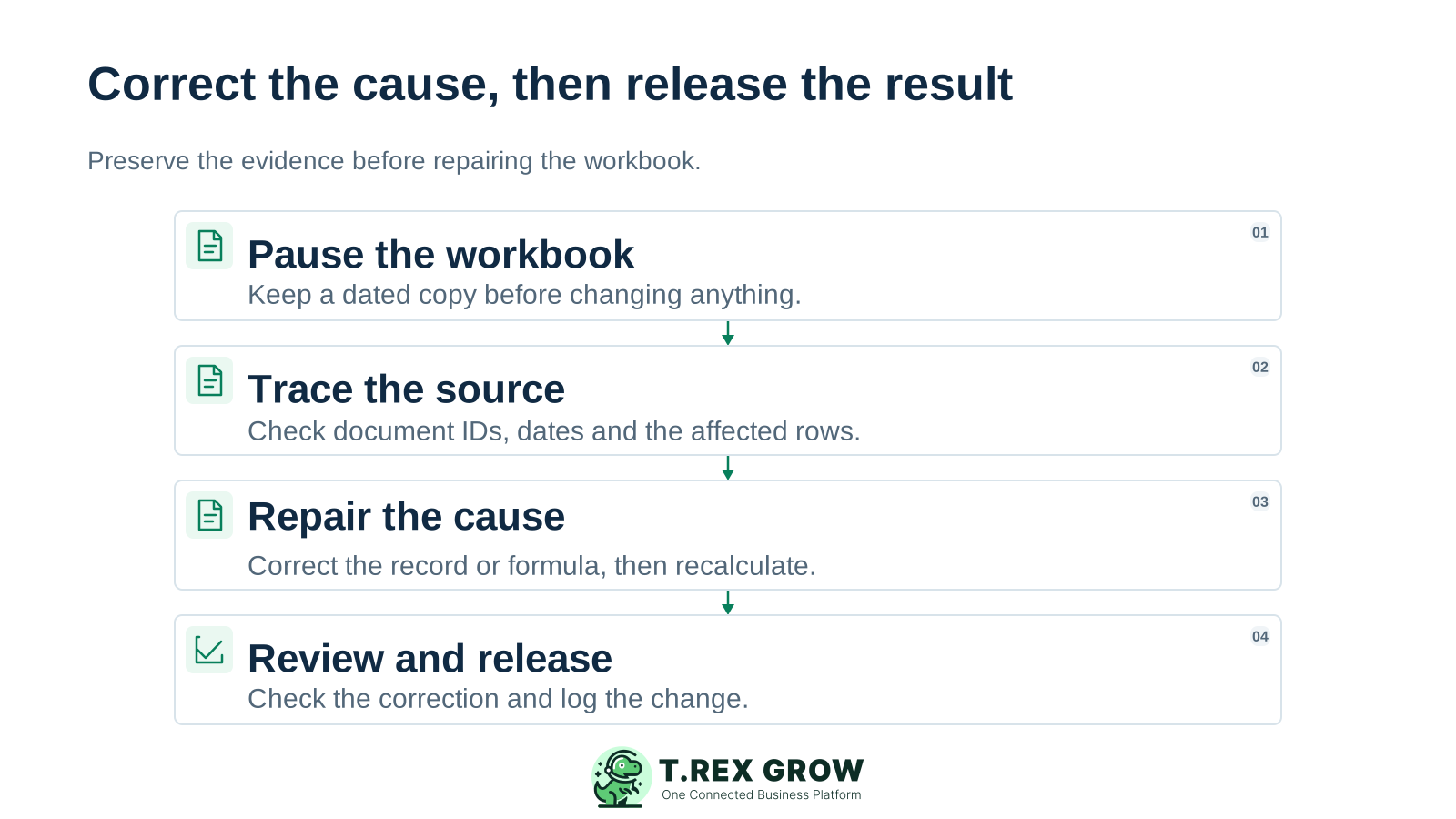
Pause and preserve: keep a dated copy and identify the affected sheet, rows and downstream users. Mark uncertain results for review rather than presenting them as confirmed.
Trace the source: compare the identifier, date, quantity or amount with the relevant source document. Check which formulas and summaries depend on the affected entries.
Repair the cause: correct the entry, range, formula or working-copy process. Recalculate and recheck the affected records instead of changing only the final total.
Review and release: have an appropriate colleague check the correction where practical. Record what changed, why, who reviewed it and which dependent decisions or documents need follow-up.
In this illustrative Malaysian SME quotation list, Aras has RM300, Bina RM100 and Citra RM200. Sorting only the amount cells from smallest to largest keeps the total at RM600 but changes which amount sits beside each customer. Sorting the complete records keeps the relationships intact.
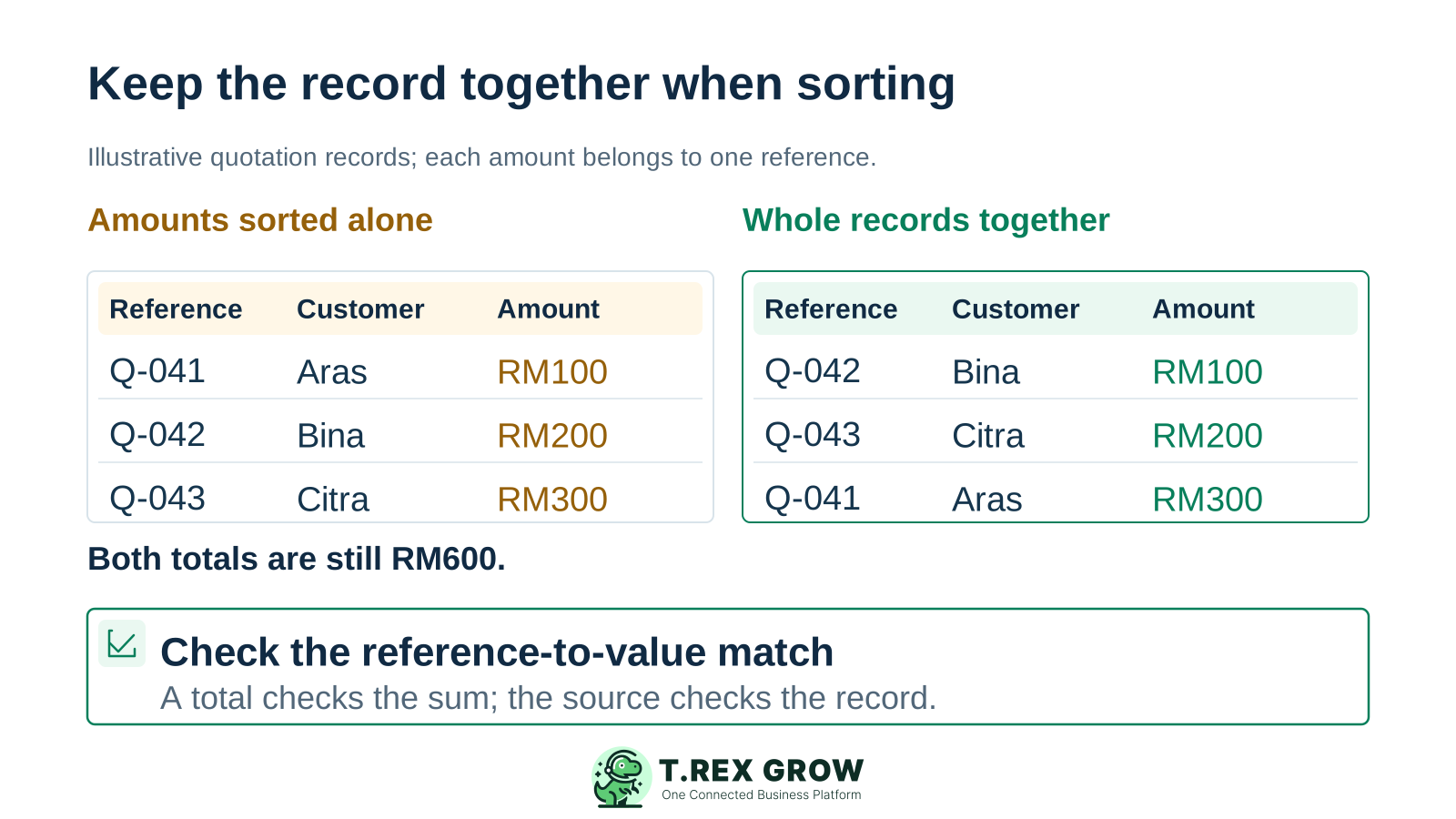
A total check can detect some problems, but it will not prove that every amount is beside the correct customer, product or document. Sample the row against its source.
If an incorrect sort cannot be safely undone, compare with the preserved copy and original records. Verify the restored relationships before issuing or changing any customer document.
These customer labels and values are illustrative. The independent source list, rather than the total alone, establishes the correct amount for each reference.
| Reference and customer | Source amount | After amount-only sort |
|---|---|---|
| Q-041 — Aras | RM300 | RM100 — wrong reference match |
| Q-042 — Bina | RM100 | RM200 — wrong reference match |
| Q-043 — Citra | RM200 | RM300 — wrong reference match |
| Total | RM600 | RM600 — still the same total |
Match the depth of review to the work. An internal draft analysis and a file used to prepare customer or supplier documents should not silently carry the same level of confidence.
| Check | What to inspect | Evidence to keep |
|---|---|---|
| Source and scope | Confirm the working file, reporting date and intended records. Check active filters and omitted rows where relevant. | The file or shared location, date and named owner. |
| Record identity | Match selected references, customers, products and values to their original source. | The source references and any exceptions requiring a decision. |
| Calculations | Check changed formulas, input ranges and typed overrides. Recalculate after the repair. | The reviewed logic and explanation of material corrections. |
| Recent entry or import | Review codes, date meanings, units, required fields and possible duplicates. | The checked batch and any rows held for clarification. |
| Handover | Confirm who reviewed the result and what downstream work uses it. | A brief change note and the people who need the corrected information. |
The best practice is to make the next action clear before the situation becomes urgent.
A one-off repair helps today. A small repeatable routine helps the next person avoid reintroducing the same mistake.
Explain the row's purpose, mandatory identifiers, units, date meanings, status definitions and who owns changes to the structure.
Use consistent document references and an agreed location for supporting records. A reviewer should be able to check an entry without reconstructing the history from chat.
Check manual entry, copied blocks and imports separately. A validation message that works during direct entry does not prove every incoming value was checked.
Use the sharing and change-review features appropriate to your Excel setup, while retaining a clear rule for dated exports, attachments and reviewed corrections.
If staff repeatedly rebuild customer, supplier, product or document relationships across workbooks, explore the relevant records in TREX Grow. Check the particular workflow, permissions and plan scope before deciding what should move.
Explore how shared master records support recurring document work, including how the team checks source details before using them.
Review a quotation and its linked invoices or delivery orders, or the appropriate purchasing records. Check the relationships that your workbook currently maintains by hand.
Review document readiness and approval separately from fulfilment and payment evidence. An entered status still needs an accurate underlying record.
Staff remain responsible for accurate source data, correct entries and exception handling. Connected records support the process; they do not make poor inputs correct automatically.
Start with reference codes, recent entries, a changed formula and the current file. If repeated copying still makes document relationships difficult to maintain, see how connected records could support that work.
Common mistakes include altered reference codes, inconsistent field meanings, partial-column sorting, incomplete formula ranges, typed overrides, unchecked pasted data, careless duplicate removal, colour-only statuses and several current file versions. Check the source record and the process around each issue.