
Excel invoice troubleshooting

Problems Using Excel for Invoice Management

An Excel template can produce a clear invoice while the team loses track of its issued version, due date or remaining balance. Review the invoice reference, source sale, calculations and payment evidence together. Keep approval, sending and e-Invoice validation separate from payment so the next person can see what still needs attention.

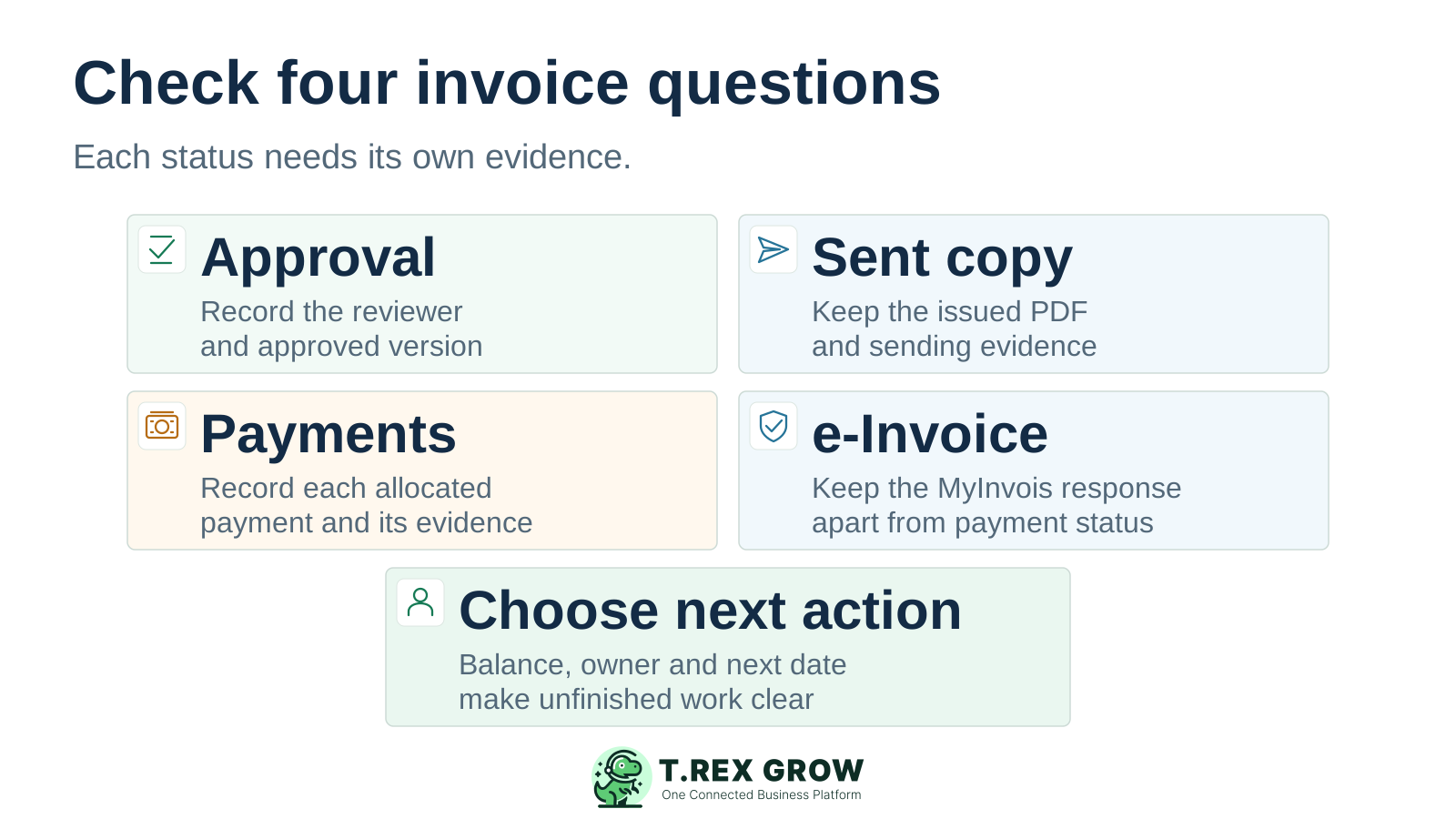
Four independent invoice checks for approval, the sent copy, payments and e-Invoice validation, followed by a named next action
Problem

Six invoice problems to check in your Excel workflow

Look for an observable mismatch between the workbook, the issued document and the evidence of what happened next. These problems often involve both the invoice template and the register used by sales or finance.

Operational pressure

The next action is easy to lose when context is scattered.

When records live in different places, the person responsible has to reconstruct what happened before they can make a confident decision or follow up.

Scattered recordsUnclear ownershipAvoidable surprises
High risk

Old details survive when a template is reused

The next invoice retains a previous customer address, reference, payment term or item line. Compare each draft with the current customer and agreed sale. A template should provide structure; its previous transaction values need deliberate review.
The invoice reference does not identify one billing record

Different staff reuse a number, or the same sale is invoiced again after someone resends a document. Check the source sale and issued register before creating another invoice. A repeated filename or customer name cannot establish whether billing already happened.

The sent PDF and live workbook show different amounts

Someone edits the template after issuing the invoice, but the register now displays the revised value without preserving the sent version. Keep the issued copy and its review history linked to the invoice reference so staff can explain which amount the customer received.

High risk

Totals change after rows are copied or pasted

A formula is replaced by a value, a new line sits outside the total range or a numeric amount is stored as text. Inspect the calculation and compare its result with the agreed sale before issuing or changing an invoice.

An overdue list misses invoices or sorts them unexpectedly

Due dates are entered in inconsistent formats or stored as text, and some rows lack a due date. Verify the actual date values, agreed terms and remaining balances before relying on the filtered list for follow-up.

One status hides several unfinished actions

A row marked done may mean reviewed, sent, validated or paid. A first payment might also be mistaken for full settlement. Record the evidence for each question and calculate what remains against the specific invoice.

Education

Connect the invoice template, issued copy and live register

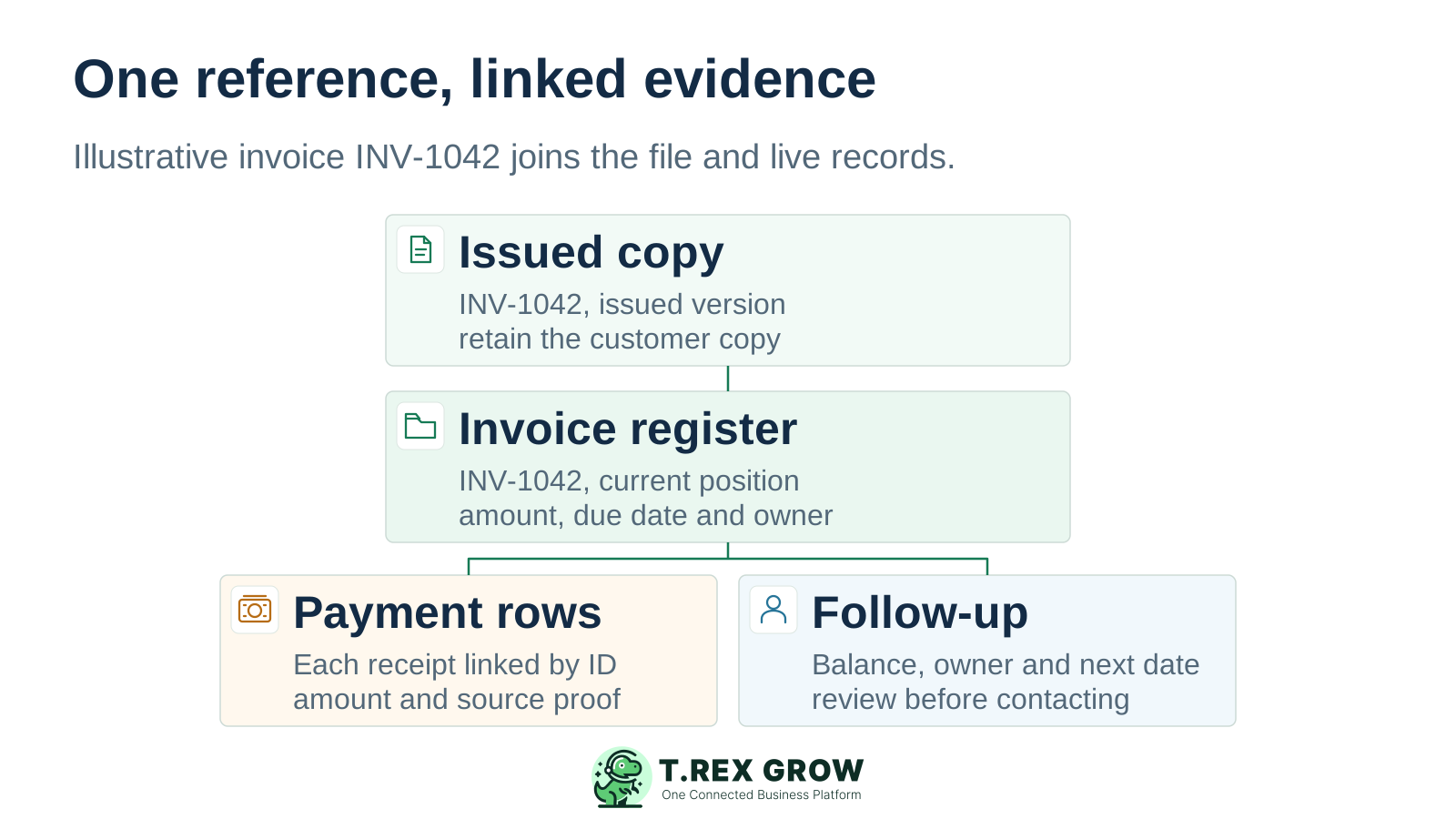
These records serve different purposes. The template prepares the document, the issued copy preserves what was sent, and the register shows the current operating position. The invoice reference should join them to the source sale, payment entries and next action.

An illustrative invoice reference connecting the issued document, invoice register, separate payment rows and follow-up action

Preserve the issued document version

Retain the customer-facing copy with its invoice reference and issue date. Record reviewed corrections through the agreed process rather than silently replacing the original file. Keep any related adjustment reference available to explain a later amount change.

Maintain one authoritative invoice register

Use a defined invoice row with customer identity, source reference, issued amount, due date, document status and owner. Coordinate updates to this register so sales and finance do not maintain competing current balances in separate files.

Keep payment events in their own linked rows

Record each payment amount, date, reference and evidence against the invoice it settles. A customer may pay several invoices together or pay one invoice in instalments. Review the allocation instead of assigning the whole bank entry to whichever invoice is open.

Education

Give approval, sending, payment and validation their own evidence

Each status answers a different question. For Malaysia e-Invoice work, HASiL records submission and document-validation states separately. A valid e-Invoice response does not establish that the customer has settled the invoice; that needs payment evidence and an allocation to the correct record.

Four invoice questions that a single status cannot answer

QuestionEvidence to retainPractical Excel control
Was this version approved?Reviewer, decision date and the document version or source terms reviewed.Keep approval information distinct from the payment field. Review changes that affect the approved version.
Which copy was sent?Issued PDF, recipient, sending date and available delivery or correspondence evidence.Link the sent copy to the invoice reference. Record a resend as delivery of the existing document when appropriate.
What remains unpaid?Invoice amount, reviewed adjustments and each payment allocated to this invoice.Calculate the current balance and retain payment rows. A receipt alone does not imply full settlement.
What is the e-Invoice position?Relevant MyInvois reference and current submission or validation response.Keep the validation field separate. Read the response for the relevant document rather than treating a PDF filename as validation evidence.
Workflow

Review one Excel-managed invoice from source to next action

Choose an invoice with a disputed amount, unclear status or unexplained balance. Preserve the original files and review a copy before changing formulas. Complete this bounded check with the people responsible for billing and payment recording.

A repeatable operating workflow

Capture

Record the current facts in one shared place.

Check

Confirm what is known and what needs attention.

Assign

Make the next decision or follow-up accountable.

Act

Complete the next task and record the outcome.

Review

Refresh the shared view when facts change.

A dependable workflow keeps the shared record and the next action aligned.

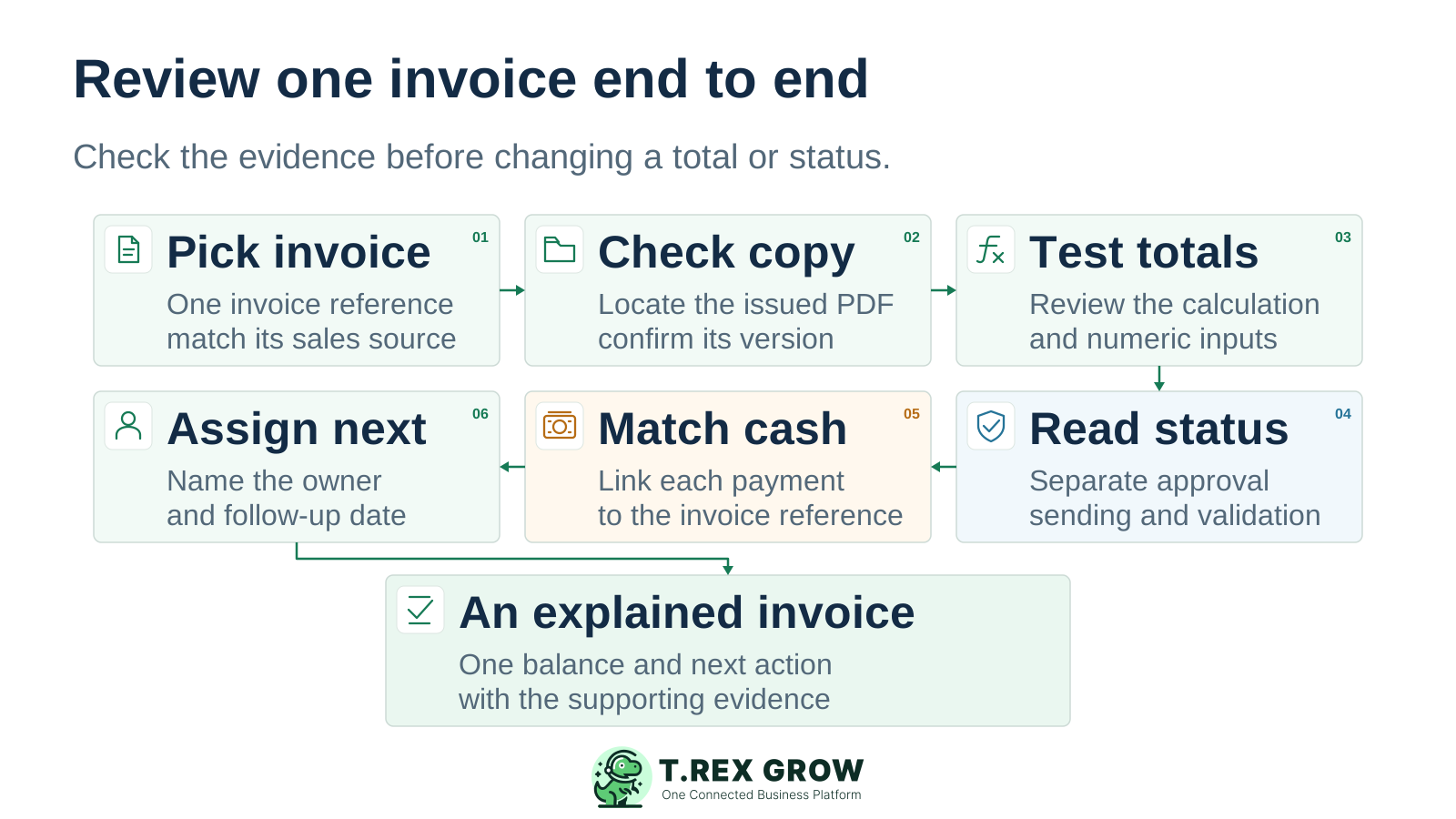
Six steps to review an Excel-managed invoice: identify its source, check the issued copy, test totals, separate statuses, match payments and assign the next action
1

Pick the invoice and match its source. Confirm the invoice reference, customer and quotation, order or other agreed billing basis. Check whether the same source has already been invoiced, including genuine partial billing.

2

Check the issued copy. Find the PDF or document actually sent and compare its reference, amount, issue date and terms with the register. Preserve the original version and identify any later reviewed correction.

3

Test the totals. Inspect item calculations, formula ranges, copied cells and numeric inputs in a review copy. Compare the result with the agreed sale and any documented adjustments. Test a fresh template entry before reusing the repair.

4

Read each status with its evidence. Check internal approval, the sent document, current payment position and any applicable e-Invoice validation response separately. Correct an ambiguous status only after establishing what actually happened.

5

Match the payments. Review each receipt or bank reference and the amount allocated to this invoice. Reconcile partial or combined payments and calculate the remaining balance. Record discrepancies for review rather than overwriting the total.

6

Assign the next action. Document the cause and reviewed correction, name the responsible person and set the next follow-up date. Update the authoritative register and communicate any affected amount or status to its users.

Mistakes

Avoid shortcuts that make invoice history harder to explain

A visible mismatch needs a traceable correction. Preserve the evidence another person will need to understand the invoice amount, the customer-facing version and the current payment position.

Recurring issues usually point to workflow-control gaps, not one isolated data-entry mistake.

Common

Changing the issued amount without retaining its history

Editing the template or replacing its PDF can leave the customer and finance looking at different versions. Preserve the issued copy, explain the reason for the change and follow the applicable correction process with any required adjustment reference.

High risk

Creating a new invoice just to resend a copy

A customer asking for the document again does not automatically create a new billing event. Locate the existing issued invoice first. Review source references and legitimate partial billing before deciding that another invoice is needed.

Common

Using a colour or validation result as proof of payment

A green row, approval message or valid e-Invoice result cannot show how much was received against that invoice. Keep the payment evidence and allocation available, then calculate whether the balance is unpaid, partially paid or settled.

High risk

Overwriting one received-payment cell repeatedly

Replacing the earlier payment with the latest amount removes the explanation for instalments and combined transfers. Retain individual entries with their references and allocations. Review an overpayment or disputed allocation separately instead of forcing the balance to zero.

Best practices

Use workbook controls that support the invoice record

Excel has useful calculation, input and collaboration features. Maintain them alongside document ownership and evidence checks. A working formula or shared file alone cannot establish that an invoice was issued correctly or paid in full.

Do this

Assign invoice-reference ownership

Agree who allocates references and checks the issued register before finalisation. Keep draft and issued records distinguishable. When several staff prepare invoices, make the allocation process explicit rather than relying on each person to remember the last number.

Do this

Review formulas and protect routine calculations

Excel error checking can help identify inconsistent formulas, omitted cells and other common mistakes, but Microsoft explains that it does not guarantee an error-free worksheet. Test invoice totals and balance calculations against evidence, then protect calculation cells from accidental routine edits.

Do this

Check dates and numbers as stored values

Microsoft documents that imported or pasted dates may be stored as text and require conversion to date values. Verify the interpreted day, month and year before using due-date filters. Check numeric amounts too; a display format alone does not establish the intended underlying value.

Do this

Use controlled inputs and review bulk changes

Use agreed customer references and separate status lists to reduce inconsistent entry. Validation still needs review after copied, pasted or imported data. Check new rows for unexpected values and formula changes before treating an updated summary as reliable.

Do this

Use supported co-authoring with one operational file

Excel supports co-authoring with compatible versions and file formats on OneDrive or SharePoint Online, and version history can help investigate changes. Agree the authoritative register, update owner and review process. Coordinated editing still needs a defined invoice-reference allocation rule.

The best practice is to make the next action clear before the situation becomes urgent.

Education

A first payment does not make the whole invoice paid

In this invented example, invoice INV-1042 has an agreed issued amount of RM2,400 and no adjustments. Two payments are reviewed and allocated to it: RM800 and RM600. The total received is RM1,400, so RM1,000 remains outstanding. Preserve both payment entries even if the customer made them through the same channel.

Keep the payment rows

Each entry needs its date, reference, amount and available evidence. Confirm that both payments belong to INV-1042. A bank receipt showing only a customer name may need allocation across several invoices.

Calculate and explain the balance

The arithmetic is RM2,400 − RM800 − RM600 = RM1,000. A register marked paid after the first receipt would misstate this example. Preserve the issued amount and payment history rather than changing either field to make the status look complete.

Choose the next action from the current evidence

Show the partial-payment position beside the agreed due date and the named follow-up owner. If the customer disputes the allocation or invoice amount, route that question for review before sending a balance reminder. Approval or e-Invoice validation can remain complete while payment is still partial.

Illustrative invoice balance with two partial payments

RecordAmountRemaining balance
Issued invoice INV-1042RM2,400RM2,400
Allocated payment P-001RM800 receivedRM1,600
Allocated payment P-002RM600 receivedRM1,000
Solution

Where supported invoice records in TREX Grow can help

If the team can maintain a controlled Excel workflow and explain its invoice positions, keep reviewing that process. If references, document status and payment evidence repeatedly become disconnected, assess how TREX Grow supports the specific invoice work you need.

Operations work better when records and next actions are connected

Retain customer and sales-source context

TREX Grow supports customer records and relevant quotation, sales-order and delivery-order references around the invoice. These links help the team review the billing basis without reassembling it from separate workbook copies.

Keep invoice information and workflow status together

Supported invoice records retain references, payment terms, due dates and relevant creator or approver information. Define who prepares, reviews and updates each record so the shared view has clear operating ownership.

TREX Grow Operations Hub

Review payment entries and their evidence

Invoice payment history can retain multiple payment entries and associated attachments. Review the allocated amounts and current balance alongside the invoice and related adjustment records. This supports an explanation of partial settlement rather than one overwritten payment cell.

Assign follow-up and keep validation distinct

Document-linked reminders can support a named person and follow-up date. Relevant Malaysia e-Invoice records remain separate from payment evidence. Confirm role, configuration and plan requirements for your workflow; the team still chooses customer communications and verifies the underlying records.

Next step

Trace one invoice from its source to the next action

Pick an invoice with an unclear version, due date or balance. Gather its source sale, issued copy and payment entries, then verify each status and name the next owner. Use the invoice workflow guide to put the reviewed controls into daily practice.

Review the quotation and invoice workflow

Yes, when the team maintains a controlled template, invoice-reference allocation, preserved issued copies, actual due-date values and invoice-linked payment records. Check whether users can explain the current amount and next action. The suitability of the workflow depends on its controls and coordination, rather than workbook size alone.