Excel inventory troubleshooting

Problems Using Excel for Inventory Tracking

Excel inventory problems usually appear as a number nobody can explain: a stock count that does not match, a total that skips new rows or several versions of the same sheet. Check the recorded movements, the calculation and the stock being compared. Then correct the cause with evidence, rather than simply changing the closing quantity.

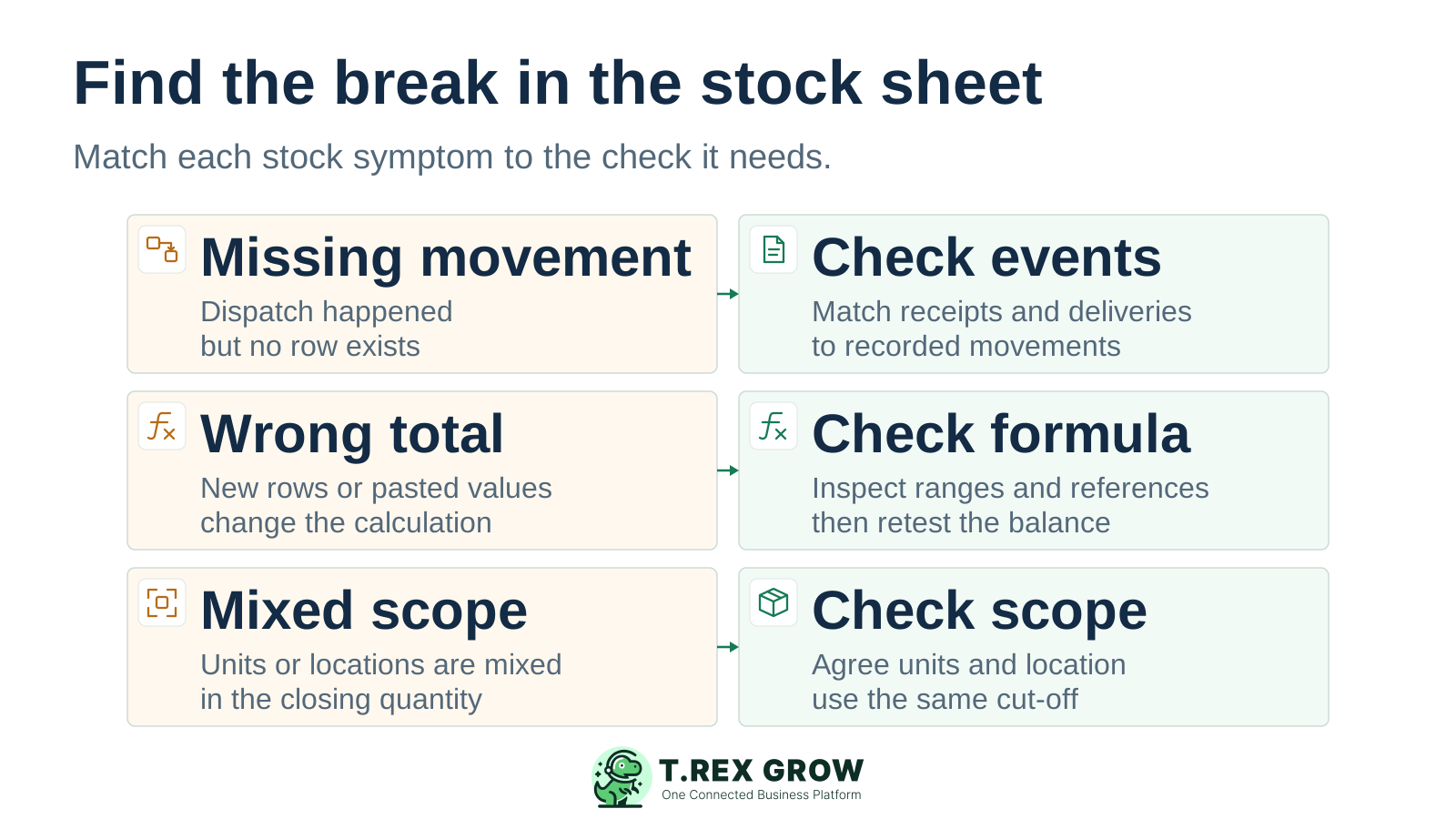
Three Excel inventory symptoms paired with checks for source movements, formula coverage and stock units or location
Education

Start with the inventory problem you can observe

A wrong quantity can come from missing activity, an incorrect calculation or a comparison between different kinds of stock. Use the symptom to choose the first check. Keep the source documents and original workbook available while you investigate.

Excel inventory symptoms and practical checks

What you noticeWhat to inspectA practical correction
The workbook shows more units than the physical count.Completed deliveries, unrecorded damage, duplicate receipts and the stock-out formula for the same item and cut-off.Trace the difference to an event or calculation. Recount uncertain stock before reviewing any adjustment.
A new row does not change the total.Whether the total includes that row, whether a lookup matches its item code and whether the quantity is numeric.Repair the range or reference, correct the input type and test another new row in a copy of the workbook.
One item appears under several names or codes.The item master and movement rows, including spaces, pack sizes and units of measure.Agree one product identity and unit. Review historical rows before combining records that may represent different items.
A movement seems to have been recorded twice.Source reference, document line, movement type, quantity and completion date.Confirm whether it is a duplicate or a genuine partial delivery. Reverse or correct only the entry proven to be wrong.
The available quantity is unclear.Whether the sheet mixes physical stock, purchase orders, customer commitments and goods on hold.Define each quantity separately and make the report's scope explicit before staff promise stock to a customer.
Pasted rows produce unexpected results.Validation rules, inconsistent formulas, unknown item codes, dates and numbers stored as text.Review pasted values and retest calculations. Do not assume every invalid value will trigger a validation message.
Different staff report different balances.Which workbook each person opened, the latest completed movement recorded and any offline or downloaded copies.Agree one operational workbook and update owner. Reconcile other copies before retiring them.
Yesterday's transactions appear only at the end of the week.The physical completion time, entry time and the team's agreed posting window.Assign responsibility for timely recording and flag unposted movements before anyone uses the balance.
Education

Check entries, calculations and stock scope separately

These three checks answer different questions. A formula can be correct even when a delivery was never entered. A complete list of movements can still feed the wrong formula. A correct on-hand total can differ from a figure that includes incoming goods or customer commitments.

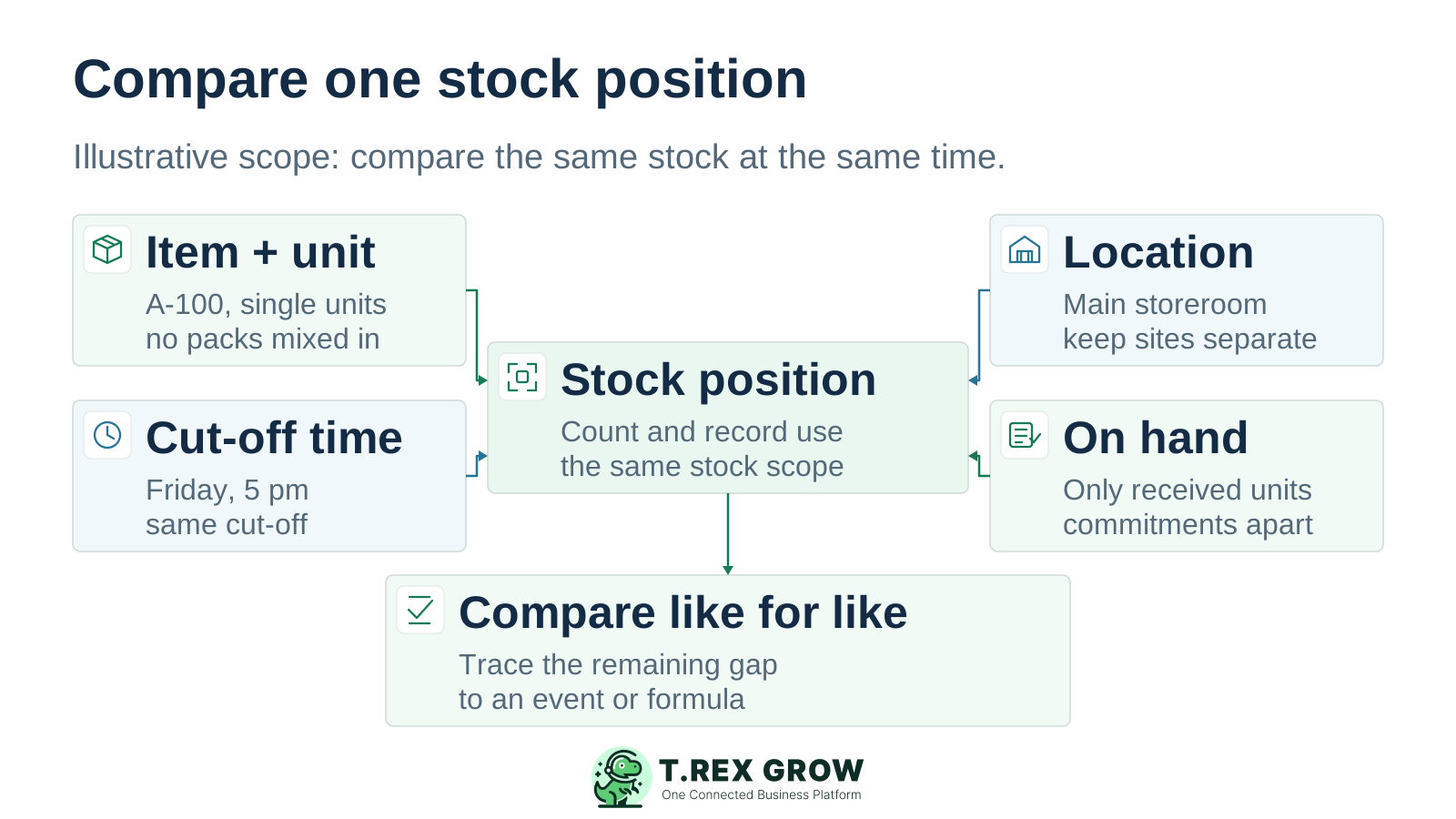
An illustrative stock position defined by item and unit, location, cut-off time and on-hand stock scope before comparing a count with a record

Entry completeness: did each completed event reach the sheet?

Match receipts, deliveries, returns and other relevant physical movements to identifiable rows. Check what actually happened and when. A purchase order alone does not establish that stock arrived, and a customer order alone does not establish that stock left.

Calculation coverage: did the total use the right rows?

Inspect the range, lookup key, sign convention and references used by the affected item. Check new rows, copied formulas and numeric inputs. Test the calculation against a small set of source-backed movements instead of judging it only by the absence of an Excel error.

Stock scope: are the quantities comparable?

Use the same item, unit, location and cut-off on both sides of the comparison. Identify whether the figure means physically on hand, usable, reserved or expected stock. Count damaged or held goods under the agreed scope and show their status separately.

Education

A formula can skip a real delivery without showing an error

Consider this invented example for one item, A-100, recorded in individual units at one storeroom. The opening quantity is 100. A receipt adds 24 units, then completed deliveries remove 6 and 12 units. A count after those movements finds 106 units. The movement evidence and arithmetic agree when every row is included.

Why the worksheet displays 118

Suppose the D-002 row is present but sits outside the stock-out total's range. The workbook calculates 100 + 24 − 6 = 118. The formula can return a normal number while omitting the 12-unit delivery. Check which rows the formula actually uses.

What the correction should change

Extend or repair the calculation so it includes the reviewed D-002 row. The full calculation is 100 + 24 − 6 − 12 = 106. Retest the next appended movement and retain a record of the formula change and reviewer.

Why a stock adjustment would hide the cause

The delivery already exists and explains the stock change. Adding a second negative 12-unit adjustment to compensate for the broken total would create another stock reduction once the formula is fixed. Repair the calculation first; use an adjustment only for a separately established physical variance.

Illustrative stock calculation with every movement included

Recorded eventSigned quantityRunning balance
Agreed opening quantity+100100 units
Completed receipt: R-001+24124 units
Completed delivery: D-001−6118 units
Completed delivery: D-002−12106 units
Workflow

Repair one Excel stock problem with supporting evidence

Choose one item and one defined stock position before reviewing the whole workbook. The aim is an explained correction that another person can check. If stock is still moving during the investigation, record those movements separately so they do not distort the agreed cut-off.

A repeatable operating workflow

Capture

Record the current facts in one shared place.

Check

Confirm what is known and what needs attention.

Assign

Make the next decision or follow-up accountable.

Act

Complete the next task and record the outcome.

Review

Refresh the shared view when facts change.

A dependable workflow keeps the shared record and the next action aligned.

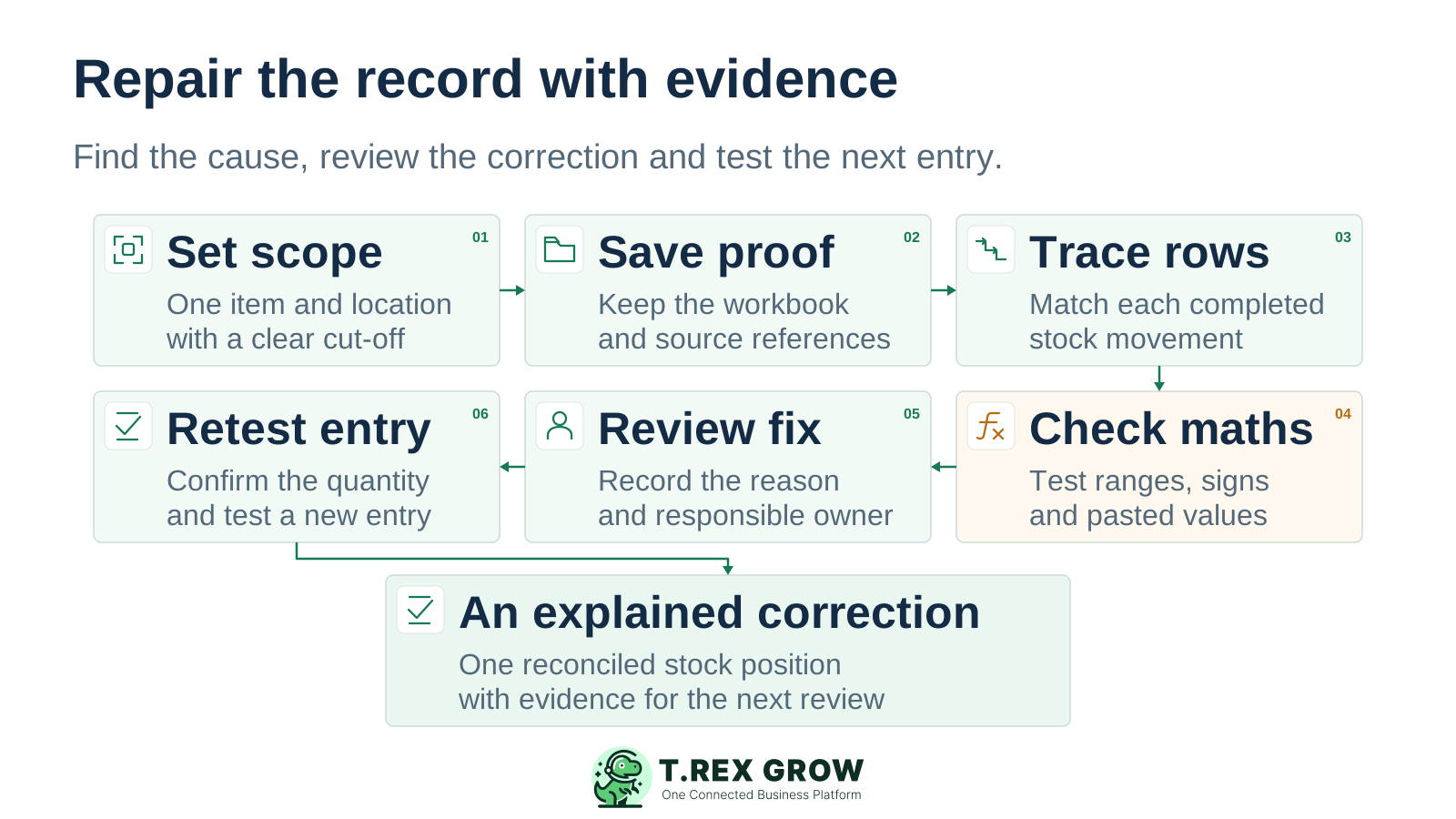
Six steps for an evidence-backed Excel inventory repair, from defining the stock scope and preserving evidence to tracing rows, checking formulas, reviewing the fix and retesting
1

Set the scope. Record the item code, unit, location, stock state and cut-off time. Confirm that the workbook balance and physical count use that same definition.

2

Save the evidence. Preserve the original workbook or relevant version, source references and count sheet. Make a review copy for formula testing and name the person responsible for the investigation.

3

Trace the rows. Match completed receipts and deliveries to movement entries. Check returns, duplicate postings, partial quantities and late entries. Separate missing events from rows that exist but are calculated incorrectly.

4

Check the formula. Inspect ranges, lookup keys, signs, copied formulas and values stored as text. Test known movements in the review copy and compare the result with the supporting documents.

5

Review the fix. Describe the cause, proposed correction, source evidence and reviewer. Correct the wrong row or formula through the agreed process. If a physical variance remains, investigate and approve an adjustment separately.

6

Recount and retest. Confirm uncertain quantities, recalculate the same stock position and test a fresh normal entry. Apply the reviewed repair to the authoritative workbook and communicate the affected balance to its users.

Mistakes

Avoid fixes that make the next stock review harder

Some shortcuts remove the visible mismatch while leaving its cause unresolved. A useful repair preserves the event history and explains what changed, so the next reviewer does not have to reconstruct the same problem.

Recurring issues usually point to workflow-control gaps, not one isolated data-entry mistake.

Common

Overwriting the closing quantity

Typing the physical count over a calculated balance breaks the explanation between opening stock and movements. Find the missing event or calculation defect first. Document a reviewed physical variance through a separate adjustment process when one remains.

High risk

Deleting rows because a document reference repeats

One document can contain several item lines or support genuine partial movements. Compare the item, line, movement type, quantity and completion evidence before treating a repeated reference as a duplicate. Retain a reason for any correction.

Common

Counting an order as a completed movement

Expected receipts and planned deliveries need their own status. Adding an entire purchase order to on-hand stock before receipt, or removing a customer order before dispatch, changes the balance ahead of the physical event. Check actual completed quantities.

High risk

Restoring an older file without checking later activity

An earlier workbook version may help explain a formula change. Restoring it also risks losing valid movements entered afterwards. Compare the versions and later source documents, coordinate with current users and decide which changes need to be retained.

Common

Testing the repair only on existing rows

A corrected total may work for today's rows but omit the next entry. Test an appended receipt, a stock-out entry and a relevant return or other exception in the review copy. Check that formulas and validation still cover the new data.

Best practices

Use Excel's controls and check what they actually cover

Excel has useful calculation, validation and collaboration features. Their setup matters. Combine workbook controls with clear movement ownership and source evidence so the team can explain both the calculation and the physical activity behind it.

Do this

Review calculation warnings alongside source movements

Excel's error checking can flag common problems such as inconsistent formulas or omitted cells. Microsoft explains that these checks do not guarantee an error-free worksheet. Also test whether the total includes the intended movements; an unrecorded delivery cannot be found by checking a formula alone.

Do this

Validate inputs, then review pasted or imported rows

Use agreed lists and quantity rules to reduce entry mistakes. Microsoft notes that copying, filling, formulas and macros can introduce values outside validation criteria. Check new codes, dates and quantities after bulk entry, and use invalid-data review where appropriate.

Do this

Protect calculation cells after testing them

Separate editable inputs from calculations and protect the cells users should not change during routine entry. Keep the formulas documented and assign a workbook owner who can maintain them. Locked cells help prevent accidental edits; they do not prove that a stock event was entered correctly.

Do this

Use a shared workbook with supported collaboration

Excel supports co-authoring with compatible versions and file formats when the workbook is stored in OneDrive or SharePoint Online. Version history can help investigate changes. Agree the authoritative file, update responsibilities and posting window; collaboration features still need those operating rules.

The best practice is to make the next action clear before the situation becomes urgent.

Best practices

Keep stock quantities clear before using them for decisions

A single column labelled stock can be misleading when different teams use it for different questions. Define the quantity a report answers and preserve its unit, location and cut-off. Make commitments and exceptions visible alongside the physical position.

Do this

On hand answers what is physically held in the agreed scope

Base the balance on the opening position and completed movements for that item and location. Show whether held or damaged goods are included. Do not combine individual units with cartons unless a defined conversion has been applied consistently.

Do this

Incoming answers what is expected to arrive

Track expected quantities against their purchase or receiving references. A partial receipt changes what has arrived and what remains outstanding. Keep expected stock separate from the quantity a storekeeper can count or pick now.

Do this

Commitments answer what has already been allocated

Customer commitments can affect what the team may promise next even while goods remain physically on hand. Define how reservations, holds and cancellations affect the saleable quantity. Avoid subtracting a commitment twice when its completed delivery is recorded.

The best practice is to make the next action clear before the situation becomes urgent.

Solution

When supported inventory records can help the team

If one workbook repair resolves the issue and staff can maintain the controls, keep using the improved process and review it. If missing references, repeated entry or unclear document status keep returning across people, assess whether supported inventory records in TREX Grow fit the workflow you need.

Operations work better when records and next actions are connected

Agree product identities before recording movements

TREX Grow supports shared product records with product codes and units of measure, plus optional SKU or barcode details. Prepare consistent item definitions first so purchasing, stock and sales teams refer to the same product.

Use identifiable stock and delivery records

Supported stock entries, delivery orders and inventory adjustments give the team structured records to review. Check the source reference, quantity and relevant document status rather than relying on an unexplained closing number in a standalone sheet.

TREX Grow Operations Hub

Keep responsibility and status visible

Relevant operational records include creator and status information that can support review and follow-up. Agree who records completed events, who checks exceptions and which actions need approval. Software still depends on timely entry and defined operating rules.

Check the fit of the required stock workflow

Review your receiving, dispatch, return and adjustment needs before changing tools. Confirm any location, transfer or warehouse requirements against the applicable TREX Grow configuration and plan. Continue physical checks and use Excel for analysis where it remains useful.

Next step

Choose one unexplained balance and trace it

Start with one item, one location and an agreed cut-off. Match its completed movements to the rows, check the formula and record the cause of any difference. Use the stock movement guide to strengthen the underlying record, then recheck whether the same problem returns.

Review stock in and stock out tracking

Yes, when the team uses consistent item codes and units, records completed movements promptly, maintains formulas and compares counts with the same stock scope. Review whether staff can explain the balance and keep those controls working. Workbook row count alone does not decide whether the process is suitable.