Repeated data entry
Staff copy buyer, supplier, item, tax and amount details from invoices, spreadsheets or PDFs into a separate submission process.

TREX Grow helps Malaysian SMEs prepare, review and submit supported customer and self-billed documents to MyInvois through an authorised intermediary path, then keeps returned IDs, status and history with the source record.
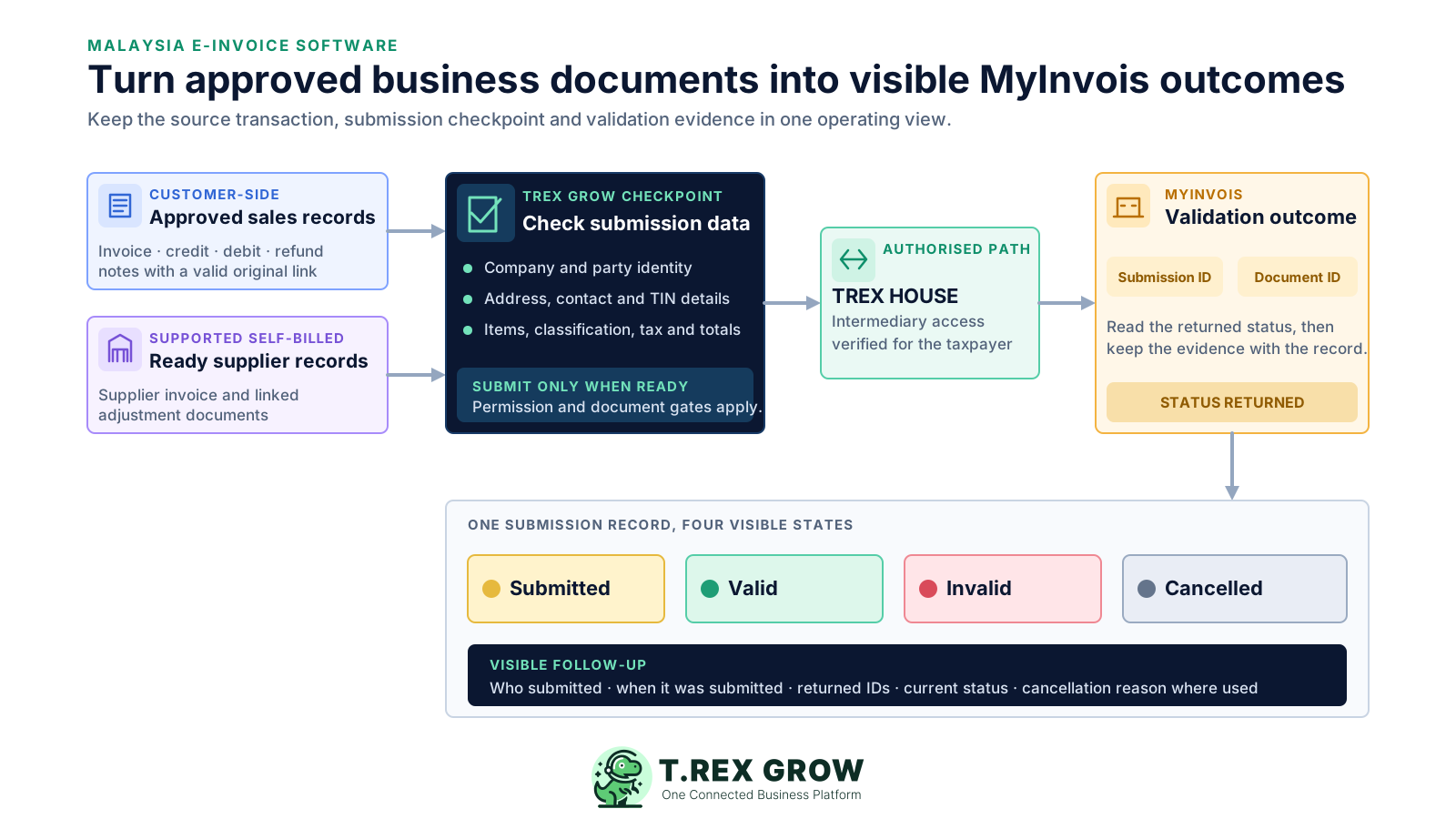
A MyInvois submission may be the final compliance-facing action, but the information starts much earlier in company, customer, supplier, product and transaction records. When those records are disconnected, the accounts team becomes the last-minute repair desk.
Operational pressure
When records live in different places, the person responsible has to reconstruct what happened before they can make a confident decision or follow up.
Staff copy buyer, supplier, item, tax and amount details from invoices, spreadsheets or PDFs into a separate submission process.
Missing TIN, ID, address, contact, MSIC or commodity-classification fields appear only when someone is ready to submit.
A draft, unapproved document or adjustment note without the correct original reference should not move forward merely because a user can see it.
A validation result is difficult to investigate when its IDs, timestamp and submitter are stored separately from the transaction.
Invalid, cancelled and post-window correction paths can become inconsistent when no one owns the source-data change and resubmission.
HASiL publishes the current implementation timeline, exemptions, guidelines and transmission rules. Software can support the operating workflow, but it cannot decide whether a transaction must be submitted, whether self-billing applies or which tax treatment is correct for your business.
Implementation dates and exemption conditions can change. Confirm your position against the latest HASiL guidance instead of relying on an old software article.
HASiL describes MyInvois Portal and API transmission paths. TREX Grow uses an intermediary-supported system path after the taxpayer authorises TREX HOUSE SDN. BHD.
Your business or tax adviser remains responsible for transaction treatment, self-billing applicability, classification and the accuracy of submitted information.
A valid MyInvois result confirms that the submitted document passed the relevant validation process; it is not a blanket guarantee for every compliance responsibility.
Evaluate the operating path around the submission button. Good software should make the source data, permission, document gate, review checkpoint and returned evidence visible before claiming convenience.
The e-Invoice action should start from the customer or supplier document rather than a separate duplicate record.
Users should see the supplier, buyer, address, TIN, items, classification, tax and totals that will support the payload.
Intermediary authorisation, user permission and the correct approved, finalised or ready state should be checked before submission.
Submission ID, document ID, submitter, timestamp, status and history should remain findable from the source document.
The team should know what to correct after an invalid result and when cancellation or an adjustment document is the applicable path.
The vendor should separate what the product currently supports from tax advice, future automation and guaranteed-compliance language.
The best practice is to make the next action clear before the situation becomes urgent.
TREX Grow builds the submission checkpoint from records the team already maintains. The document review brings the main parties, transaction fields, line items and totals together, while separate gates determine whether the action can proceed.
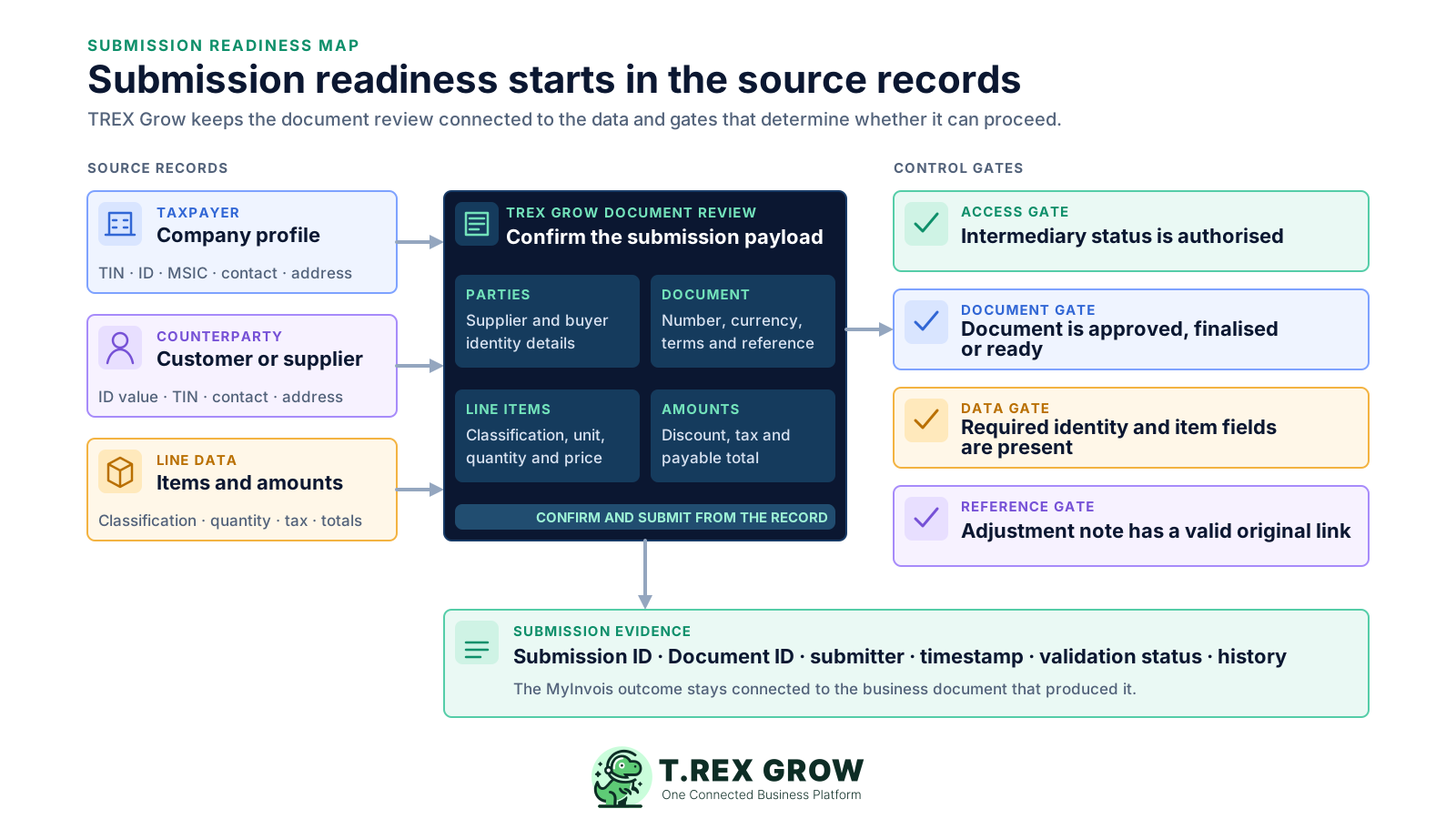
Maintain the taxpayer TIN, ID, MSIC, business activity, contact and address information used by the supported submission flow.
Keep the selected party's ID, TIN, address and contact fields with the operational profile rather than repairing them in a separate submission copy.
Carry product description, quantity, unit, price and commodity-classification details from the transaction line items.
Respect approval, finalisation, ready-state and linked-original requirements for the document being submitted.
Keep the returned IDs, current status and submission history attached to the business document for follow-up.
The workflow starts before the submission button and continues after MyInvois returns a result. Each step has a different owner and control purpose.
Record the current facts in one shared place.
Confirm what is known and what needs attention.
Make the next decision or follow-up accountable.
Complete the next task and record the outcome.
Refresh the shared view when facts change.
A dependable workflow keeps the shared record and the next action aligned.
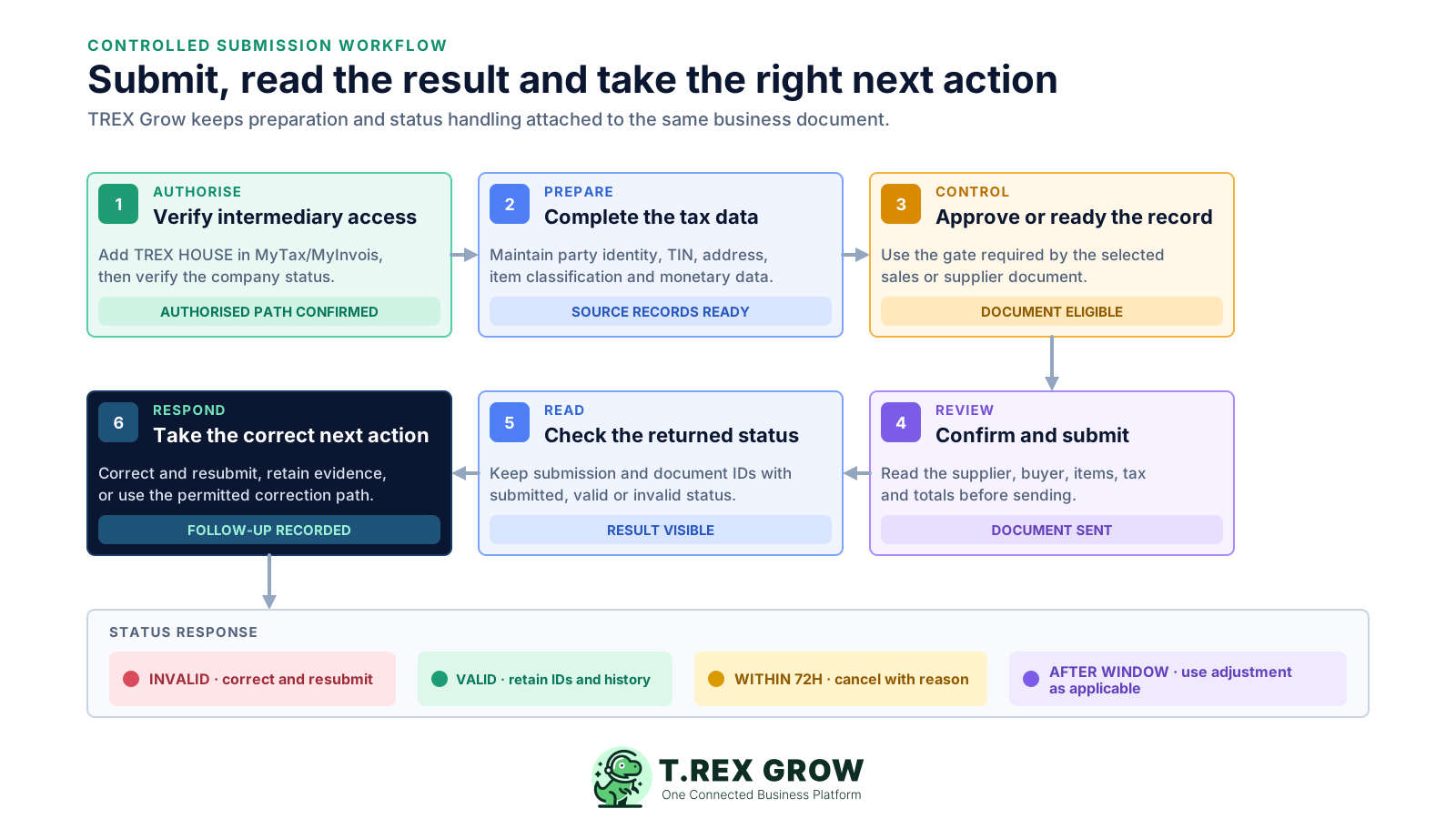
Authorise the intermediary path: add TREX HOUSE SDN. BHD. as an intermediary in MyTax/MyInvois, then use Company Profile to verify the LHDN status before attempting submission.
Prepare the source data: maintain the company, customer or supplier identity, TIN, address and contact details, plus item classification, quantity, price, tax and currency information.
Move the business document through its gate: sales invoices and sales adjustment notes require the relevant approved state; supported supplier documents must be finalised or ready as applicable.
Review and confirm: read the party, document, item and amount details shown in the LHDN document review before choosing Confirm and Submit.
Read the MyInvois result: keep the submission ID, document ID, submitter, timestamp and returned submitted, valid or invalid state with the source document.
Take the correct next action: correct and resubmit an invalid document, retain valid evidence, or use cancellation or the applicable linked adjustment document according to the current official window and rules.
TREX Grow currently maps eight supported records to the corresponding MyInvois document-type codes. Product support does not mean every transaction should use that type; confirm the correct treatment and self-billing responsibility against current HASiL guidance.
Submit an approved TREX Grow customer invoice through the supported LHDN document review.
Submit an approved customer credit note only when its original invoice has a valid linked LHDN document.
Submit an approved customer debit note only when its original invoice has a valid linked LHDN document.
Submit an approved customer refund note only when its original invoice has a valid linked LHDN document.
Submit a finalised supplier invoice through the current self-billed path for a supported Malaysia supplier transaction.
Submit a ready supplier credit note only when the linked supplier invoice has a valid self-billed LHDN document.
Submit a ready supplier debit note only when the linked supplier invoice has a valid self-billed LHDN document.
Submit a ready supplier refund note only when the linked supplier invoice has a valid self-billed LHDN document.
The useful feature is not simply an API connection. It is the set of controls that helps the right user act on the right document with the right source data and a visible result.
TREX Grow verifies whether the company has an authorised intermediary path before enabling LHDN submission.
Permitted users can retrieve or validate TIN details for eligible Malaysia customer and supplier records from the document review flow.
Review supplier, buyer, address, contact, line-item, classification, tax and total information without creating an unrelated submission record.
The selected document-management permission controls who can manage the related e-Invoice submission.
View previous attempts with submission ID, document ID, user, timestamp, status and cancellation details where available.
Resubmit after an invalid result or cancel a valid document with a reason while the permitted cancellation action remains available.
A status is an operating signal, not a decorative badge. Define what the responsible user should do next and keep the source-data correction separate from the submission history.
The document has been sent but the final validation state is not yet available. Wait briefly and refresh instead of creating a duplicate submission.
MyInvois returned a successful validation state. Retain the returned IDs and history, and use cancellation only when permitted and appropriate.
The submission did not pass validation. Correct the relevant source or document data, then use the controlled resubmission action.
A valid document was cancelled with a recorded reason. Keep the evidence and issue the correct replacement or adjustment where required.
Clear limits are part of a trustworthy software decision. TREX Grow supports the operational record and supported submission path, while the taxpayer remains responsible for current requirements and transaction accuracy.
Use the latest HASiL timeline and conditions to determine when your business must implement e-Invoice.
Do not use a self-billed document type merely because the software supports it; confirm the applicable transaction category.
The business remains responsible for its tax rates, classification codes, document type, amounts and professional advice.
A successful system validation is not a promise that every legal, tax, record-keeping or business obligation has been fulfilled.
This page describes the current record-level review and submission workflow, not an unsupported claim of automatic bulk filing.
The best practice is to make the next action clear before the situation becomes urgent.
TREX Grow is broader than a standalone e-Invoice button. The same workspace can keep customer records, quotations, invoices, payments, products, purchasing and supported supplier documents closer to the submission evidence that follows.
Carry controlled customer and transaction details from the commercial workflow into the supported invoice record.
Keep customer-payment history and outstanding balance work separate from the MyInvois validation state.
Link credit, debit or refund documents to the original transaction instead of rewriting the original submission history.
Use applicable purchasing and supplier records to support the current Malaysia self-billed document path where the transaction qualifies.
TREX Grow's current Free plan includes core invoices and Malaysia e-Invoice submission. Review current pricing when you need broader sales, purchasing or supplier-document workflows.
Create the source invoice, prepare the required records, authorise the intermediary path and keep the returned MyInvois status with the document in TREX Grow. Confirm your current obligations with HASiL guidance or your tax adviser before changing policy.
No. MyInvois remains the HASiL system that receives and validates e-Invoice submissions. TREX Grow provides a connected business-record and submission workflow that sends supported documents through an authorised intermediary path and records the returned IDs and status.