TREX Grow implementation

Import Products into TREX Grow

Bring your product list into TREX Grow using the current template and a CSV file. Preview the rows, resolve errors and choose Import Products when the batch is ready. Start with a small sample, then check the saved records before expanding.

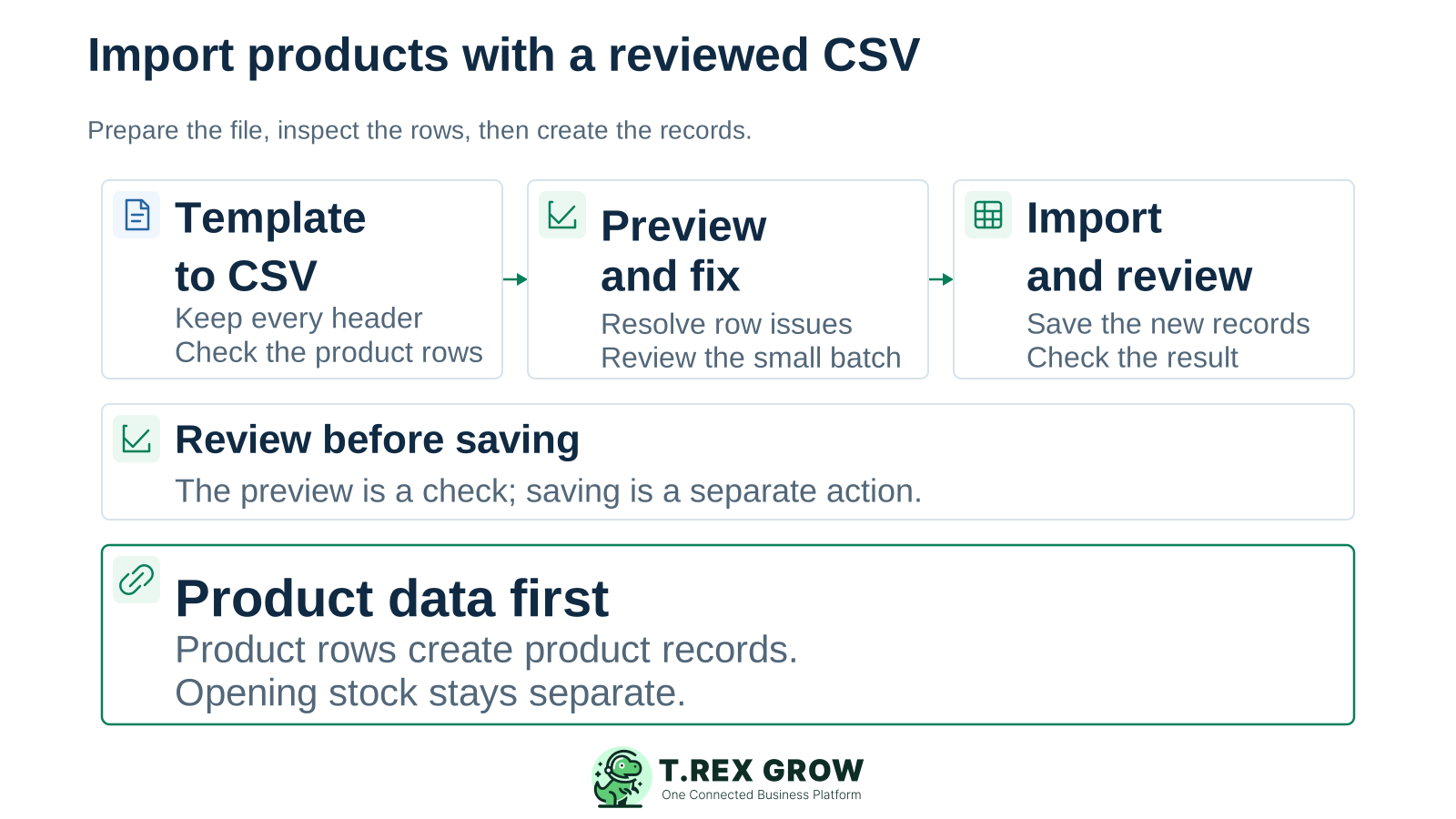
Product import pipeline from the current template to CSV preview and reviewed product records, with opening stock kept as a separate setup task
Education

How do you import a product list into TREX Grow?

Open Bulk Import Products with product creation permission, download the current template, prepare the product sheet and export it as CSV. The current screen displays a maximum of 5 MB and 1,000 rows. Confirm the limits shown in your workspace before preparing a larger batch.

Prepare in the template; upload CSV

The downloadable template is an Excel workbook. The import screen accepts CSV. Keep the workbook as your working copy and export the prepared product sheet; uploading the file for preview is separate from saving product records.
Keep all template headers

A column may need to remain present even when its row values are optional. Preserve every header in the current template, including the additional Malaysia columns, and use one product per row.

Create new product records

This flow creates products. The import checks whether product codes are already in use; it is not an overwrite process for updating the existing catalogue. Opening stock, old transactions and financial balances need their own setup routes.

Education

Prepare the fields before you export the CSV

Give the source list an owner and preserve a dated original. Use the exact current headers, review product identity and select values appropriate to the business. The field names below match the reviewed Malaysia template.

Preserve codes through the spreadsheet step

Excel can alter numeric-looking identifiers by dropping leading zeros or changing long values. Prepare identifier columns as text before entering data, then compare the exported CSV and preview with the original source.

Export the product sheet as a separate file

The reviewed workbook includes a Template sheet and reference lists. Export the prepared Template sheet to CSV while retaining the workbook. A CSV export does not preserve the whole workbook, its extra sheets or its formatting.

Product import field checklist

Template fieldWhat to prepareReview before saving
Product CodeA stable, unique code for each new product.Resolve repeated codes in the file and compare with products already in the workspace. Preserve meaningful zeros and exact characters.
NameA clear product name for every row.Confirm the correct item and variant; a readable name does not replace a unique code.
Selling PriceA numeric selling price.Remove currency labels or other text from the value and compare the amount with the approved source.
UoM and Classification CodeFor a Malaysia company, use the predefined unit and classification values.Use the current template lists and preview selections. Have the responsible owner confirm the values for the actual product.
SKU and BarcodeOptional identifiers where the business uses them.Keep their columns even if values are blank. Treat identifiers as text during spreadsheet preparation so zeros or long codes are not changed.
Reorder Point and Reorder QuantityOptional whole-number reorder settings where needed.Confirm the intended thresholds. A reorder setting is different from a quantity of stock currently held.
SST Treatment Override and SST Tax Rate OverrideOptional Malaysia tax overrides when appropriate.Retain both headers and obtain review of any override values. Do not treat a template example as the correct treatment for your business.
SST Tariff CodeAn optional Malaysia tariff value when applicable.Keep the header and have the responsible reviewer check any value entered. Product import is not a tax review.
Workflow

Run a small product import in six reviewable steps

Use a few representative new products first. Include a product with the identifiers, unit and classification your team actually uses so the first check covers more than the easiest row.

A repeatable operating workflow

Capture

Record the current facts in one shared place.

Check

Confirm what is known and what needs attention.

Assign

Make the next decision or follow-up accountable.

Act

Complete the next task and record the outcome.

Review

Refresh the shared view when facts change.

A dependable workflow keeps the shared record and the next action aligned.

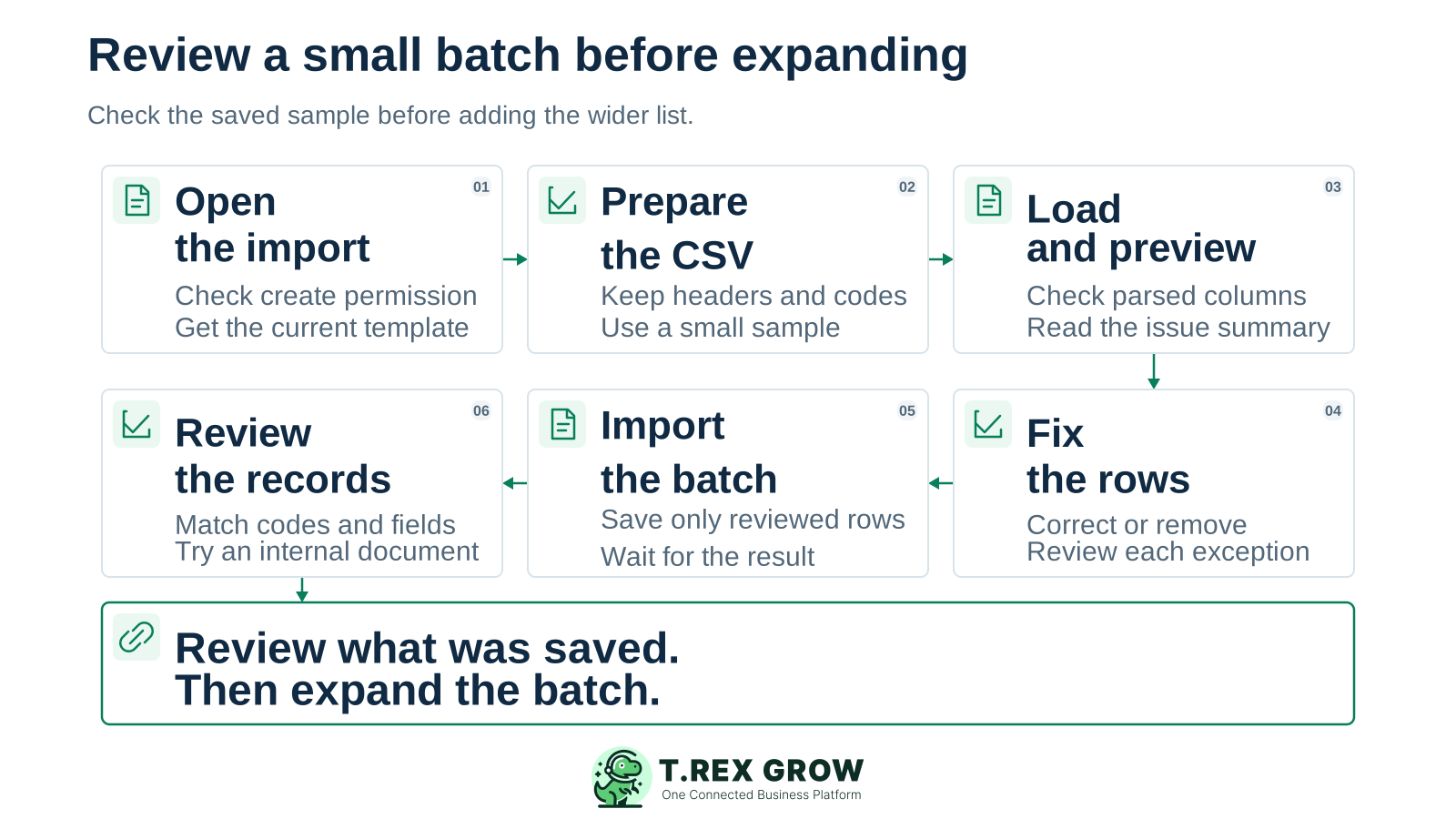
Six-step product import process covering permission and template, CSV preparation, preview, correction, import and review of saved records
1

Open Bulk Import Products: confirm product creation permission and download the current template for the company. Read the file and row limits displayed in the workspace.

2

Prepare the CSV: fill the product sheet, preserve every header and identifier, and export only the prepared sheet. Retain the original source and working workbook.

3

Load and preview: select the CSV and compare the parsed rows with the source. Check product codes, names, prices, units and any Malaysia fields before saving.

4

Fix the rows: read the issue summary, correct the editable cells or remove an unwanted row. Recheck the whole sample after corrections; a cleared warning does not replace business review.

5

Import the batch: choose Import Products only when the reviewed rows are ready, then wait for the result. If a server error appears, resolve the stated issue before trying again.

6

Review the saved records: find the imported products by code, compare key fields and use a sample in a suitable internal document. Keep the result with the source file before expanding the next batch.

Education

Use the preview to resolve file and row issues

The current import screen checks the file structure and row values, shows an issue summary and allows inline correction. Import is disabled while the preview has reported errors. The final save also checks product codes against the company records.

What an import issue means

IssueWhat to checkNext action
File or row limitThe current screen shows a 5 MB file limit and up to 1,000 rows.Prepare a smaller reviewed batch within both limits.
Missing headersA required template column was removed or renamed, even if its values were intended to stay blank.Restore the exact headers from the current template and export the product sheet again.
Duplicate or existing Product CodeA code appears more than once in the file, or the save finds it already in the company.Check the intended product identity. Remove an accidental duplicate or use the appropriate existing-record edit process.
Missing or invalid valuesRequired values include code, name and selling price; Malaysia also needs supported units and classification values.Correct the relevant cells and compare them with the approved source.
Optional numeric or tax fieldsThe values must still be appropriate when optional fields are filled.Use whole numbers for reorder settings and have Malaysia tax override values reviewed. Do not assume every business rule is covered by a green preview.
Failure or interrupted resultThe screen has not given a clear successful result for the attempted batch.Inspect which product codes were saved and keep the message before retrying. Avoid resubmitting the full file without checking the records.
Education

Know what to inspect in the product records

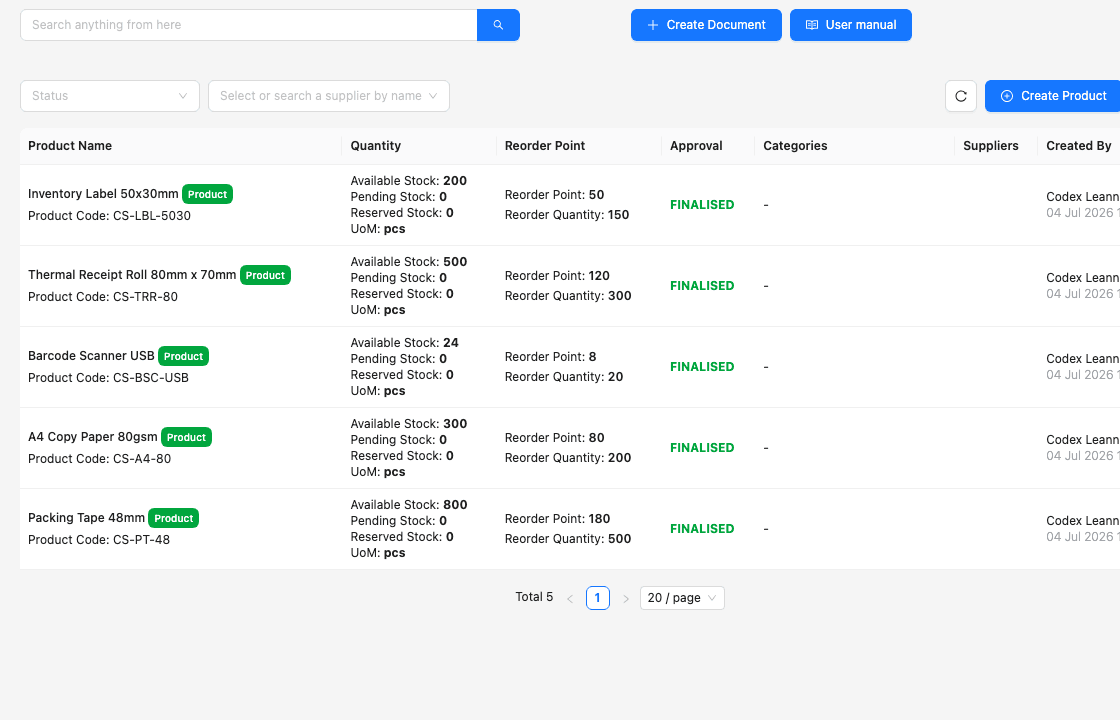
This existing TREX Grow demo screen shows product names, product codes, units, reorder settings and finalised status. Use these record details as part of your checks after importing a sample. The screenshot is not an import preview or a before-and-after result.

Existing TREX Grow demo product list showing names, product codes, units, reorder settings and finalised status for five office-supply products
Existing TREX Grow demo screenshot; illustrates record checks rather than an executed import.

Match identity and the fields you prepared

Find each sample by its exact Product Code, check the name and unit, then review the product detail for prices and other imported values. Check the record count against the intended sample.

Read stock separately from product identity

The demo screen includes stock quantities from its existing workspace. Those quantities do not show that a product CSV imported opening stock. Validate inventory setup and the appropriate plan separately.

Education

Keep product import separate from opening inventory

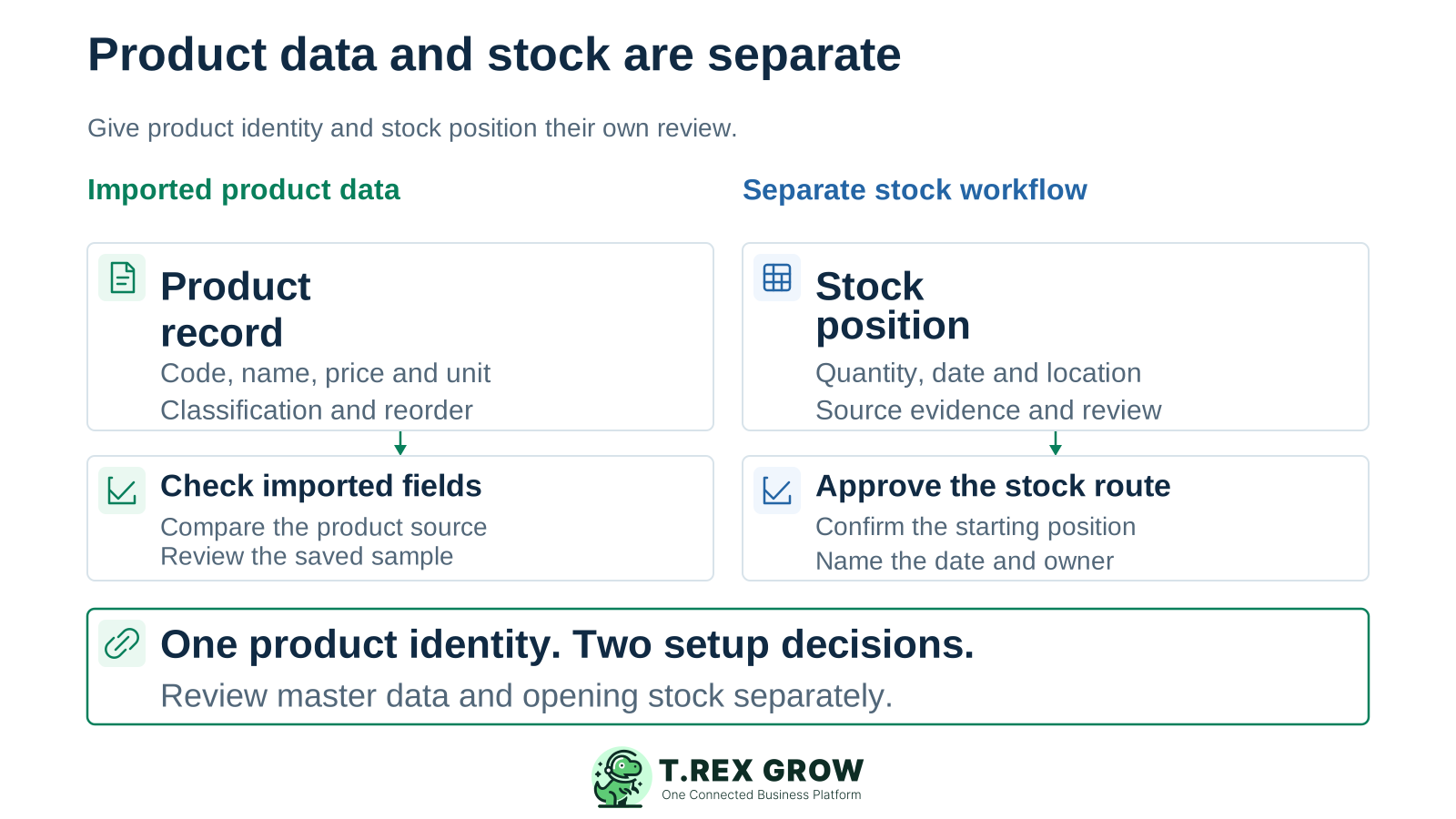
A product row establishes item information. A stock position also needs an accepted quantity, date, location and source. Prepare those as distinct setup decisions rather than adding opening quantities to the product CSV.

Product identity and opening stock shown as two separate setup decisions with different fields, evidence and review owners

Product data identifies the item

The supported import fields cover identity, selling price, unit, classification, optional identifiers, reorder settings and applicable Malaysia overrides. Review those fields against the product source.

Stock needs an agreed starting position

Confirm the supported stock-entry or opening procedure, date, quantities, locations and owner for the selected plan. Review the baseline before the team relies on available stock.

Other records have their own treatment

A product import does not establish supplier links, categories, attachments, old transactions or accounting openings. Confirm the appropriate setup method for any of these required records.

Best practices

Give the first batch an owner and a clear acceptance check

Product preparation is part of getting a usable workflow ready. Keep access, plan scope and the review result visible so a successful file operation becomes a trusted starting list.

Do this

Check access before preparing a large file

Product import requires product creation permission. Ask the company owner or responsible administrator to confirm the appropriate access. The preview is a review step before the separate creation action.

Do this

Match the plan to the work after import

The current pricing page includes core product records across plans. Purchasing and core stock work are in Essential; advanced warehouse work is in Premium. Check the current plan comparison before setting up those workflows.

Do this

Retain the source and the result

Keep the dated source, CSV, corrected exceptions and saved product codes with the reviewer. Restrict file access to the people who need it and use the data security information to review workspace responsibilities.

Do this

Test the first use of a product

Select a reviewed sample in an internal quotation or another suitable document. Confirm identity, unit and expected price before the team uses the wider list for customer or supplier work.

The best practice is to make the next action clear before the situation becomes urgent.

Next step

Start with a product list your team can trust

Create a free TREX Grow workspace, prepare a few new products with the current template and review the saved sample. Expand the batch once the owner accepts the records and the first internal document.

Create your TREX Grow workspace

The current screen provides an Excel template but accepts CSV files. Prepare the Template sheet, retain the workbook and export the product sheet as CSV before loading it into Bulk Import Products.