Does buying lead into receiving?
The team should see whether a purchase order can become the source for the stock entry instead of typing the same item and supplier context again.

Tour a real inventory path: start with the product record, receive against a purchase order, capture an adjustment, trace the movement, and see when Premium count controls matter.

The decision is not whether the software has an Inventory menu. It is whether purchasing, receiving, stock control and review can complete one shared record chain—and whether your team can explain the resulting quantity without rebuilding the story elsewhere.
Operational pressure
When records live in different places, the person responsible has to reconstruct what happened before they can make a confident decision or follow up.
The team should see whether a purchase order can become the source for the stock entry instead of typing the same item and supplier context again.
Available, incoming and reserved quantities should remain distinct so purchasing, sales and fulfilment do not interpret one total differently.
A correction should show the affected product, quantity, location context, reason, remarks and controlled status used in the workflow.
The reviewer should be able to trace the product history back to a source record, creator, date and resulting quantity context.
The tour should distinguish Essential purchasing and core stock work from Premium locations, ledgers, picking and inventory count sessions.
The test needs a pass condition: complete one representative hand-off and explain the final position without a parallel spreadsheet.
TREX Grow starts with a shared product record, then carries that identity into purchasing, PO-linked receiving, inventory adjustments and product movement history. The workflow exposes the context behind the stock position instead of presenting the latest balance as an isolated number.
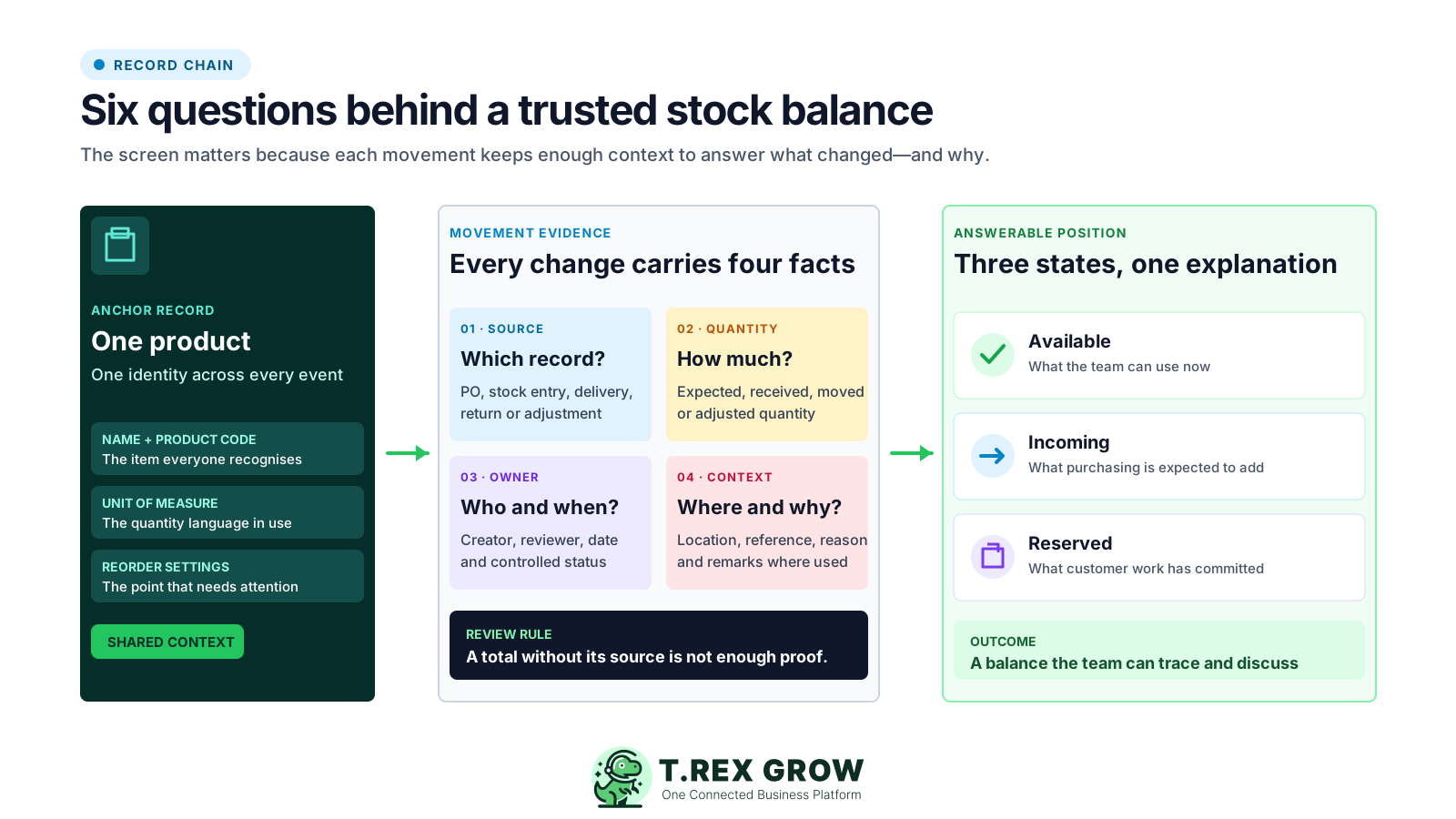
Product name, code, unit of measure, supplier links, reorder settings and approval status provide common context before documents start changing stock.
Purchase orders, stock entries, deliveries, returns and adjustments give the team a record to inspect when a product quantity changes.
Useful evidence answers which source was used, how much changed, who handled it and when, plus where or why when the workflow requires that context.
Available, incoming and reserved stock remain visible as different operating signals instead of being compressed into a single ambiguous total.
Use one current SKU and one realistic receipt so every stop produces evidence for the next. The final test is simple: another responsible user can explain the product position from TREX Grow without asking you to rebuild it in a spreadsheet.
Record the current facts in one shared place.
Confirm what is known and what needs attention.
Make the next decision or follow-up accountable.
Complete the next task and record the outcome.
Refresh the shared view when facts change.
A dependable workflow keeps the shared record and the next action aligned.
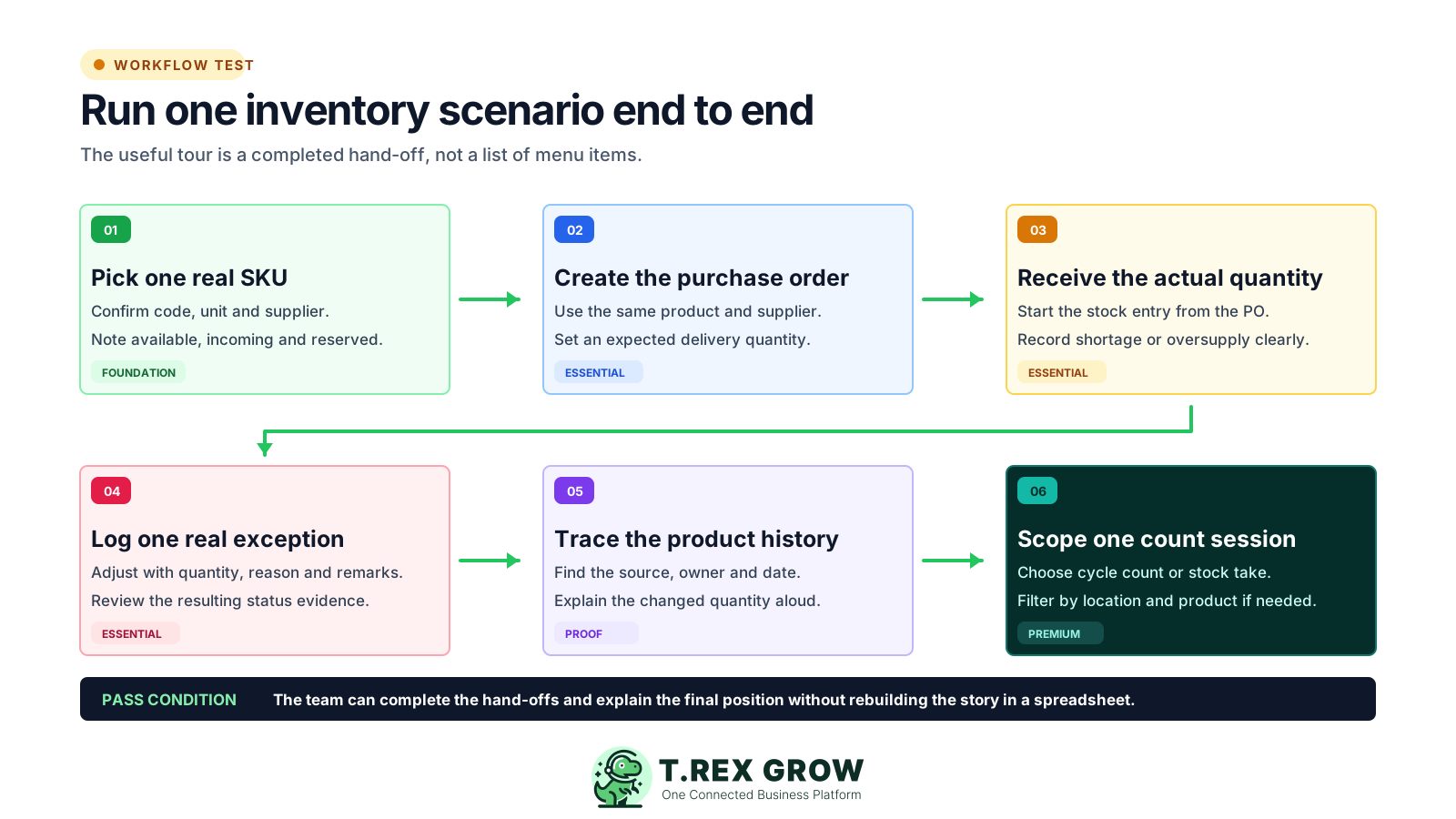
Pick one real product and confirm its code, unit of measure, supplier context, reorder settings and current available, incoming and reserved quantities.
Create a purchase order for that product using the supplier and expected quantity your team would use in normal work.
Start the stock entry from the purchase order, record the quantity actually received and check how shortage or oversupply is shown.
Create one representative inventory adjustment with a quantity, reason and remarks, then review the status and decision evidence your process requires.
Open the product history and ask a second user to find the movement source, changed quantity, creator, date and resulting stock context.
If warehouse depth is required, use Premium to scope an inventory count session by count type, location and product, then confirm who owns the variance review.
Use the screen and question together; clicking the menu alone does not prove the hand-off works for your team.
| Tour stop | Screen evidence | Decision question |
|---|---|---|
| 1. Product record | Code, UOM, supplier context, reorder settings and three quantity states | Can every team identify the same item and interpret its current position? |
| 2. Purchase order | Supplier, product and expected quantity | Does the buying record contain enough context for receiving? |
| 3. Stock entry | PO source, received quantity, reference, dates and shortage or oversupply | Can the receiver record what arrived without re-keying the purchase story? |
| 4. Adjustment | Product, location, quantity, reason, remarks, creator and status | Can the team explain and review an exception? |
| 5. Product history | Source record, changed quantity, creator and date | Can another user reconstruct why the balance changed? |
| 6. Inventory count | Count type plus optional location and product scope | Does the warehouse need Premium count controls or only core stock records? |
The product list is the shared starting point. This real TREX Grow screen uses safe demo records and exposes the item identity, available, incoming and reserved quantities, unit of measure, reorder point, reorder quantity and approval status before the team creates the next movement.
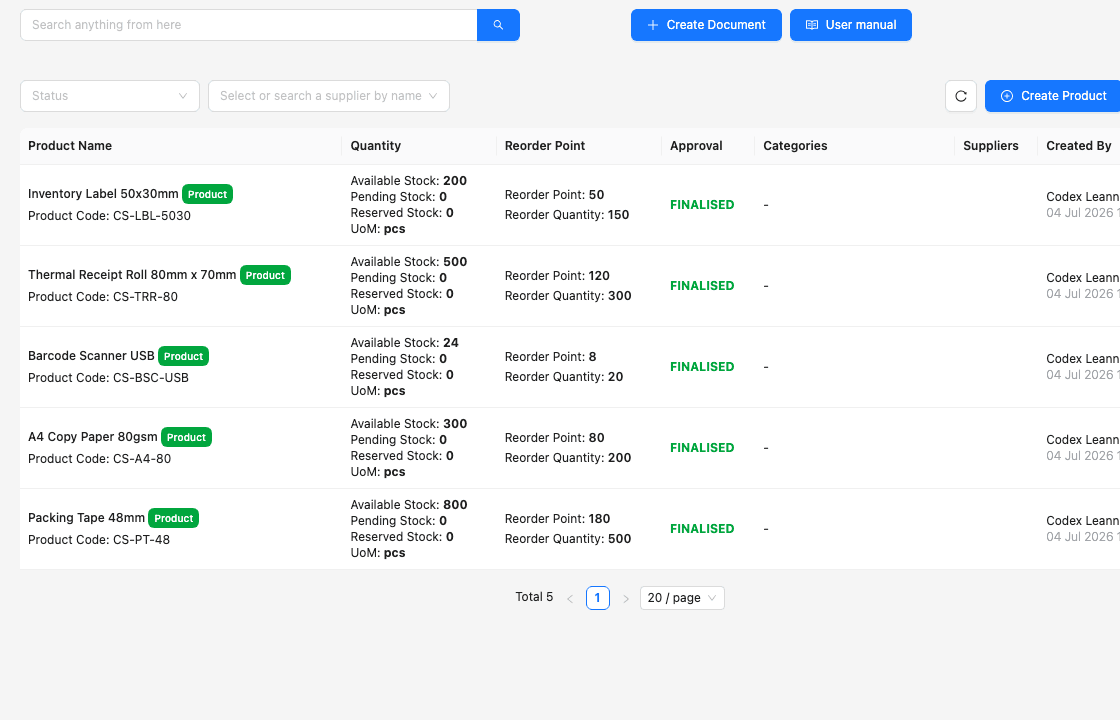
Use the product name and product code to make sure purchasing, warehouse and sales staff are discussing the same record.
Available, incoming and reserved quantities answer different operating questions and should not be treated as interchangeable.
The reorder point and reorder quantity help the team decide what needs review; they do not by themselves prove an automatic replenishment workflow.
Approval or finalised status gives responsible users a visible checkpoint before the product drives downstream work.
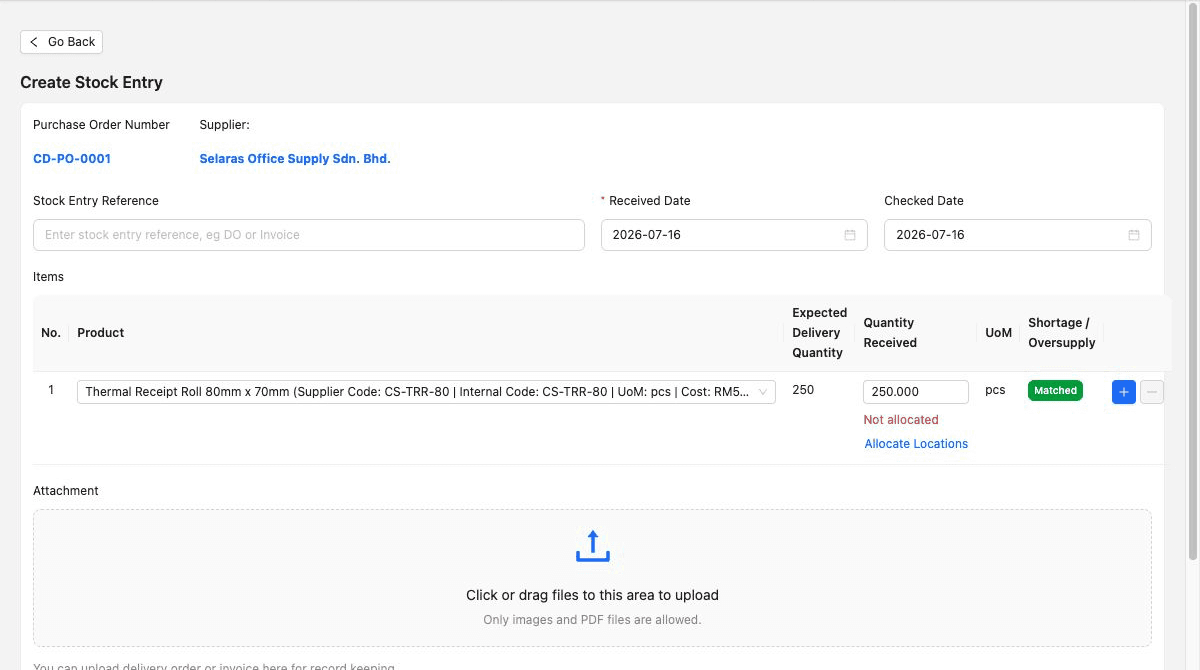
The stock entry screen preserves the purchasing source and then asks the receiver to record what actually arrived. That creates a cleaner hand-off than copying an ordered quantity into a separate stock spreadsheet with no link back to the supplier record.
Use the relevant purchase order so the supplier, product and expected delivery quantity enter the receiving step with context.
Enter the quantity received rather than assuming the ordered quantity and the delivered quantity are always identical.
Review the matched, shortage or oversupply state so the team can decide whether a follow-up is required.
Use the stock-entry reference, received and checked dates, allocation context and supported attachment area according to your receiving procedure.
The best practice is to make the next action clear before the situation becomes urgent.
A controlled adjustment should explain more than the new total. This real approved TREX Grow record shows the affected product, location, adjusted quantity, correction reason, remarks, creator, creation time, approver and approval time in the same review context.
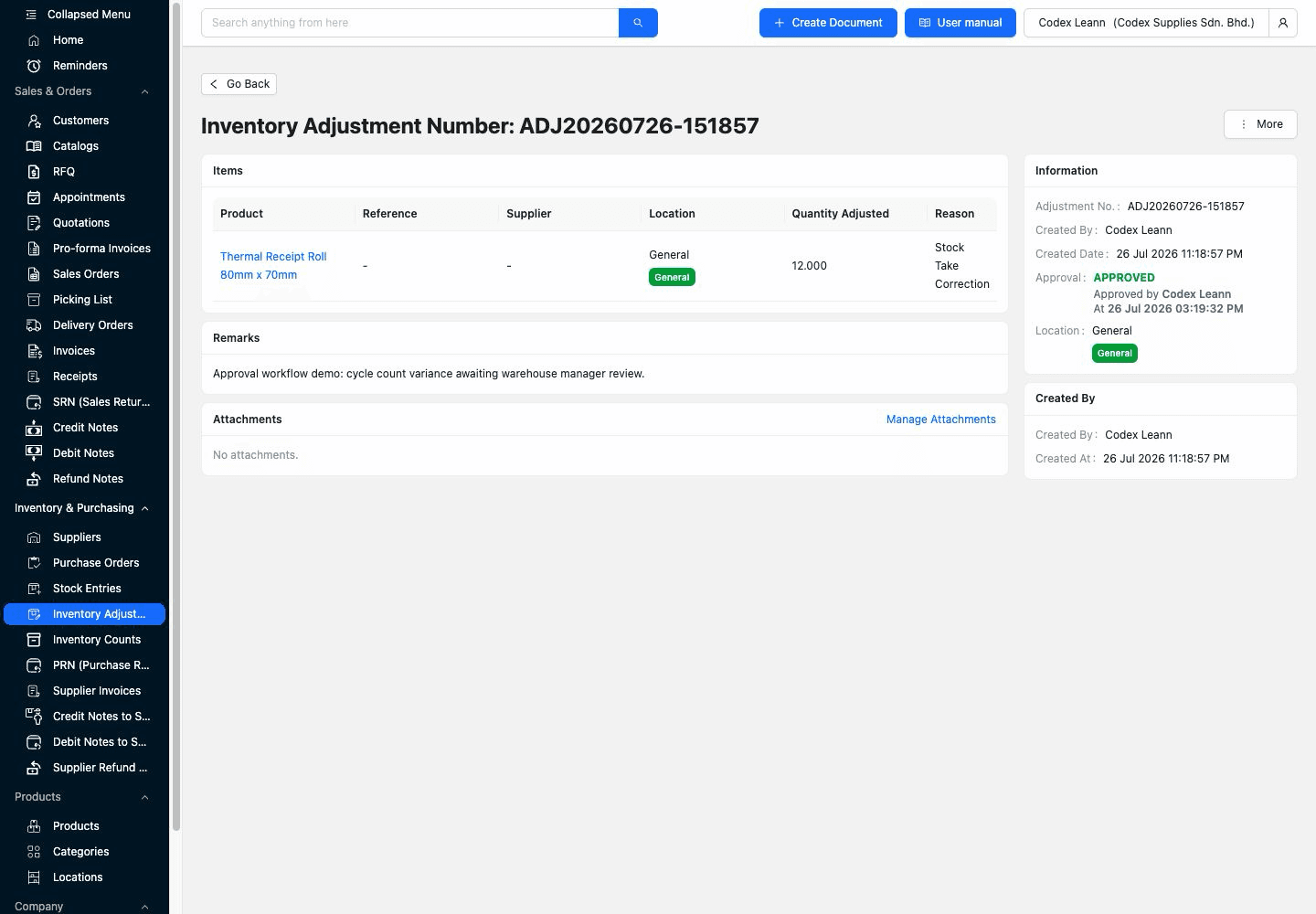
Keep the adjustment tied to the same product record the team uses for purchasing, receiving and movement review.
Record what changed and why, using a reason that another responsible user can understand later.
Use concise remarks to capture the operating context that a generic correction label would otherwise lose.
Check the creator, date, approval state, approver and decision time where the configured workflow uses those controls.
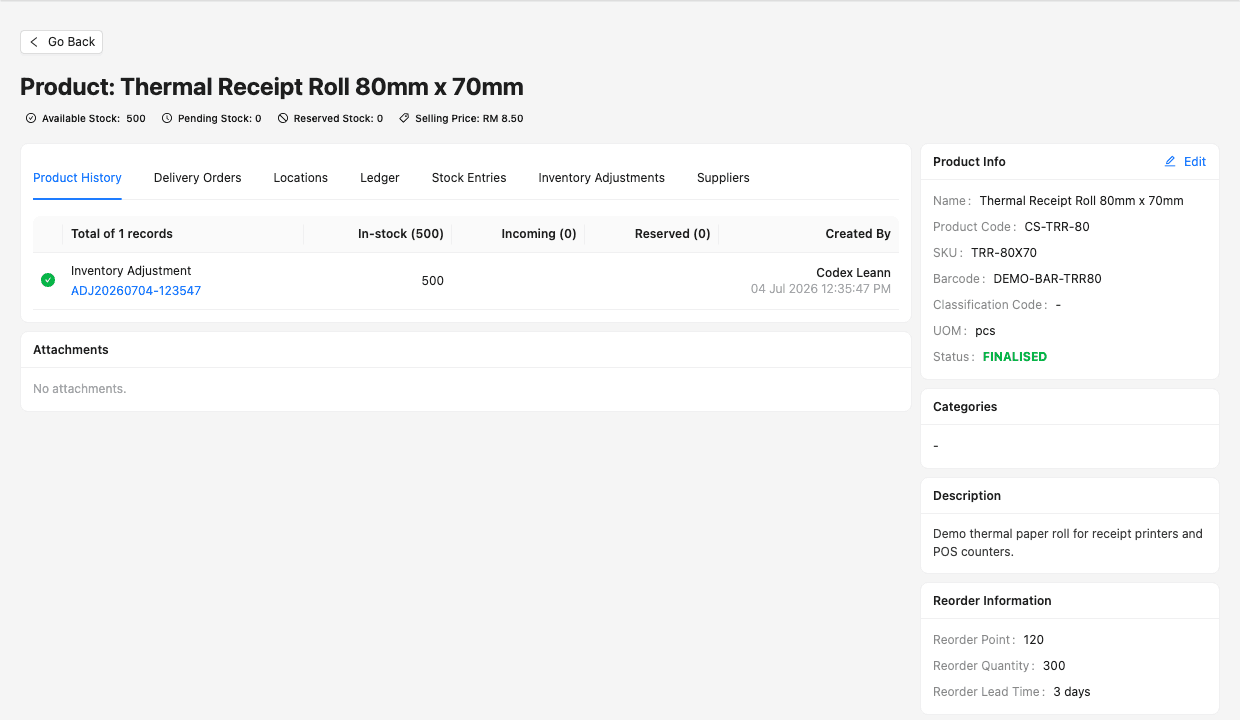
The product view brings movement context back to the item. The history screen shows current quantity states and a linked movement record alongside the product code, SKU, barcode field, unit, status and reorder settings, giving the reviewer one place to begin the explanation.
Read the available, incoming and reserved quantities before investigating the event that changed the product.
Use the linked stock entry, adjustment, delivery or return record instead of treating the history line as the whole explanation.
Check who created the event and when it occurred so the follow-up reaches the responsible person with the right context.
Ask a second user to reconstruct the story from the product screen; gaps in the explanation reveal where the process or permissions need refinement.
The best practice is to make the next action clear before the situation becomes urgent.
Premium adds structured inventory count sessions for teams that need cycle-count or stock-take scope by location and product. This is a warehouse-control boundary, not a reason to skip the core product, purchasing, receiving and adjustment workflow the team must prove first.
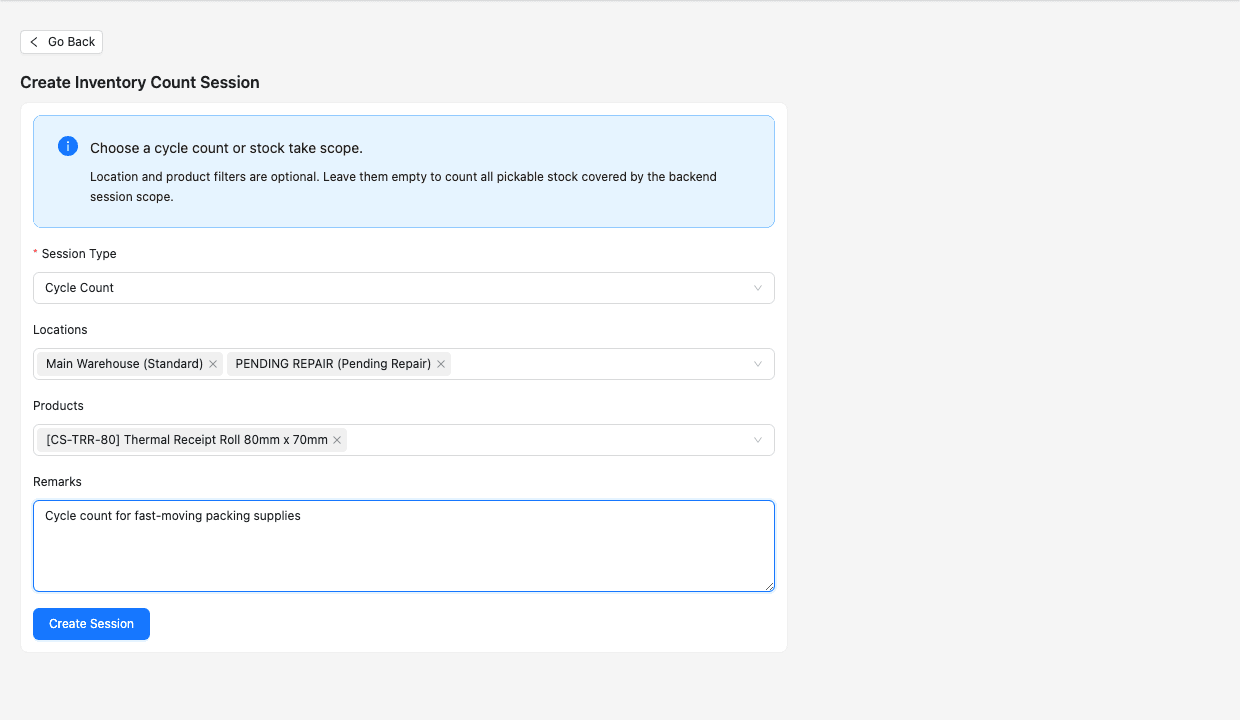
Select a cycle count for a bounded review or a stock take for a broader counting exercise according to your operating procedure.
Use location filters when the count should focus on selected warehouse areas rather than all pickable stock.
Use product filters when the team needs to review one SKU group, a high-risk category or a fast-moving item.
Before rollout, document who reviews count differences and which supported adjustment or follow-up record should resolve them.
Use the current Pricing page as the final source for plan availability because entitlements can change.
| Plan | Inventory tour scope | Use it when |
|---|---|---|
| Free | Core product records with unlimited users and products | You want to prepare shared product data before testing paid inventory workflows. |
| Starter | Complete sales documents, attachments and multi-currency; no inventory management | Your operation needs deeper sales work but not purchasing or inventory controls. |
| Essential | Purchase orders, stock entries, inventory adjustments, returns, supplier records and WMS-lite handling | Purchasing and core stock movements need to stay connected. |
| Premium | Essential plus custom locations, location and product-location ledgers, picking, picking-list PDFs and inventory count sessions | Warehouse location, fulfilment and formal counting controls are daily work. |
A polished screen is not implementation proof. Before choosing a plan, test one normal receipt and one realistic exception with the people who will own purchasing, receiving, stock review and approval, then document every capability that still needs separate verification.
Choose a real product shape, supplier relationship, quantity and receiving scenario without exposing confidential live data in the trial.
Let purchasing, receiving, inventory control and the responsible reviewer complete the step they will own after rollout.
A clean receipt proves the happy path; a shortage, oversupply or correction reveals whether ownership and evidence stay clear when work deviates.
Review which users can create, edit, approve and inspect the relevant records for your organisation before relying on the configured path.
Verify manufacturing, serial, batch, expiry, scanner-led receiving, label printing, forecasting, integrations and costing needs independently instead of assuming they are included.
Use the TREX Grow Data Security page and your own access review to assess account controls, public-link handling and operational responsibilities.
The best practice is to make the next action clear before the situation becomes urgent.
Use the 30-day paid-plan trial to test a product, purchase order, stock entry, adjustment and movement review from start to finish. Add Premium count controls only if locations, picking, ledgers or formal counts are part of the workflow your team must run.
An inventory workflow tour shows how the actual product screens connect across one operating scenario. This TREX Grow tour follows a product record into purchase-order-linked receiving, quantity review, an inventory adjustment, movement history and an optional Premium inventory count.