The wrong supplier or product enters the order
A copied template may use an old supplier, internal item code, unit of measure, price, delivery address, or payment term that nobody checks before issue.

TREX Grow keeps the supplier, approved products, quantity, unit price, currency, delivery expectation, payment terms, tax, discount and address in one purchase order. Route review where your permissions require it, generate the PO PDF, record what actually arrives, and keep supplier invoices connected to the same order.
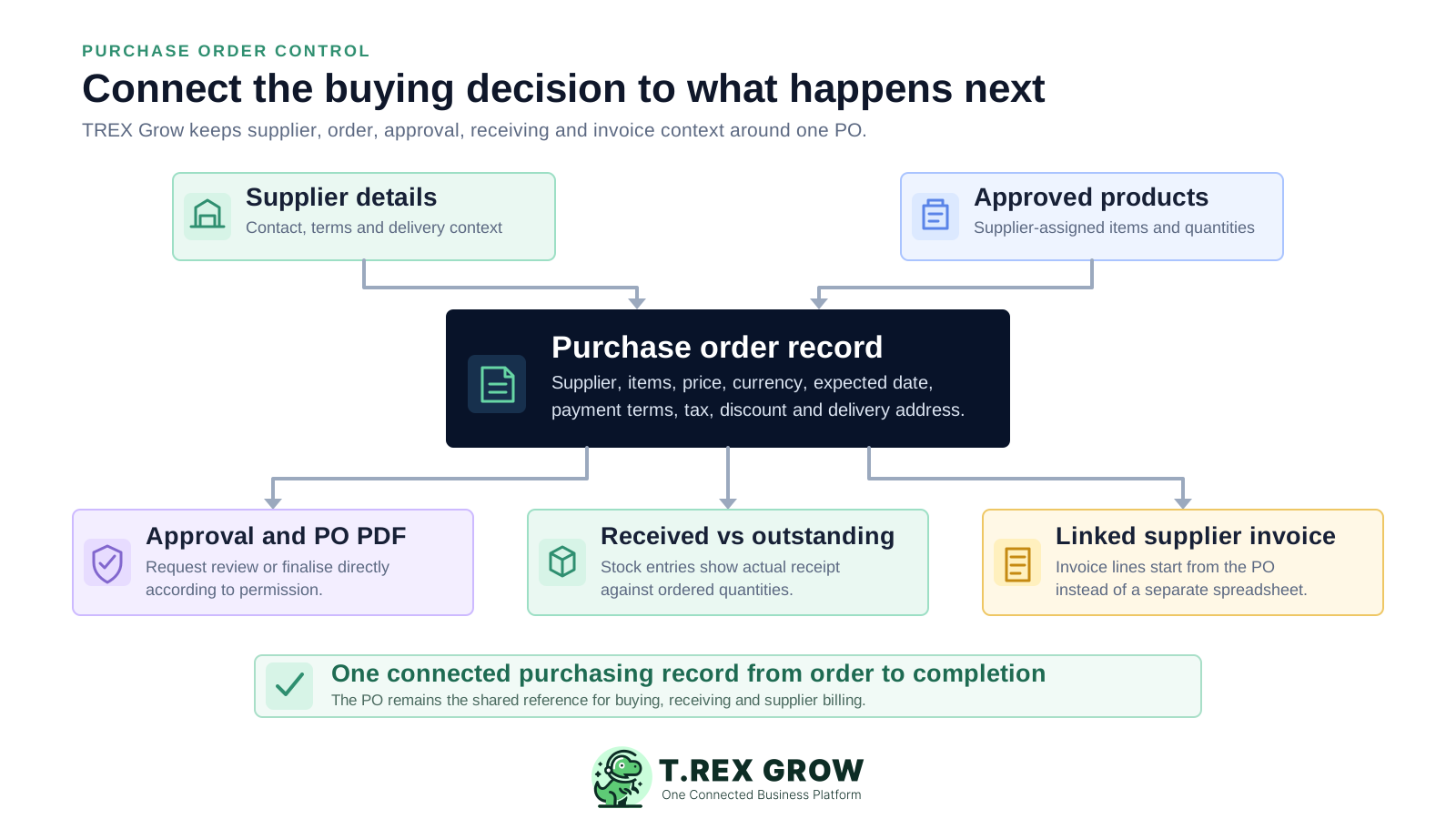
A PO is the business record of what the company asked a supplier to provide, at which quantity, price and terms. If that commitment is unclear, every later receiving, invoice and payment conversation starts with avoidable doubt.
Operational pressure
When records live in different places, the person responsible has to reconstruct what happened before they can make a confident decision or follow up.
A copied template may use an old supplier, internal item code, unit of measure, price, delivery address, or payment term that nobody checks before issue.
Several files named final circulate by email while the purchasing team cannot tell which PO number, revision, attachment, or total the supplier actually received.
A manager replies approved in chat, but the application does not show whether the purchase order is still a draft, pending review, finalised, or approved by an authorised user.
The PO says what should arrive. Partial delivery, damage, rejection, substitution, or a later balance means the actual accepted quantity can be different.
Finance retypes supplier, items, quantities, price and references instead of starting from the purchasing record that already explains the order.
The team closes a spreadsheet row from memory even though receiving is unfinished, a supplier invoice is missing, or downstream records still need attention.
A document template can produce a presentable PO, but it does not automatically control permissions, status, linked receipts, invoice references, received quantities, completion conditions, or the history around the order.
Recurring issues usually point to workflow-control gaps, not one isolated data-entry mistake.
The PDF looks formal, but supplier selection, product eligibility, commercial review, approval, receiving and invoice follow-up still happen in separate tools.
Shared number lists are easily duplicated, skipped, reformatted, or reused when several people create orders at the same time.
Price, quantity, discount, delivery date, payment term, tax or address changes after the manager reviewed a different spreadsheet or attachment.
The warehouse records the ordered quantity instead of what physically arrived and was checked, creating an immediate inventory discrepancy.
The finance team manually recreates the supplier and item context, making it harder to explain differences between ordered, received and invoiced quantities.
A PO is closed because the supplier says delivery is done even though a stock entry is still pending or no finalised supplier invoice is linked.
The right system should preserve the purchasing commitment, make the next action visible, and keep ordered, received and invoiced records distinct without forcing a growing SME into an unnecessarily complex procurement suite.
Use an active supplier and products that are finalised or approved and assigned to that supplier before they enter the order.
Keep quantity, unit price, unit of measure, currency, expected delivery, payment terms, tax, discount, totals and delivery address together.
Separate users who can prepare a PO from users who can approve one when the company chooses to require review.
Distinguish a watermarked draft from the official PDF generated after direct finalisation or approval.
Let stock entries and supplier invoices start from the relevant PO so the next records retain supplier and item context.
Make draft, pending approval, active, completed and archived purchase orders searchable and filterable by date, status and supplier.
TREX Grow uses the purchase order as a structured supplier request. The same record preserves order identity, commercial detail and fulfilment context, then links the approval result, official PDF, stock entries and supplier invoices that follow.
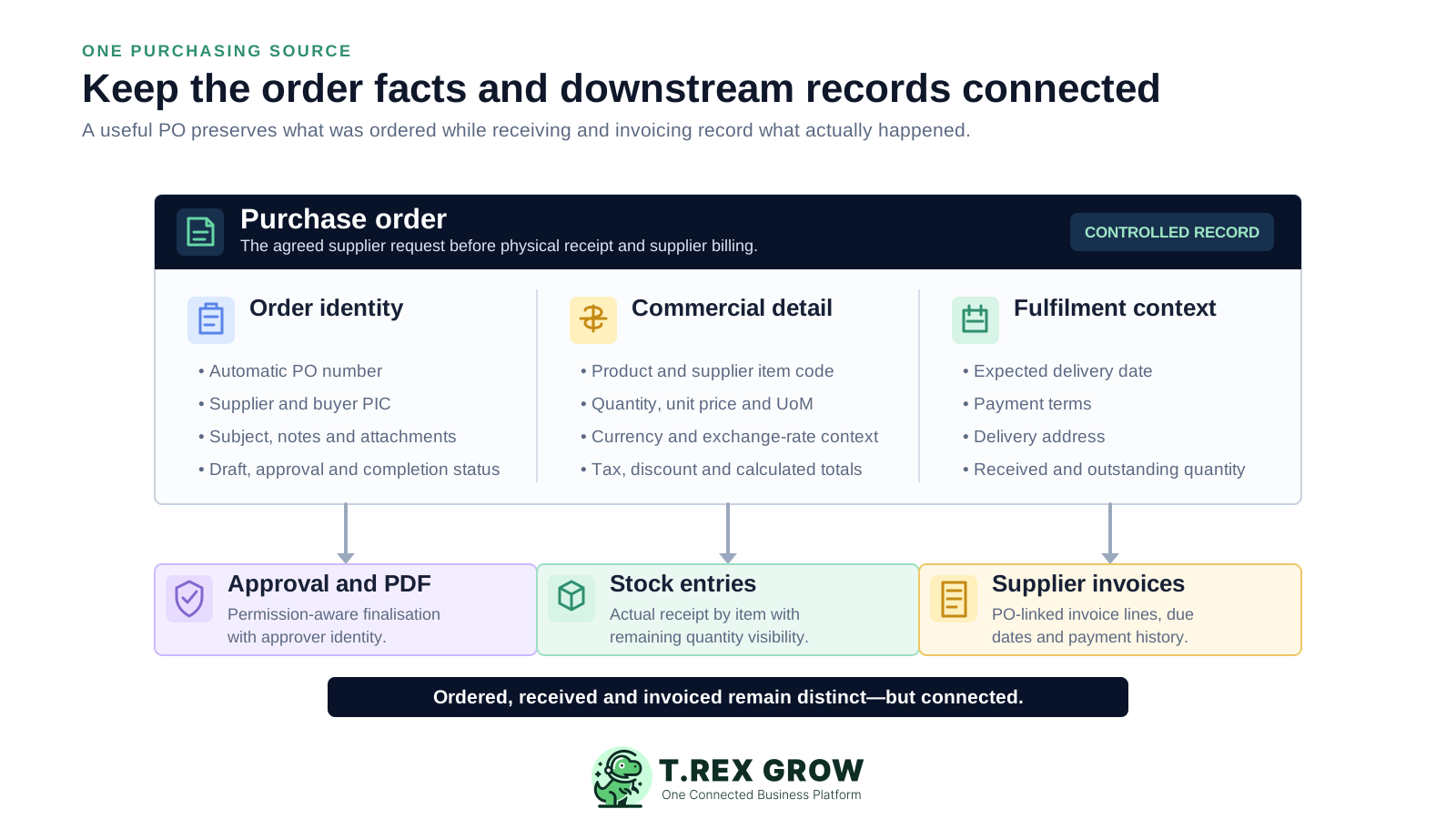
Select the supplier, carry the relevant contact and payment context, and retain the buyer person-in-charge or issuing user around the PO.
Add products that are ready for operational use and assigned to the selected supplier, then enter the ordered quantity and review the supplier-facing item detail.
TREX Grow calculates item totals, subtotal, tax, discount and grand total from the quantities and unit prices entered.
Generate the PO number from the configured company document format and retain draft, pending, approved, finalised, completed or archived context.
Keep supplier-facing subject, description and note fields separate from internal remarks, with general document attachments where the plan supports them.
Essential and Premium companies can use a document currency that differs from company currency and retain exchange-rate and company-currency values.
The practical flow is direct: choose the supplier, add approved items, set the commercial terms, finalise or request approval, record actual receiving, link the supplier invoice, and complete the PO only after the downstream checks are satisfied.
Record the current facts in one shared place.
Confirm what is known and what needs attention.
Make the next decision or follow-up accountable.
Complete the next task and record the outcome.
Refresh the shared view when facts change.
A dependable workflow keeps the shared record and the next action aligned.
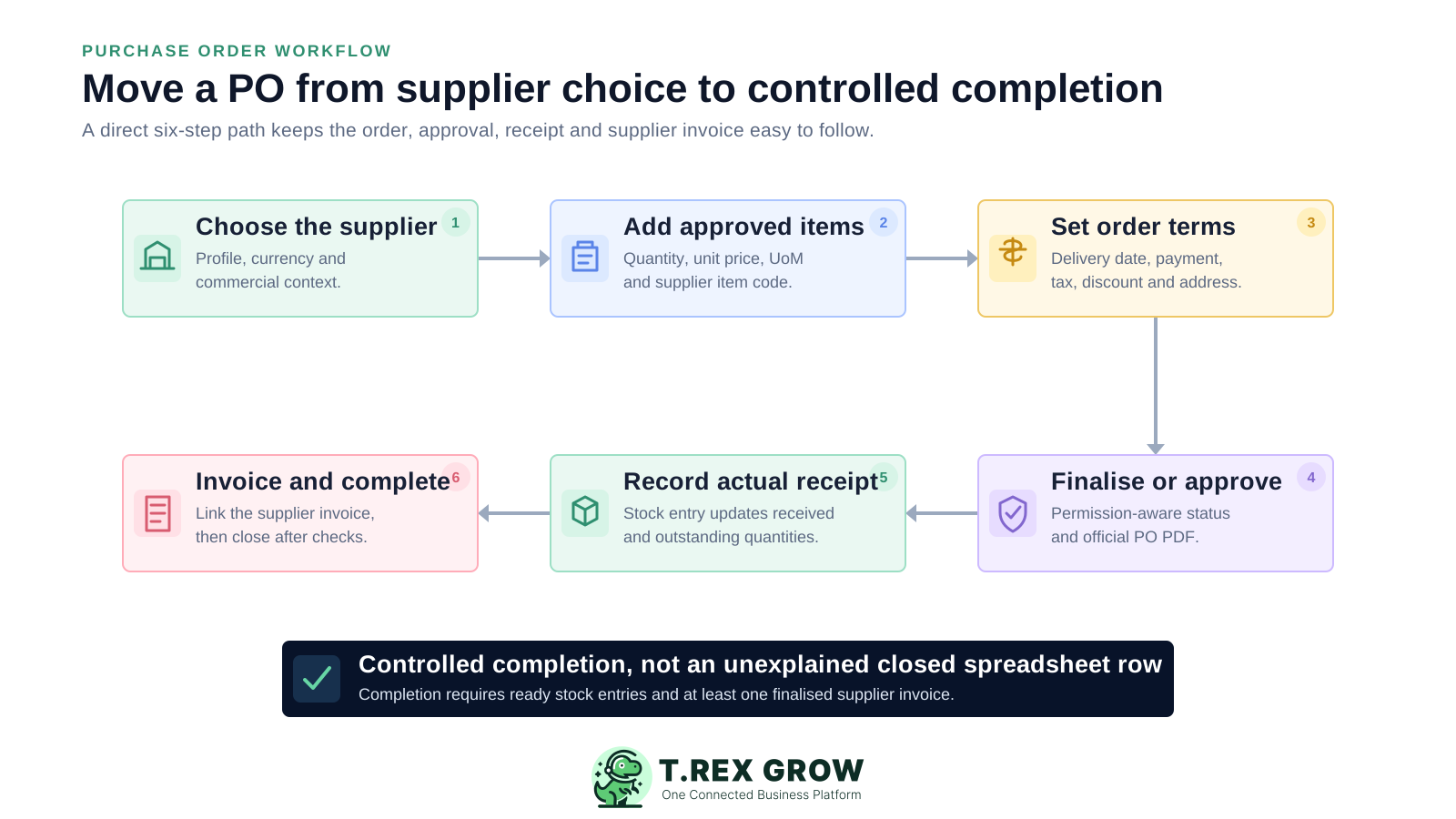
Choose the supplier: select an active supplier and confirm the relevant country, contact, payment, lead-time and currency context before preparing the order.
Add approved products: use finalised or approved products assigned to that supplier, then enter quantity and review unit price, unit of measure, supplier item code and description.
Set the order terms: complete the expected delivery date, payment terms, tax, discount, delivery address, subject, description, note and any supporting attachment needed for the purchase.
Finalise or request approval: users configured for Request Approval move the PO to Pending Approval and notify matching approvers; authorised direct-finalisation users can finalise without that approval step.
Record what arrives and what is invoiced: create stock entries from the ready PO using the actual quantity received, and create supplier invoices from the same PO with prefilled supplier and item context.
Complete the purchase order: mark the PO completed only after linked stock entries are ready and at least one active finalised supplier invoice exists; completion makes the order read-only and stops new downstream records.
TREX Grow provides the core document and linked-record controls an SME needs for a disciplined purchasing workflow. Purchase Orders and their downstream purchasing documents are available on Essential and Premium, so confirm the current plan and workflow fit before rollout.
Search the purchase order list and filter active or archived records by created date, lifecycle status and supplier.
Generate a draft PO PDF before finalisation or approval while keeping the visible DRAFT watermark separate from the official document.
Notify users with Purchase Order Approve permission when review is required, link them to the live record, and notify the requester after approval.
Allow users with Create permission but without Request Approval to finalise directly and generate the official purchase order PDF.
Clone an earlier PO into a new draft for review, or create a revision while the ready PO has no stock entries, supplier invoices or completion state.
Show ordered quantity beside quantities received through linked stock entries and the remaining outstanding position for each line.
Start supplier invoices from the PO so supplier and product lines are prefilled while the invoice can record its own quantity, price, dates, terms and payment history.
Use completion prerequisites and archive restrictions to protect purchase orders after receiving or supplier invoicing creates downstream dependencies.
This real TREX Grow purchase order screen keeps the PO subject and item lines beside unit prices, ordered quantities, received quantities, outstanding quantities and units of measure. The purchasing team can see which lines are fully received without reconstructing the position from a separate worksheet.
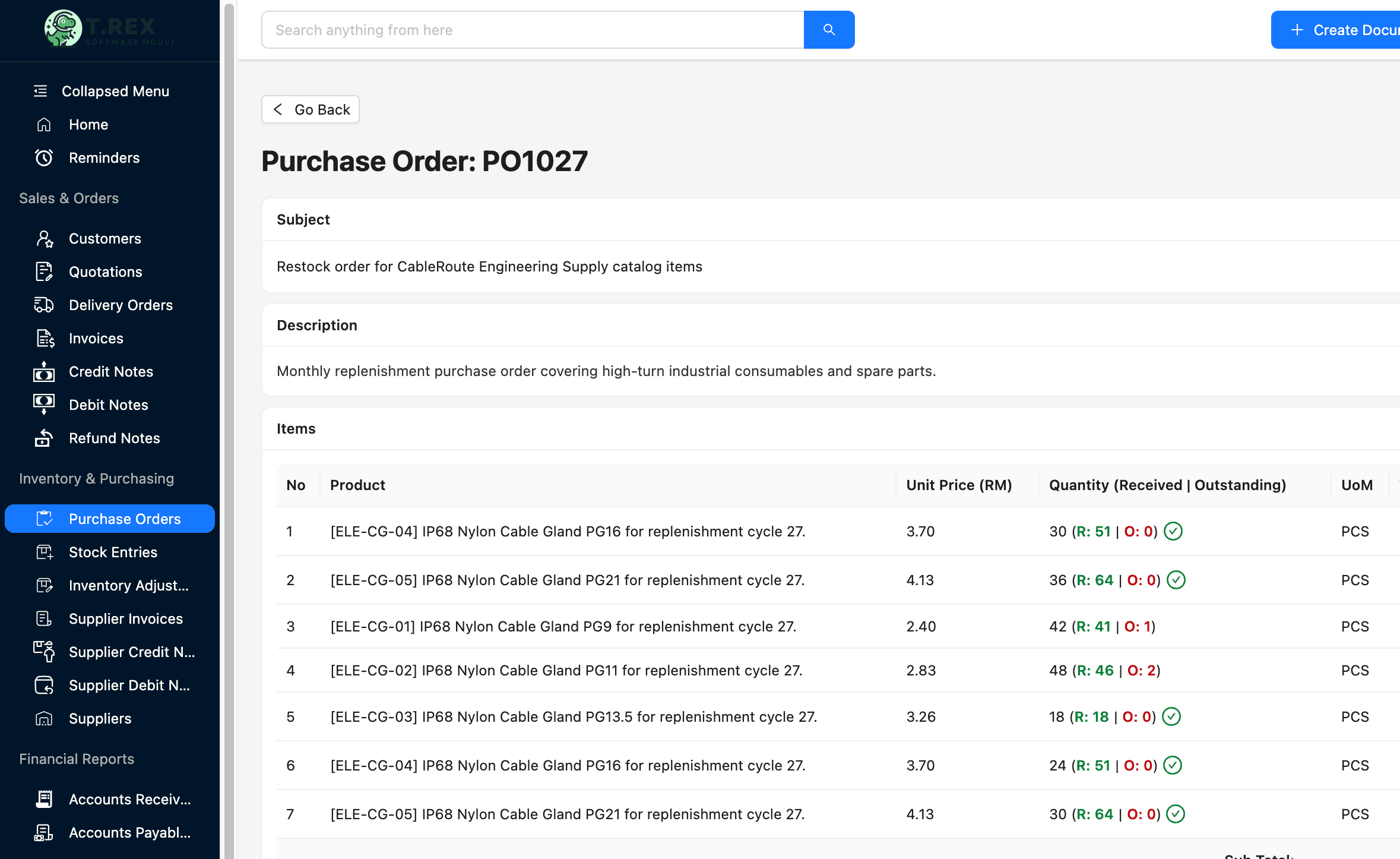
The PO subject, item description, supplier-facing code, unit price, ordered quantity and unit of measure remain visible in one operating view.
Received and outstanding quantities appear beside the original ordered quantity, with a clear indicator when the line is fully received.
Purchasing, warehouse and finance teams can return to the same order when discussing deliveries, outstanding balances and supplier documents.
This actual TREX Grow Create Stock Entry screen starts from a purchase order and carries the supplier, expected delivery quantity and product context into receiving. The user records the quantity received, checks shortage or oversupply status, assigns locations where applicable, and can retain supporting attachment context.
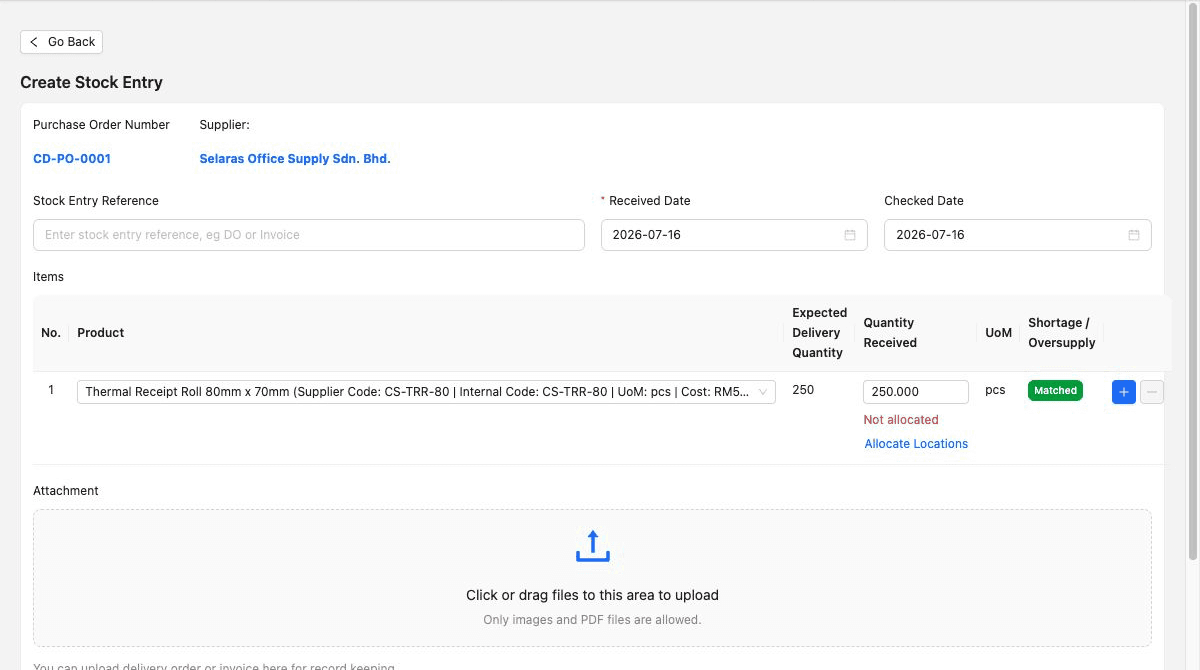
The receiving record carries the relevant PO and supplier instead of asking warehouse staff to recreate the source manually.
Record what physically arrived and use the expected-versus-received position to preserve partial, short or excess delivery context.
Received and checked dates, location allocation where applicable, stock-entry reference and attachments help explain the accepted receipt.
TREX Grow provides the PO record, permission, PDF and linked-document workflow. The SME still needs to define who owns supplier setup, who can order, which purchases require review, what receiving evidence is mandatory, and when an order can be considered complete.
Decide which roles can create POs, which must request approval, which can approve, and which low-risk roles may finalise directly.
Confirm active suppliers, contact details, payment terms, lead time, currency, finalised products, supplier assignments, item codes and units before rollout.
Treat the PO as the expectation and the stock entry as the actual receipt. Never update stock merely because a supplier order exists.
Agree when subject, description, delivery date, address, tax, discount, attachments, internal remarks and supplier confirmations are required.
Review ready stock entries and the finalised supplier invoice before making the PO read-only and stopping new receiving or invoice records.
Test the current Essential or Premium workflow and verify specialist needs separately before depending on advanced procurement behaviour.
Use this table to compare the verified TREX Grow workflow with the purchasing controls your Malaysian SME expects.
| Requirement | Verified TREX Grow workflow | What to confirm |
|---|---|---|
| Order creation | Create a PO from an active supplier and finalised or approved products assigned to that supplier | Supplier ownership, product assignment, required fields, numbering format and attachment policy |
| Approval | Direct permission-based request-to-approve workflow, approver email and requester result email | Which users request, approve or finalise directly; advanced routing requirements |
| PO document | Watermarked draft PDF and official PDF after direct finalisation or approval | Document settings, supplier-facing content, revision timing and PDF distribution process |
| Receiving | PO-linked stock entries record actual received quantity and update received-versus-outstanding lines | Receipt owner, partial-delivery rules, checks, locations, attachments and approval permissions |
| Supplier invoicing | Supplier invoice starts from the PO with supplier and item lines prefilled | Invoice quantity, price, due date, payment terms, evidence and finance approval process |
| Multi-currency | Essential and Premium can store document currency, exchange rate and company-currency value | Supported currencies, rate review, accounting policy and payment conversion requirements |
| Advanced procurement | Core PO document, approval, receiving, supplier-invoice and completion controls | Requisitions, budgets, tenders, supplier portal, auto-reorder, three-way matching, thresholds, delegation and integrations |
The best practice is to make the next action clear before the situation becomes urgent.
The largest benefit is not a nicer PO template. It is a clearer handoff from the buying decision to approval, supplier communication, receiving, supplier invoicing and final closure.
Products, quantities, prices, commercial terms, dates and delivery details remain in one formal record instead of scattered messages.
A permission-aware approval path gives authorised users a visible checkpoint before the official PO becomes active.
Purchasing can distinguish ordered, received and outstanding quantities without treating an open supplier commitment as available stock.
Stock entries and supplier invoices start from the PO context, reducing the need to recreate the supplier and product relationship.
The team can use the PO number, expected date, remaining quantity, stock entries and invoice links when following up with the supplier.
TREX Grow supports the verified direct PO workflow. Confirm separately if the business needs requisitions, budgets, tendering, supplier portals, automated matching, threshold routing or external procurement integrations.
Use a safe supplier and product to create a PO, confirm the draft and official PDF behaviour, test direct finalisation or approval, receive a partial quantity, create a linked supplier invoice, and review the completion rule. That end-to-end test shows whether the workflow fits your team before a wider rollout.
Purchase order software creates and manages structured supplier orders instead of treating each PO as an isolated document. It should keep supplier, items, quantities, prices, terms, approval status, receiving and supplier-invoice references connected to the purchasing commitment.