The shortage is discovered by a customer request
Sales promises a delivery, then learns that the available quantity cannot support it. The business is forced into an urgent supplier call, a split delivery, or an uncomfortable customer conversation.

TREX Grow turns configured product rules into a focused in-app review flow: dashboard visibility, Low Stock badges, product filtering, and quantity context for a controlled reorder decision. Your team can see what needs attention without treating every signal as an automatic purchase instruction.
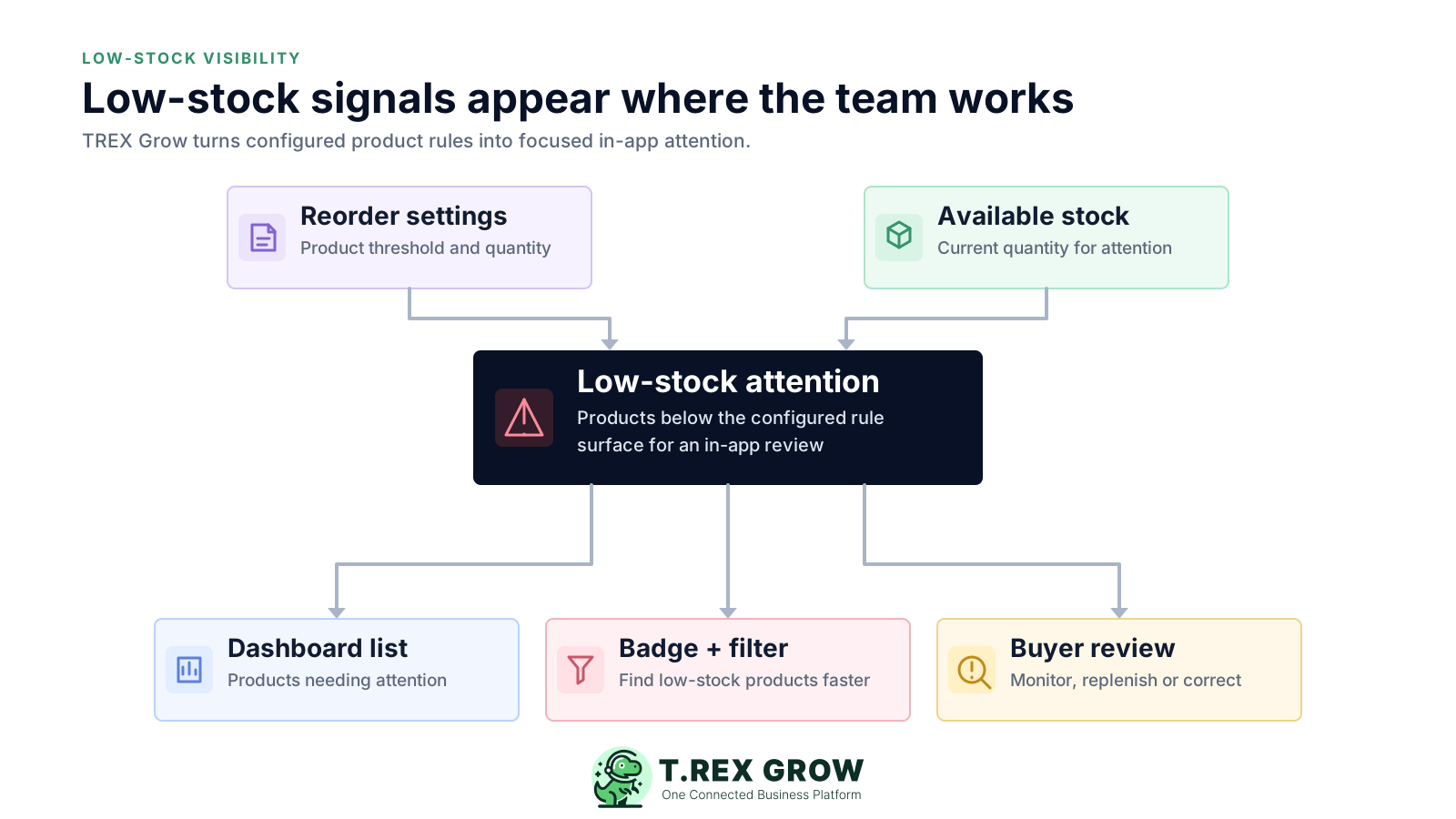
The operational problem is rarely just one low number. It is the delay between that number changing, the right person noticing it, the team checking existing supply, and somebody completing the next action.
Operational pressure
When records live in different places, the person responsible has to reconstruct what happened before they can make a confident decision or follow up.
Sales promises a delivery, then learns that the available quantity cannot support it. The business is forced into an urgent supplier call, a split delivery, or an uncomfortable customer conversation.
A buyer exports products or scans spreadsheet rows, compares balances with thresholds, and creates another list of items to investigate. The list is already ageing while it is being assembled.
A low available balance can mean something different when more stock is incoming or existing units are reserved for customer work. One undifferentiated total hides that operating context.
The team reacts to the signal before confirming whether a purchase order, partial receipt, return, or supplier commitment already explains the position.
A low-stock view can only be useful when the relevant goods have maintained reorder settings, units, and product records. An old rule can create noise or hide genuine urgency.
Several people see the same low-stock item, but nobody records whether it will be monitored, reordered, corrected, or reviewed again. Attention does not become action.
Excel can store a reorder level and calculate a difference, but it does not keep product setup, live quantity states, purchasing context, and the team's response in one operating workflow.
Recurring issues usually point to workflow-control gaps, not one isolated data-entry mistake.
The person reviewing current stock must first find the latest reorder sheet and confirm that its product codes, units, and ownership still match the operating record.
A fast-moving customer item, a slow-moving spare, and a product with an incoming delivery appear in the same red spreadsheet format even though the decisions are different.
A purchase order shows what the business asked for, not necessarily what has arrived and been accepted. Assuming the full order is available can hide a continuing shortage.
Available stock is reviewed without reserved quantity, open customer work, supplier orders, or receiving status. The response may be too small, too large, or duplicated.
A threshold is an attention rule. It cannot know a one-off promotion, supplier shutdown, substitution option, cash constraint, or deliberate decision to discontinue the item.
When a suspicious low-stock item is corrected without a proper receipt, return, or adjustment trail, the number changes but the process issue remains difficult to explain.
The most useful system does not merely turn a cell red. It connects a maintained product rule to a visible attention queue and gives the buyer enough context to decide what should happen next.
Reorder settings belong with the product, unit of measure, supplier, category, and approval context rather than in a detached buyer-only spreadsheet.
Low-stock products should surface where daily work happens through a dashboard list, visible status, or filter instead of requiring a full catalogue scan.
Available, incoming, and reserved quantities help the team distinguish a genuine near-term shortage from stock that is expected or already committed.
Product name, code, unit, category, supplier information, and approval status reduce the risk of reviewing or ordering the wrong item.
The buyer should check open purchasing and the quantity actually received before starting another replenishment action.
Every signal should lead to a deliberate decision: monitor, replenish, correct the record, or retire the rule, with a clear owner and follow-up point.
TREX Grow uses current product and stock context to surface goods that meet the configured low-stock rule. The in-app status focuses attention; the buyer still reviews incoming supply, reservations, open purchasing, supplier context, and the business reason before acting.
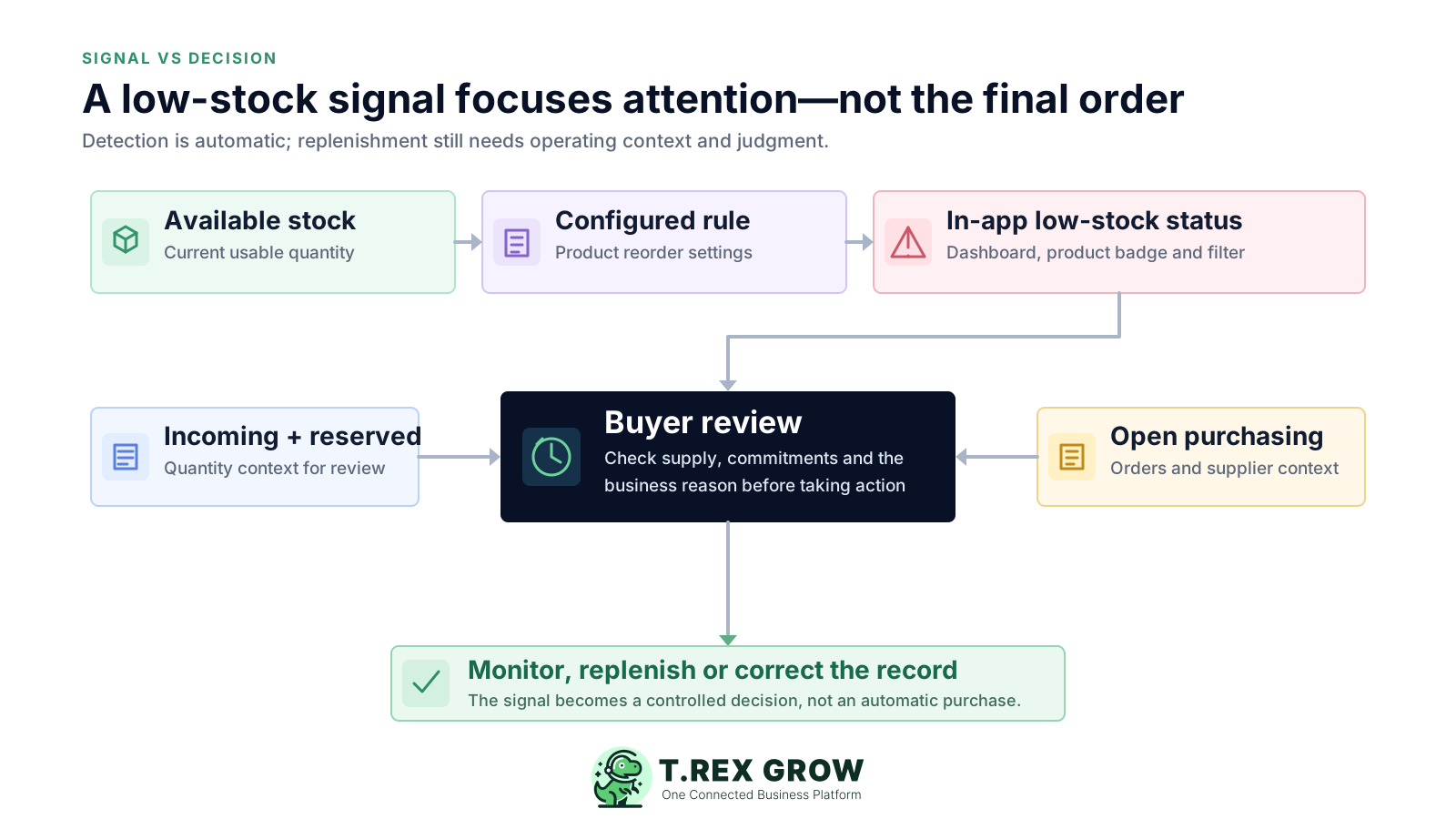
Store replenishment settings with the goods record so the low-stock rule is connected to the product identity and unit the team actually uses.
The Low Stock Products dashboard table gives authorised users a focused list with product name, in-stock or available context, incoming quantity, reserved quantity, and unit of measure.
A visible Low Stock status on relevant product views helps staff recognise that an item needs review without interpreting every number independently.
Use the Low Stock filter to narrow the product list to goods that meet the configured rule instead of scanning the full catalogue.
Check available, incoming, reserved, product, supplier, and open purchasing context before choosing whether to monitor, replenish, or investigate.
The verified low-stock experience is an in-app attention workflow. It should not be presented as automatic forecasting, automatic purchase-order creation, or a promise of email or push notification.
Use a repeatable sequence so the team does more than notice the badge. The process begins with maintained product settings and ends only when the decision has an owner, a status, and a next review point.
Record the current facts in one shared place.
Confirm what is known and what needs attention.
Make the next decision or follow-up accountable.
Complete the next task and record the outcome.
Refresh the shared view when facts change.
A dependable workflow keeps the shared record and the next action aligned.
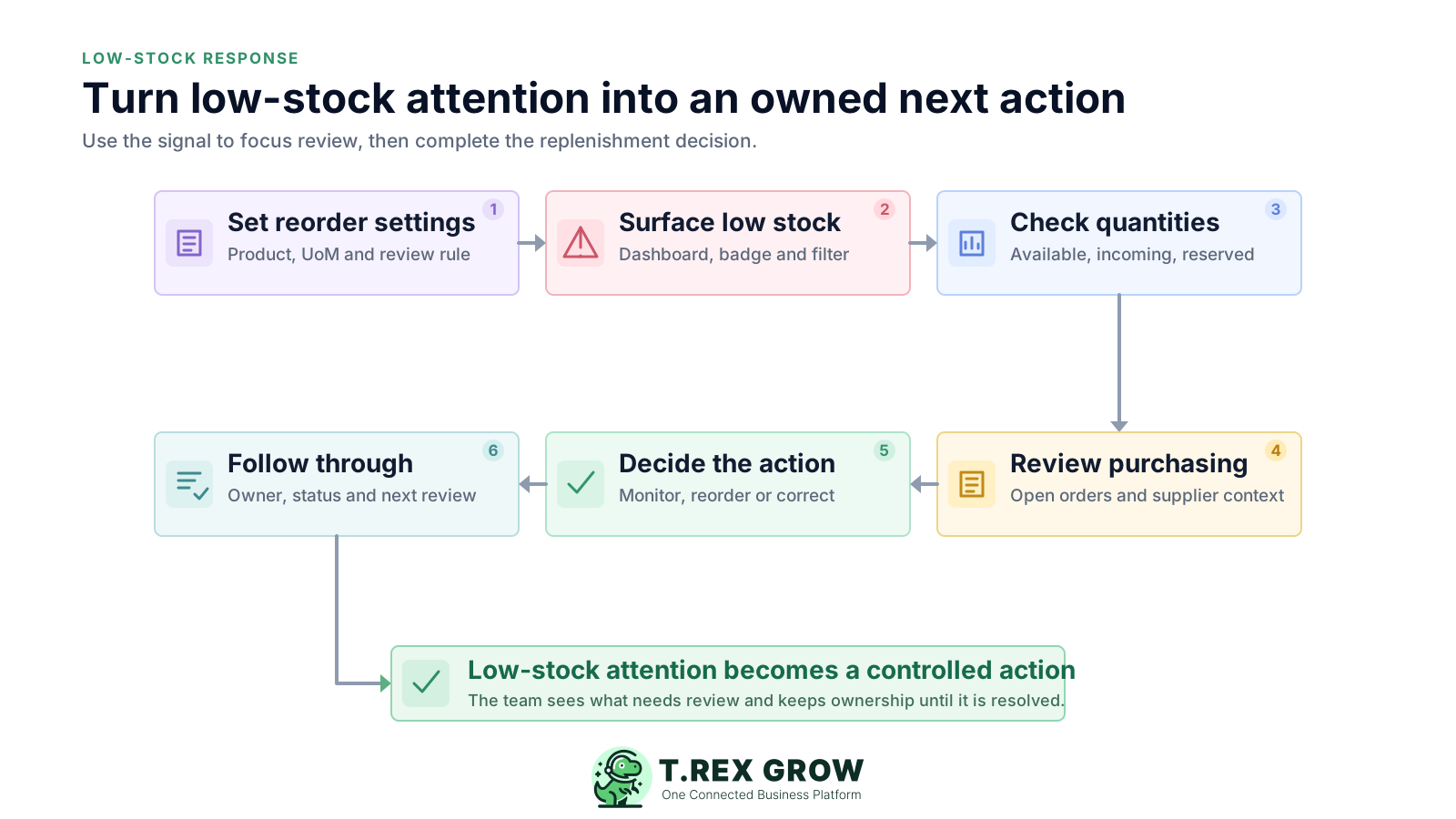
Set product reorder settings: maintain the goods record, unit of measure, supplier context, reorder point or rule, and reorder quantity used by the team. Assign an owner and review the setting when lead time or demand changes.
Surface low-stock goods in-app: use the dashboard table, Low Stock badge, or product-list filter to create a focused attention queue without rebuilding it in a separate spreadsheet.
Check the quantity states: review available, incoming, and reserved quantities so the buyer understands what can be used now, what is expected, and what is already committed.
Review purchasing and receiving: check open orders, supplier context, partial receipts, returns, or other supported activity before creating another replenishment document.
Decide the action: monitor the item, replenish it through the supported purchasing workflow, correct the product or stock record through the appropriate process, or revisit the rule.
Follow through to resolution: give the action an owner, complete the required document or correction, and return to the low-stock view to confirm whether further review is needed.
TREX Grow connects the signal to the wider product, purchasing, inventory, and approval workspace. Feature and module access can vary by plan and permission, so confirm the current scope for the users who will review and act.
Give authorised users a concise dashboard view of products needing attention, including product name, in-stock or available context, incoming, reserved, and unit information.
Make the attention state visible against the product so sales, operations, purchasing, and inventory users can recognise the same condition.
Filter the product catalogue to the current low-stock set and move from a broad product list to a focused daily review.
Maintain a reorder point or configured rule and reorder quantity with the product record instead of keeping the buyer's settings in a separate worksheet.
Review distinct stock states so the response considers current usability, expected receipts, and customer commitments.
Use product name, code, SKU, barcode where maintained, unit, categories, suppliers, and status to identify the correct item and buying context.
Review supported purchase-order, receiving, return, and adjustment activity instead of responding to the signal with an isolated balance change.
Product views and actions follow the user's access, helping the business separate who can see the attention queue from who can maintain or approve records.
This TREX Grow product screen shows how a buyer can recognise low-stock goods while keeping current quantity states, unit, reorder point, reorder quantity, and product approval status in view. It is product evidence—not a conceptual mock-up.
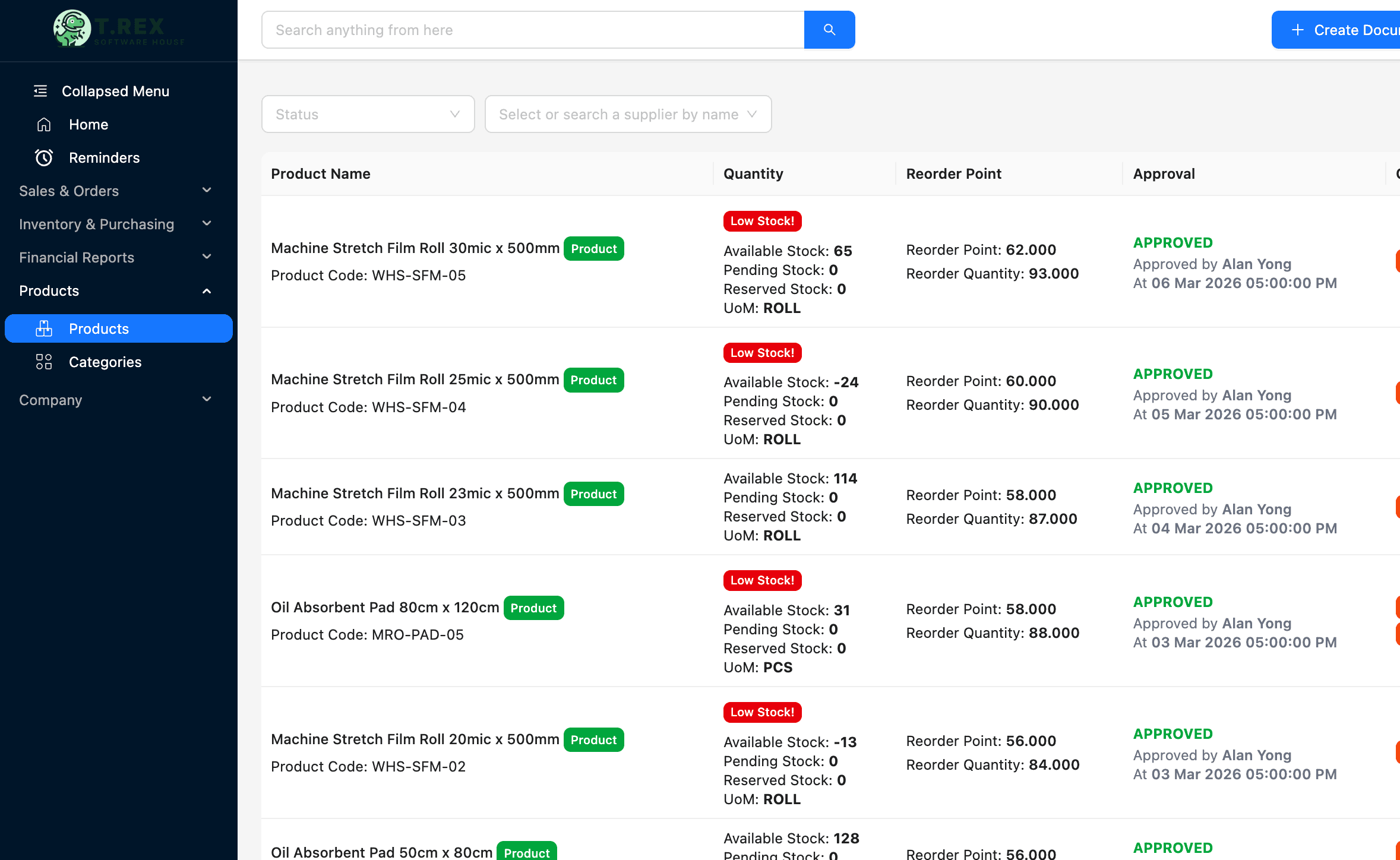
The Low Stock badge makes the relevant product condition visible without asking every user to calculate the rule from scratch.
Available, pending or incoming, and reserved values sit in the same operating view, reducing the chance that one quantity is mistaken for the full stock position.
Reorder point, reorder quantity, unit, and product status remain tied to the item that the team may purchase, receive, sell, deliver, or adjust.
A visible alert is only the first control. Before rollout, test how the rule is maintained, what staff can see, which quantities are available, how purchasing is checked, and who owns the final action.
Configure a small set of products whose shortage would affect customer delivery, revenue, or daily operations. Use real units, lead times, and supplier constraints during the test.
Assign responsibility for reviewing reorder settings when demand, lead time, pack size, supplier, seasonality, or product lifecycle changes.
Document that the in-app signal starts a review. Forecasting, order proposals, email delivery, push delivery, and automatic purchase orders are separate requirements to verify.
If the signal exposes a missing receipt, return, or stock exception, fix it through the appropriate supported workflow instead of editing a number without evidence.
Confirm that the people responsible for the review can access the dashboard or product view and that record maintenance or purchasing actions follow the intended approval path.
Track whether flagged products receive a timely, documented decision and whether repeated alerts come from demand, supplier performance, poor settings, or inaccurate transactions.
Use this table to separate the verified TREX Grow workflow from assumptions that need an explicit product or plan check.
| Requirement | TREX Grow workflow | What to verify |
|---|---|---|
| Detection rule | Goods use configured reorder settings with the current product and stock state | Rule ownership, unit, supplier lead time, and review frequency |
| In-app visibility | Low Stock Products dashboard table, Low Stock badge, and product-list filter | The roles, permissions, and daily view each reviewer will use |
| Decision context | Available, incoming, reserved, unit, product, supplier, and related purchasing context | How your team defines each stock state and handles partial receipts |
| Replenishment response | Buyer reviews the signal and uses the supported purchasing or record-correction workflow | Approval path, order ownership, supplier constraints, and follow-through |
| Notification channel | This page verifies in-app attention through dashboard, badge, and filter | Confirm separately if email, push, SMS, or other outbound delivery is essential |
| Advanced automation | Connected SME product, purchasing, inventory, and warehouse context | Forecasting, automatic order proposals, automatic purchase creation, integrations, scanning, serial, batch, or expiry needs |
The best practice is to make the next action clear before the situation becomes urgent.
The workflow suits SMEs that need a shared, product-led replenishment queue inside connected sales, purchasing, inventory, and warehouse operations. It is most useful when the business values a clear signal and controlled human decision more than opaque automation.
Customer fulfilment depends on maintaining enough stock across a catalogue of goods, and buyers need a repeatable way to focus their daily review.
The item may support service delivery rather than direct resale, but shortages still interrupt work and need a maintained product and reorder context.
A dashboard list, visible badge, and low-stock filter can replace a broad manual catalogue review with a smaller attention queue.
Available, incoming, and reserved quantities should inform the same decision instead of living in separate team spreadsheets.
The team is comfortable using the signal to start a review and assigning an owner to monitor, replenish, or correct the product record.
If the operation needs outbound alerts, demand forecasting, automatic purchasing, scanner-led work, serial or batch traceability, expiry control, or complex integrations, verify those capabilities separately.
Create a TREX Grow workspace, add a real goods record, set its reorder context, and test how your team moves from an in-app Low Stock signal through quantity and purchasing review to an owned action. Start with core product setup, then use the current trial and plan comparison to evaluate the inventory depth your operation needs.
Low stock alert software identifies goods that meet a configured stock rule and brings them to the team's attention. A useful system also shows the product, unit, current quantity states, reorder context, and related purchasing information needed to decide whether to monitor, replenish, or correct the record.