
Phase 4 · Customer setup

Import Customer Data into TREX Grow

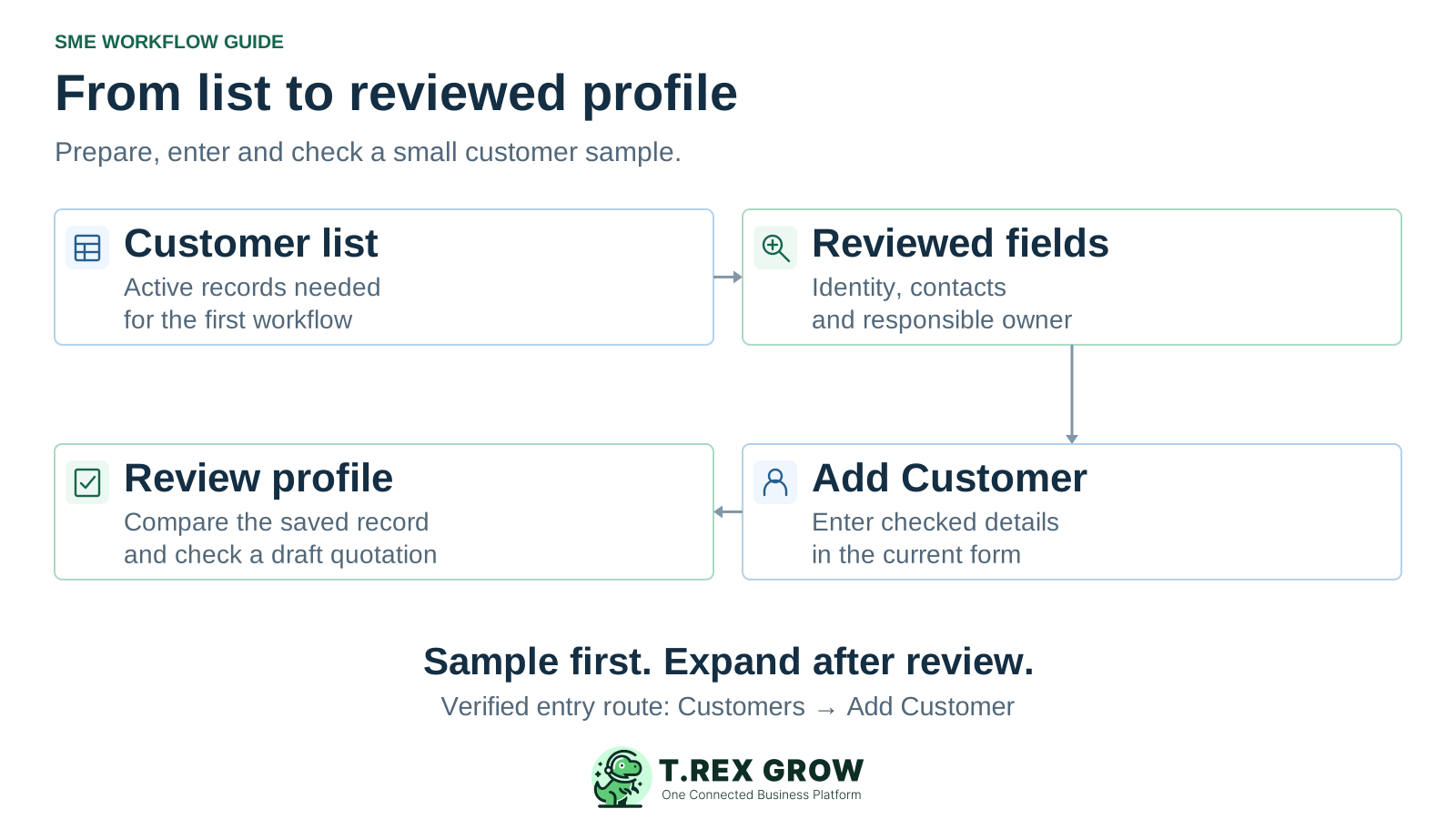
Prepare a clean customer list, add reviewed profiles and check the first record in a draft quotation. The verified customer workflow uses Customers → Add Customer. Before planning a bulk customer upload, confirm the available transfer method and service scope; the documented product CSV importer is a separate flow.

Customer setup stages from an existing list through reviewed fields and Add Customer to a checked profile
Education

Can I upload a customer spreadsheet directly?

A customer CSV or Excel uploader has not been verified in the current customer workflow. The verified entry route is Customers → Add Customer. TREX Grow's documented bulk CSV flow is for products. Use this page to prepare and enter customer profiles, and confirm any bulk-transfer method before committing to a large file or migration date.

Keep these setup routes separate

Data you want to bring inWhat this guide establishes
Customer master recordsPrepare the fields, check existing records and use the individual Add Customer form with the appropriate permissions.
A customer CSV or Excel fileConfirm the supported transfer route and service scope first. This page supplies no customer upload template, automatic mapping or bulk-import promise.
Earlier documents, attachments and balancesPlan these separately. Creating a customer profile does not establish historical transaction or opening-balance migration.
Education

Prepare the fields that belong to the customer profile

Keep a dated source copy and a separate working list. The table below is a preparation checklist, not a file format accepted by an uploader. Follow the current form's required fields and validation for the customer and country you are setting up.

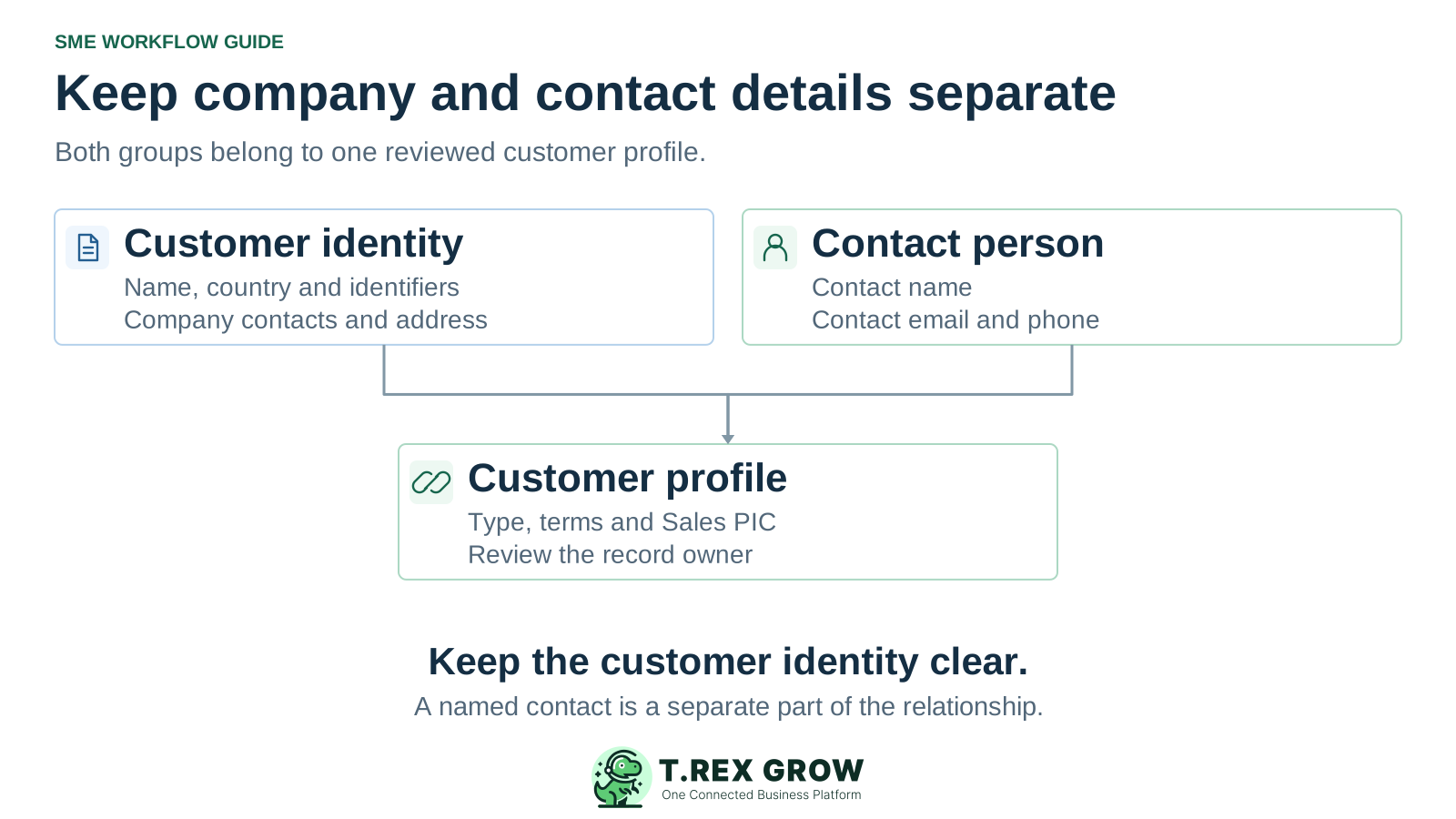
Customer identity and contact-person details remain separate groups within one reviewed customer profile, alongside type, terms and ownership

Customer preparation and field review

Field groupPrepare from your sourceCheck before saving
Name, country and customer typeThe intended customer name, country and whether the record is a Prospect or Customer.Choose the correct identity and type deliberately. These fields are required by the current customer form.
IdentifiersThe relevant ID type and value, and any verified country-specific details requested by the form.Preserve identifiers as text in the working list. Do not invent missing values or treat a saved profile as tax-identity validation.
Company contact detailsThe customer's general email and phone details.Confirm that these belong to the intended customer and remain current. Keep them separate from a named person's details.
Contact personContact Name, Contact Email and Contact Phone Number.Identify the person who should handle day-to-day communication. Do not put the contact's name in the customer-name field.
AddressThe address information needed by the current country-specific form.Check address lines, city, postal code, state and country where shown. Preserve useful leading zeroes in the working list.
Payment terms and ownershipReviewed payment terms and the intended Assigned To / Sales PIC.Confirm the terms and select an appropriate active workspace user if assigning ownership. Name who will maintain the record.
Best practices

Review duplicates and unknown details before entry

Start with active customers needed for the first workflow. Have a named reviewer resolve unclear identities and record unresolved questions in your working list. This is a manual preparation check, not a promise of automatic duplicate matching or merging.

Do this

Search the workspace before adding a record

Look for the customer using the available search and inspect likely matches. Compare the identity and current contact details before deciding whether to update an existing profile or create a new one.
Do this

Resolve similar names using more than spelling

Review identifiers, country and other reliable source details with the responsible person. Similar names can belong to different customers, while a shared contact email does not prove two records are the same entity.

Do this

Keep unanswered questions visible

Mark missing or disputed details and assign a reviewer. Do not fill a required field with a guessed identifier, contact or country simply to get the record saved.

The best practice is to make the next action clear before the situation becomes urgent.

Workflow

Use the current Add Customer flow with a small reviewed sample

Prepare a few representative records first. Use your normal authorised workspace user, follow the form's validation and review the saved result before adding the rest of the list.

A repeatable operating workflow

Capture

Record the current facts in one shared place.

Check

Confirm what is known and what needs attention.

Assign

Make the next decision or follow-up accountable.

Act

Complete the next task and record the outcome.

Review

Refresh the shared view when facts change.

A dependable workflow keeps the shared record and the next action aligned.

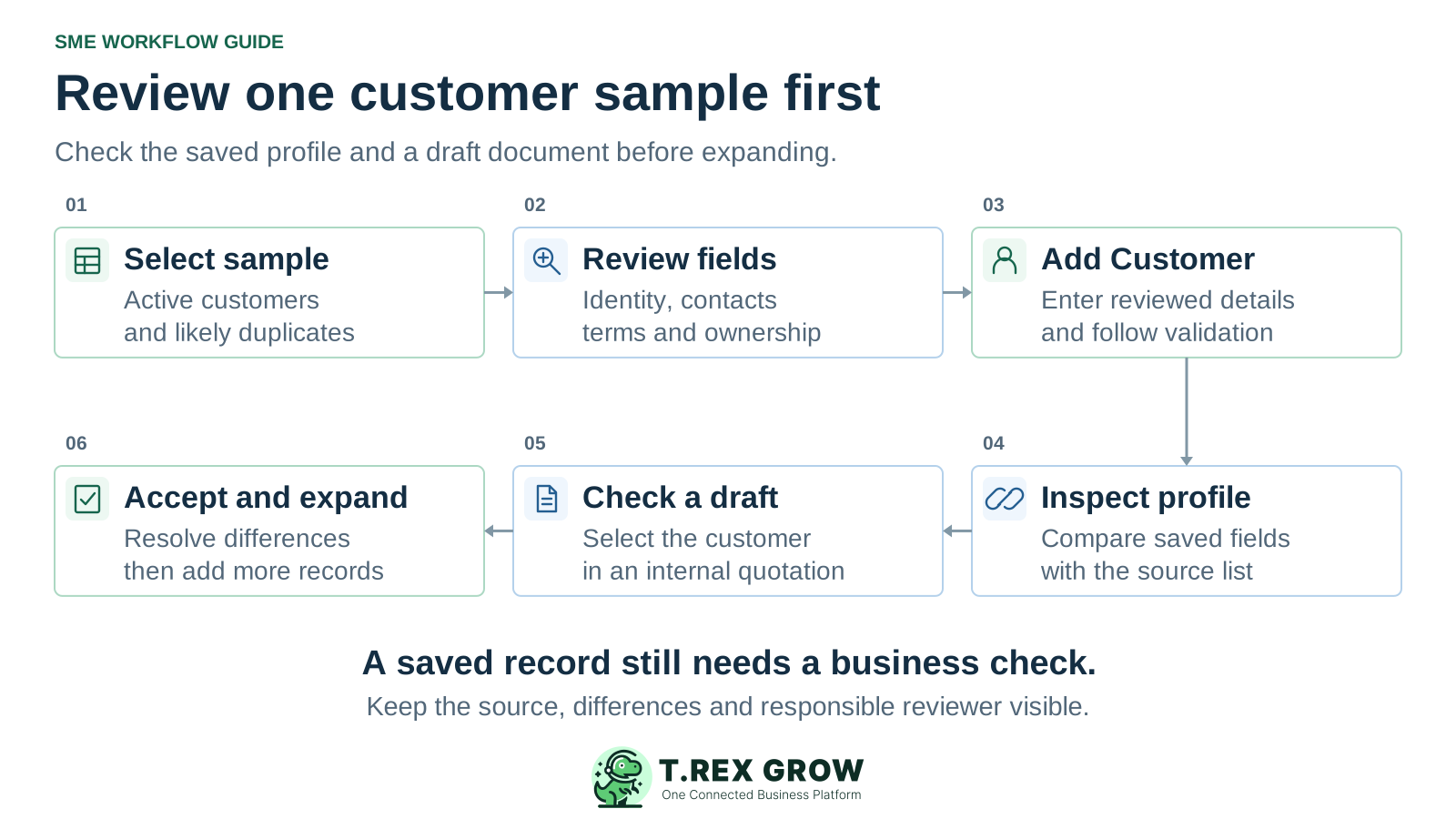
Six customer setup steps: select sample, review fields, add customer, inspect profile, check a draft and accept before expanding
1

Select the sample: keep a dated source copy, choose the active customers needed first and review likely duplicate records in the workspace.

2

Review the fields: confirm name, country, customer type, relevant identifiers, company contact details, contact person, address, terms and any intended Sales PIC.

3

Add the customer: open Customers and choose Add Customer. Enter the reviewed details and select Create Customer only after addressing the form's validation messages.

4

Inspect the saved profile: compare it with the source, verify the intended record and check the contact, country, type, terms and ownership details within the user's access.

5

Check a draft quotation: select the saved customer in an internal draft, inspect the customer details and retain the intended source relationship. No customer-facing send is needed for this review.

6

Accept and expand: record any differences, have the responsible reviewer accept the sample and continue with the remaining in-scope customers using the confirmed entry or transfer method.

Solution

See the customer list you will review after setup

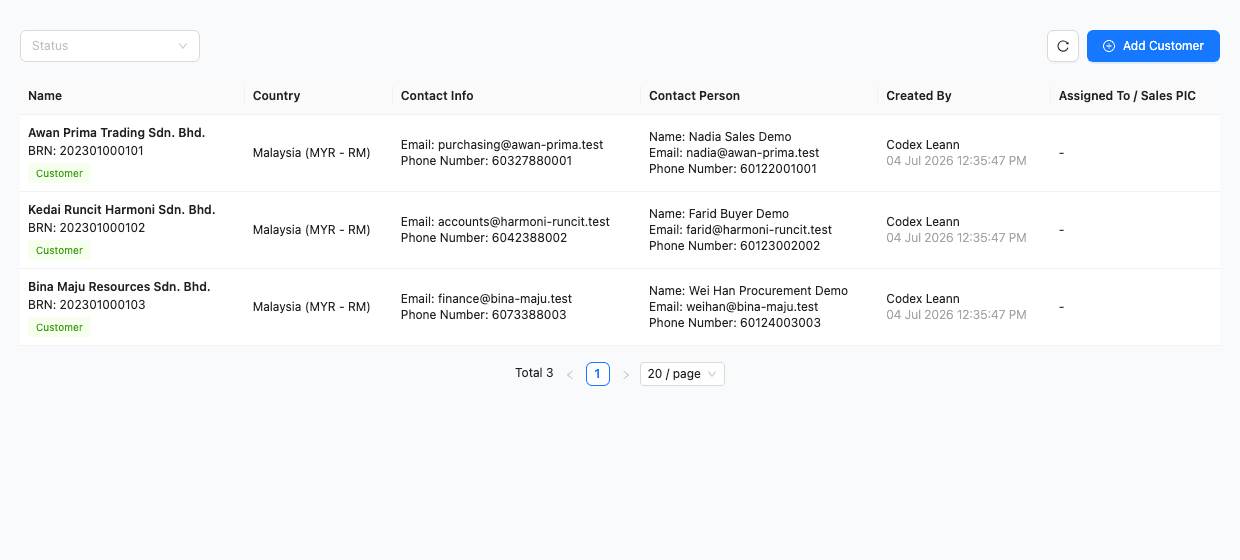
This existing TREX Grow demo screenshot shows customer names, country, company contact information, named contact people, record creators and an Assigned To / Sales PIC column, with Add Customer available. The displayed assignment values are blank. It illustrates fields to review; it is not an import preview, a completed migration or proof that the sample has been accepted.

Operations work better when records and next actions are connected

TREX Grow demo customer list with Add Customer, three sample records, country, separate company and contact-person details, creator and Sales PIC columns

Check identity and contact roles separately

Compare the intended customer name and country with the reviewed source. Check the customer's general contact information separately from the person responsible for day-to-day communication.

TREX Grow Operations Hub

Review the profile beyond the list columns

Open the saved record to inspect the in-scope fields that are not visible in the list, including address, payment terms and relevant identifiers. Use your authorised role to correct any unresolved difference.

Best practices

Accept the sample before making it the team's starting point

A saved record confirms that entry completed; it does not replace a business review. Keep a short manual checklist of the intended customer, reviewed fields and draft-document result, with a named person responsible for acceptance.

Do this

Reconcile the records you intended to add

Compare the small sample with the saved profiles. Investigate missing or repeated records and field differences before continuing. If a save is interrupted, inspect the list before trying again to avoid creating a second profile.

Do this

Confirm country before document activity

The current customer edit flow restricts country changes when active document activity exists or cannot be verified. Review the country before creating business documents rather than assuming it can be changed later.

Do this

Keep older work in its agreed place

Decide how earlier quotations, invoices, attachments and open balances remain accessible. Adding a customer profile does not recreate that history or establish an accepted financial opening position.

The best practice is to make the next action clear before the situation becomes urgent.

Education

Set access and ongoing maintenance before expanding

Customer setup should have an owner after the first list is entered. Customer viewing, creation and updates follow their respective permissions. If Add Customer is missing or a save is blocked, ask the workspace owner to review the permissions needed for the intended task.

Use only the details needed for the workflow

Prepare the relevant customer and contact fields from an authorised source. Review who needs access to the working file and keep unrelated private information out of the preparation list.

Name the person who maintains current details

Assign responsibility for contact changes, payment terms and record ownership. Check the intended profile before adding another customer when a new enquiry arrives.

Check plan scope for the next workflow

Customer management is included in TREX Grow's current Free plan. Review current pricing and the relevant plan before expanding into additional document or operational workflows.

Next step

Start with a reviewed customer sample

Create a free workspace, prepare a small customer list and use Add Customer to enter the first reviewed profiles. Check the saved details in an internal draft quotation. For a large customer file, confirm the available transfer method and service scope before scheduling the wider move.

Start Free and set up customers

A customer file uploader has not been verified in the current customer workflow. The verified route is Customers → Add Customer. Use a reviewed working list for preparation and confirm the supported bulk-transfer method and service scope before planning a larger move. Product CSV import is a separate flow.