Where is authority configured?
The tour should show the screen that separates module access from the responsibility to request or approve.

See how TREX Grow separates module access from approval responsibility, holds supported work in Pending Approval, and keeps the reviewer and decision time visible on the operating record.

The decision is not whether the product has an Approve button. It is whether the right people can prepare and review one current record, see when it is waiting, and confirm what happened without rebuilding the evidence in chat or a spreadsheet.
Operational pressure
When records live in different places, the person responsible has to reconstruct what happened before they can make a confident decision or follow up.
The tour should show the screen that separates module access from the responsibility to request or approve.
A completed submission should have a visible waiting state rather than relying on a private message to explain its position.
The decision should happen on the current operating record with the relevant party, item, amount, quantity, reason or remarks available.
The team should verify the supported PDF, product, stock, expense or next-step effect for the exact module being tested.
Status, approver identity and approval time should provide practical context where that module supports them.
The buyer should identify any need for thresholds, multi-level routes, delegation, escalations or formal rejection handling before rollout.
TREX Grow stores permissions on the user's company membership. For supported modules, access and approval responsibility work together: None can use a direct path, Request sends the live record into review, and Approve gives the matching module reviewer the approval action.
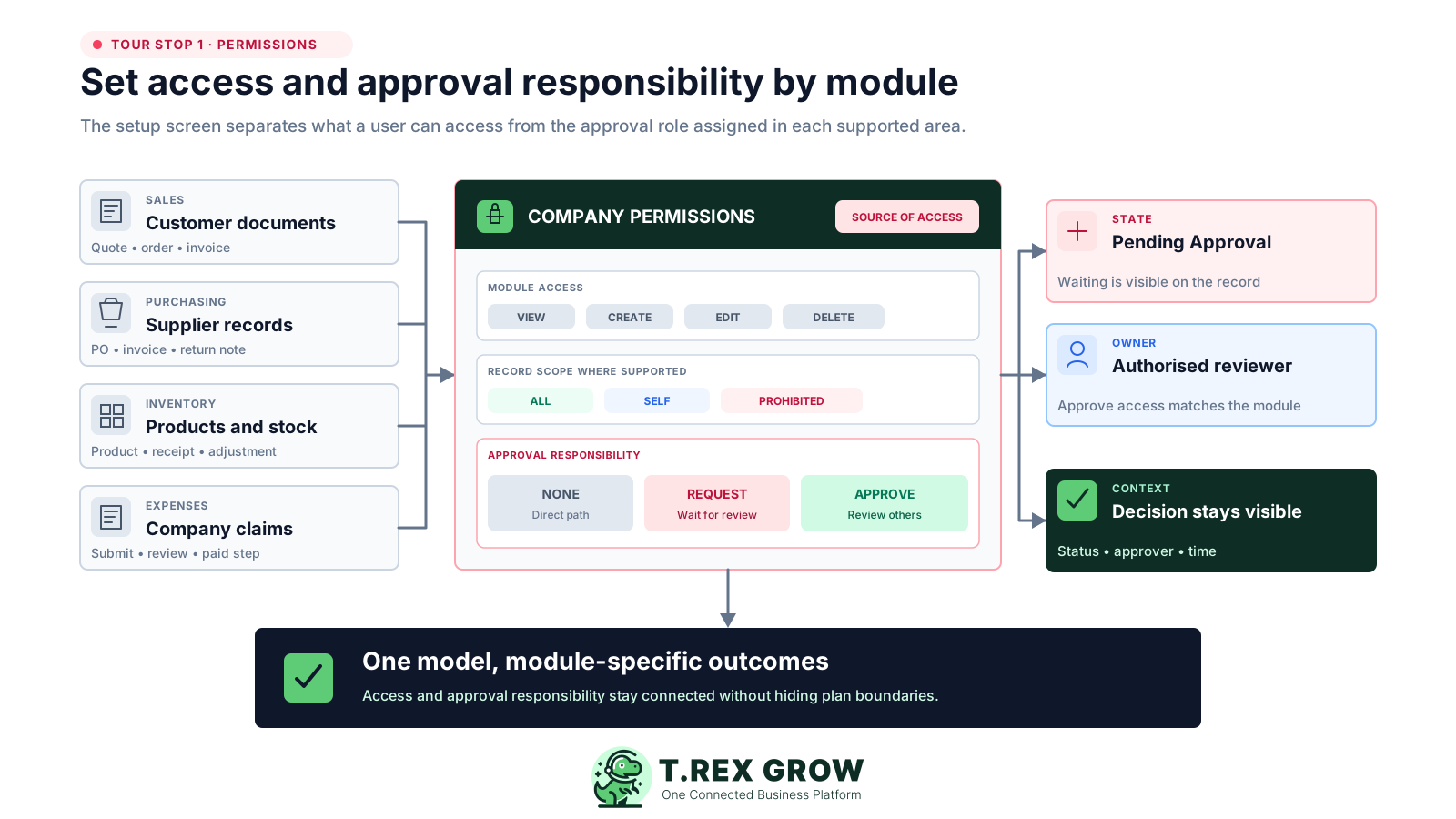
No Access, View, Edit and Admin presets define what a company member can do in each module.
None, Request and Approve are assigned separately for supported approval modules.
A requested record can display Pending Approval on the live operating screen while the decision is outstanding.
Approval may generate an official document, activate a record, apply stock or enable another step depending on the workflow.
Use one safe, representative record and separate requester and reviewer accounts. The pass condition is simple: both people can complete their part, explain the current state, and confirm the intended operating outcome from TREX Grow.
Record the current facts in one shared place.
Confirm what is known and what needs attention.
Make the next decision or follow-up accountable.
Complete the next task and record the outcome.
Refresh the shared view when facts change.
A dependable workflow keeps the shared record and the next action aligned.
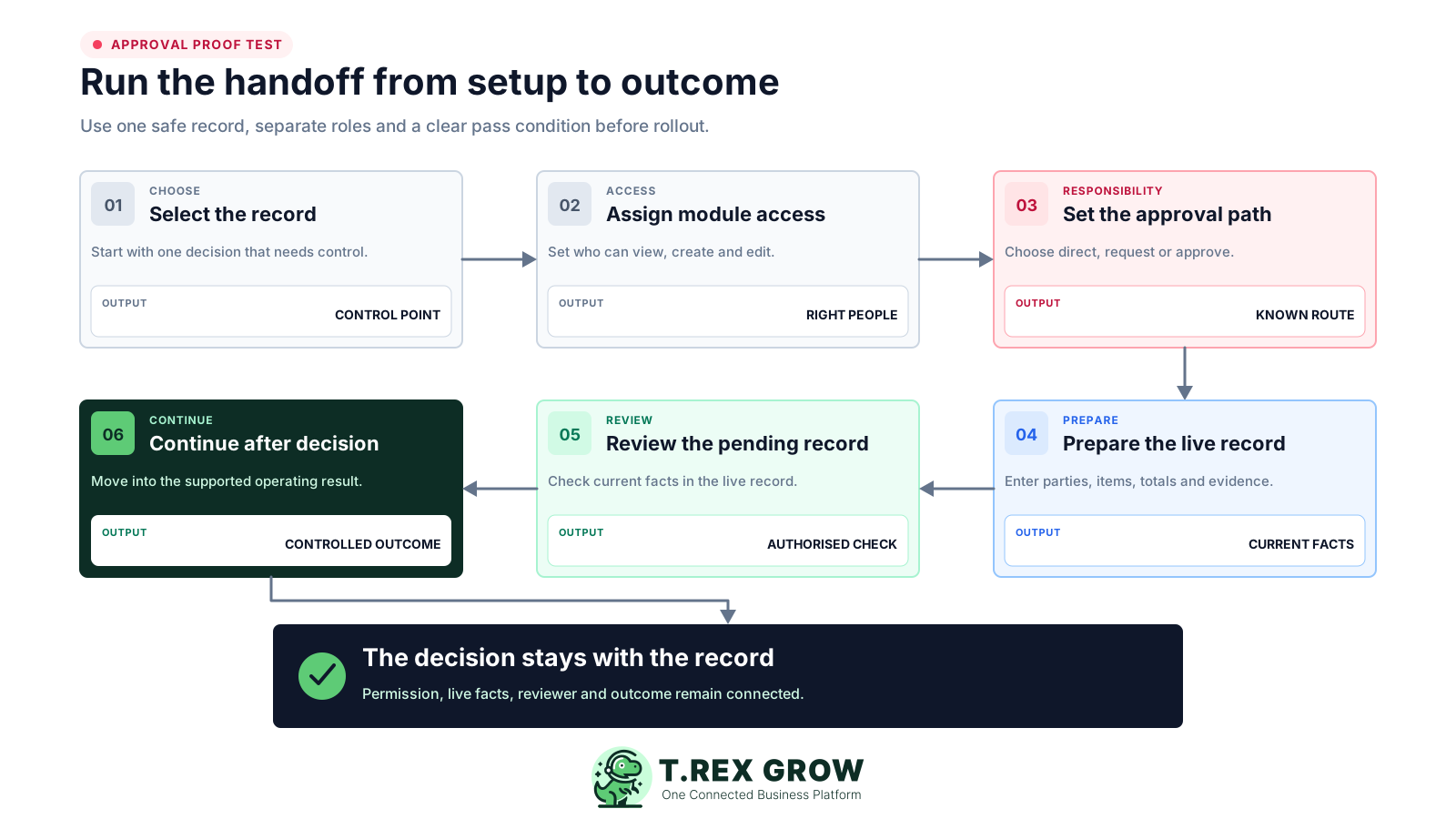
Choose one supported record whose final state or downstream effect requires a real decision.
Assign only the module access the requester and reviewer need to prepare and inspect that record.
Set Request for the preparer and Approve for the authorised reviewer in the same supported module.
Prepare the live record with the party, items, amounts, quantities, dates, references and internal evidence the reviewer needs.
Submit or finalise the record, confirm Pending Approval, then have the reviewer open that same record and use its supported approval action.
Reopen the record and verify the visible status, approver and time plus the module-specific PDF, product, stock, expense or next workflow result.
Pair each screen with a decision question so the trial proves a real handoff rather than a collection of menu clicks.
| Tour stop | Screen evidence | Decision question |
|---|---|---|
| 1. Controlled record | Supported module and intended operating effect | What exactly should wait for another person's decision? |
| 2. Module access | No Access, View, Edit or Admin for each user | Can each person see and change only what the role requires? |
| 3. Approval responsibility | None, Request or Approve where the module supports it | Is preparation clearly separated from approval authority? |
| 4. Live record | Current commercial, quantity, date, reference and internal context | Can the reviewer decide without reconstructing the facts elsewhere? |
| 5. Pending review | Pending Approval plus the module's approval action | Can both users identify who owns the next action? |
| 6. Decision outcome | Approved status, approver, time and supported operating result | Did the decision control the intended next state? |
This real TREX Grow permissions screen uses a safe, unsaved demo user. It shows that access and approval are separate choices, and that approval is available only on supported rows. The example gives Edit plus Approve to Product, Purchase Order and Stock Entry & Inventory Adjustment while other rows remain View or unavailable.
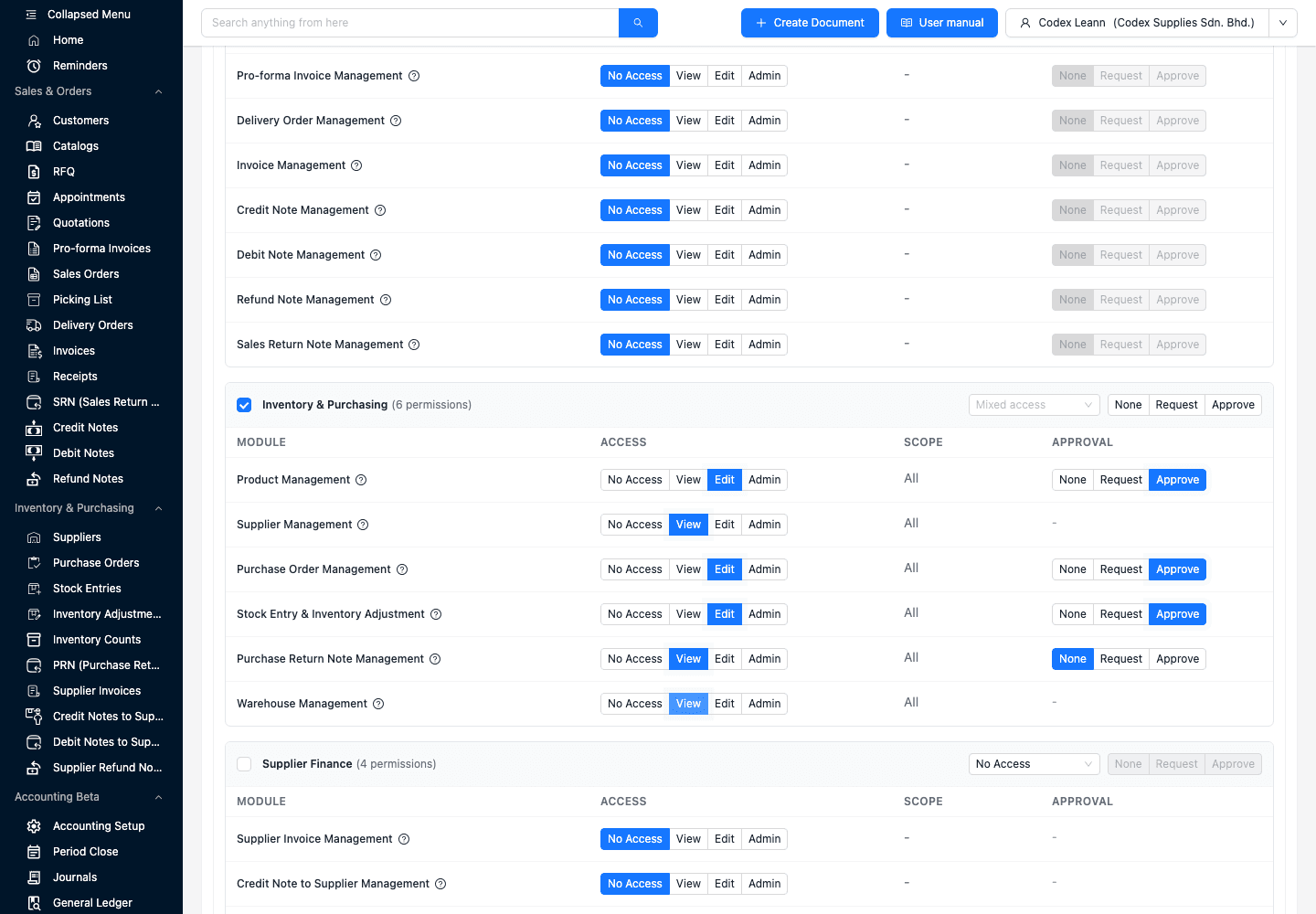
Choose No Access, View, Edit or Admin for the business area before assigning an approval responsibility.
Use None, Request or Approve only on supported rows so authority follows the record being controlled.
Supplier Management, Warehouse Management and Supplier Invoice Management do not expose the same approval control in this current screen.
Configure the eventual requester and reviewer separately instead of sharing one owner account during rollout.
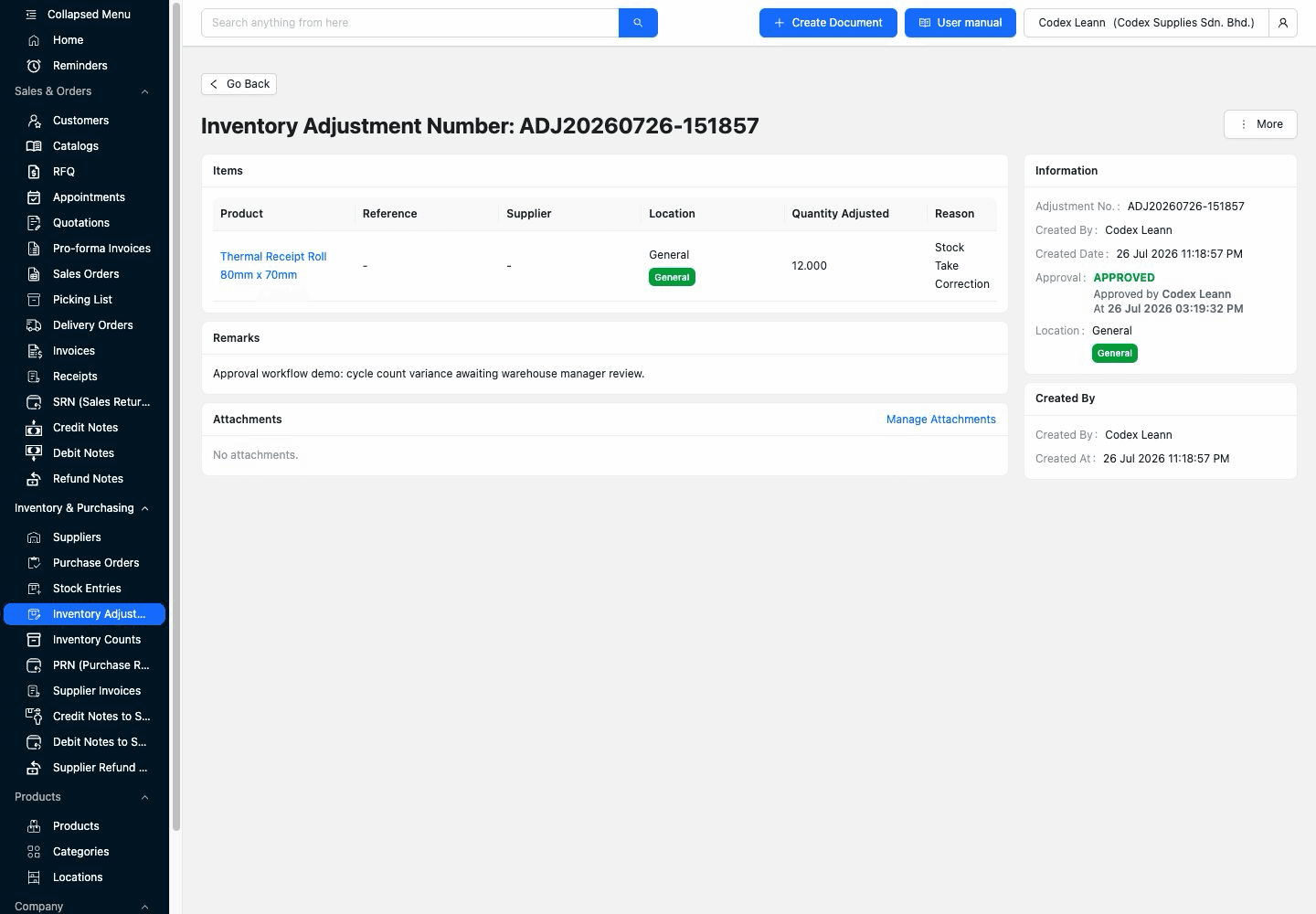
The safe demo inventory adjustment below shows the product, location, adjusted quantity, reason, remarks and creator beside Pending Approval. The authorised action appears on the same screen, so the reviewer can inspect the current record instead of approving an isolated message.
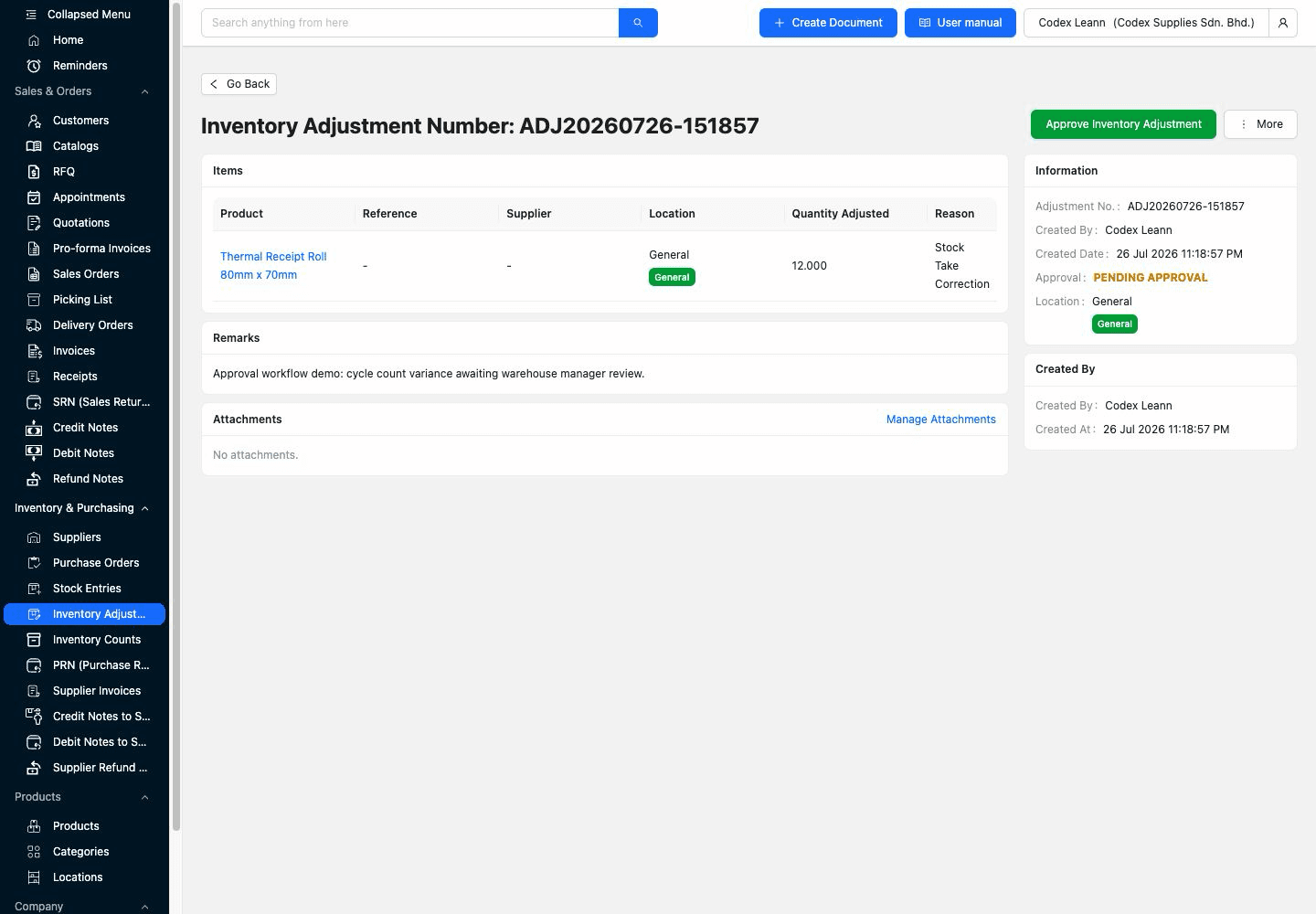
Pending Approval identifies that preparation is complete while the authorised decision remains outstanding.
Product, quantity, location, reason and remarks remain visible beside the decision point in this inventory example.
Approve Inventory Adjustment is presented to a user with the matching stock-entry approval authority.
Verified workflows such as quotation, invoice, purchase order, product and stock entry can notify matching approvers, but the exact behavior should be tested per module.
After approval, inspect the same record again. In this safe demo, the status changes to Approved and the approver identity and time appear on the record. A production trial should then confirm the exact downstream result for the chosen module.
Use one record before and after the decision so no approval-only copy obscures what changed.
Approved status, approver identity and approval time provide a practical answer to who decided and when.
Confirm the supported official PDF, active product, stock movement, payable state or next workflow step that the approval was meant to control.
Visible status and reviewer context are useful operating evidence, but this tour does not present them as a complete immutable audit log.
The best practice is to make the next action clear before the situation becomes urgent.
Users and permissions are listed across current TREX Grow plans, while the records they control remain plan-dependent. Start with the smallest plan that includes the real module, then test its specific status, notification and outcome instead of assuming every approval behaves identically.
An approval permission cannot activate an operating module that is absent from the selected plan.
Starter, Essential and Premium currently include a one-time 30-day trial for testing plan-dependent workflows.
Use the current Pricing page for the final feature and plan check rather than copying subscription figures into the approval procedure.
Plan availability can change, so use the current Pricing page as the final source before rollout.
| Operating area | Verified approval examples | Current plan starting point | Tour boundary |
|---|---|---|---|
| Core records | Quotation, invoice and product | Free | Test the exact document or product outcome separately. |
| Broader sales and expenses | Sales order, pro-forma invoice, delivery order, selected notes and company expense | Starter | Company expenses have their own self-approval rule. |
| Purchasing and inventory | Purchase order, stock entry, inventory adjustment and purchase return note | Essential | Supplier Invoice Management does not expose an approval choice in the current permission matrix. |
| Inventory counts | Plan-dependent count-session approval using stock-entry authority | Premium | Warehouse Management itself is a separate permission without the same approval choice. |
The verified TREX Grow model is a practical, module-based None, Request and Approve path. This tour does not establish amount or budget thresholds, conditional or parallel routes, multiple approval levels, delegation, escalation, SLA timers, automated reminder sequences or structured rejection reasons. Treat any of those as separate requirements during evaluation.
Recurring issues usually point to workflow-control gaps, not one isolated data-entry mistake.
A successful click-through is not enough. Ask the actual preparer and reviewer to complete one ordinary case and one correction case, then document the rule before expanding approval into another module.
Write down the exact record and operating effect that should wait for another person's authority.
Test with the real requester and reviewer role designs so permissions are proved rather than inferred from the owner account.
Use representative parties, items, values, dates and evidence without using sensitive or irreversible production data.
Document how the team will amend or replace a record when the reviewer cannot approve it because advanced rejection routing is not being claimed.
Verify the official document, product state, stock movement, expense state or next action the approval is intended to control.
Reuse the pattern only after the next module's plan, permissions, notifications, status and result have been verified.
The best practice is to make the next action clear before the situation becomes urgent.
Choose a supported record, configure a requester and reviewer, and follow it from live preparation through Pending Approval to the intended result. Use TREX Grow's 30-day paid-plan trial when the module requires Starter, Essential or Premium.
It shows the real TREX Grow path from company-member module permissions through None, Request or Approve responsibility, a live record in Pending Approval, and an approved record with reviewer and time context.